
How to Change Bundle Builder Text to another Language
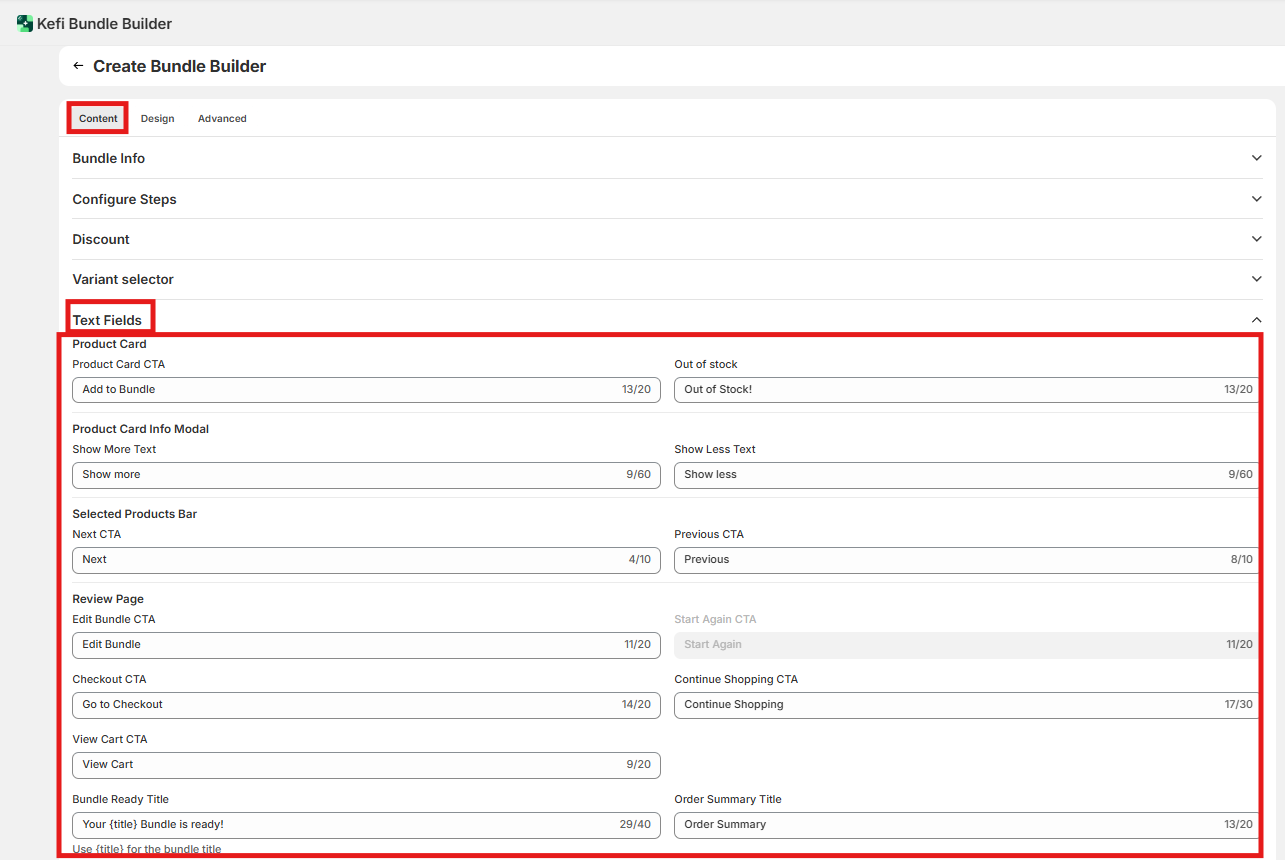
Where to find this: Bundle Builder editor → Content tab → Text Fields
On this page :
Product card & info modal
Navigation & step progress
Review page & checkout actions
Pricing & order summary labels
Recommended defaults by scenario
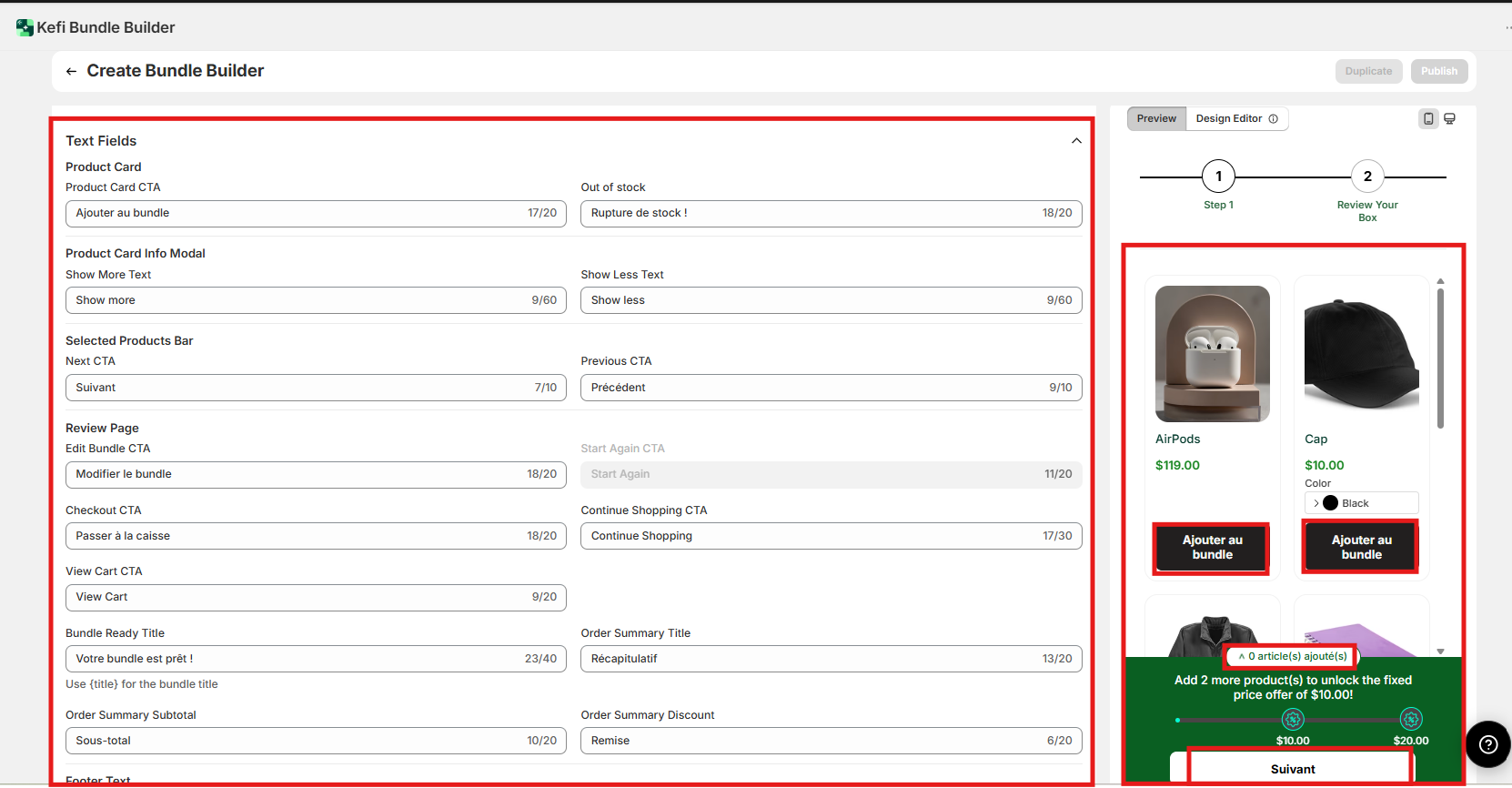
End-to-end example: French storefront
FAQ
Product card & info modal
These labels appear on individual product cards and inside the product details modal.
Product Card CTA Default: Add to Bundle The button shoppers tap to select a product. This is the most visible piece of copy in the builder — get this right first. When to update: Any time you're translating or customizing brand voice.
Out of stock label Default: Out of Stock! Shown on a product card when a variant has no available inventory. When to update: Any time you're translating. Also update if your brand uses softer language (e.g., "Currently unavailable").
Show More / Less text Default: Show More / Show Less The toggle inside the product details modal that expands or collapses the product description. When to update: When translating. Low priority for brand voice customization — most customers don't notice this label.
Navigation & step progress
These labels appear in the selected-products bar as shoppers move between bundle steps.
Next CTA Default: Next Advances the shopper to the next bundle step.
Previous CTA Default: Previous Returns the shopper to the prior step.
Bundle Item(s) Added Default: Item(s) Added Status text showing how many selections the shopper has made in the current step (e.g., "2 Items Added"). When to update: Always update Next and Previous when translating. For the items-added string, check whether your language handles plurals differently — a static string may not cover all cases.
Review page & checkout actions
These labels appear on the final review screen after the shopper completes all bundle steps.
Bundle Ready Title Default: Your Bundle Is Ready! The headline at the top of the review/confirmation screen.
Checkout CTA Default: Go to Checkout The primary action button that sends the shopper to checkout. Highest-stakes button on the page — translate accurately.
View Cart CTA Default: View Cart Secondary button shown when the bundle is added to cart rather than going directly to checkout. This is a separate field from the Checkout CTA — update the correct one based on how your bundle is configured.
Continue Shopping CTA Default: Continue Shopping Lets the shopper return to the store without checking out.
Edit Bundle CTA Default: Edit Bundle Returns the shopper to the builder to make changes.
Start Again CTA Default: Start Again Clears all selections and restarts from step one.
Pricing & order summary labels
These labels appear in the order summary panel on the review screen.
Order Summary title Default: Order Summary The heading of the summary panel.
Subtotal label Default: Subtotal Line item label before discounts are applied.
Discount label Default: Discount Label for the discount line in the summary.
Total label Default: Total Label for the final price.
Empty Card Footer text Default: (blank) Text shown in the bundle builder footer when no items have been selected yet. Useful for prompts like "Select your first item to get started." Leave blank for a clean, minimal look.
Free text Default: Free Displayed on a product card when a 100% discount is applied — replaces the price entirely. Update this if your brand uses a different word (e.g., "Gift" or "Bonus").
Note: The Free text field only appears when a product in the bundle actually has a 100% discount applied. If you don't see it during preview, temporarily set a product to 100% off to confirm your translation is saving correctly.
Recommended defaults by scenario
Scenario | Recommended approach |
English-only store, no customization | Leave all fields blank. Defaults work out of the box. |
Full translation (e.g., French) | Fill in every field. Any blank field falls back to English, creating a mixed-language experience. |
English store, custom brand voice | Update Product Card CTA, Checkout CTA, and Bundle Ready Title only. |
Promotional bundle with a free gift item | Update Free text to "Gift" or "Bonus." Add Empty Card Footer text to prompt shoppers to start selecting. |
End-to-end example: French storefront
Goal: Fully translated bundle builder for a French-language store. Every field is filled in — leaving any blank reverts to English.
Field | English default | French translation |
Product Card CTA | Add to Bundle | Ajouter au bundle |
Out of stock | Out of Stock! | Rupture de stock ! |
Next CTA | Next | Suivant |
Previous CTA | Previous | Précédent |
Bundle Ready Title | Your Bundle Is Ready! | Votre bundle est prêt ! |
Checkout CTA | Go to Checkout | Passer à la caisse |
Edit Bundle CTA | Edit Bundle | Modifier le bundle |
Start Again CTA | Start Again | Recommencer |
Order Summary | Order Summary | Récapitulatif |
Subtotal | Subtotal | Sous-total |
Discount | Discount | Remise |
Total | Total | Total |
Free text | Free | Offert |
Steps:
Go to Content tab → Text Fields in the bundle builder settings.
Fill in all fields using the translations above (or your own).
Save and preview the bundle as a customer to verify all labels render correctly.
FAQ
What happens if I leave a field blank?
It reverts to its English default. If you're doing a partial translation, shoppers will see a mix of your translated strings and English. There's no way to suppress a field — it will always show either your custom text or the default.
Can I use different text on mobile vs. desktop?
No. Text field values are the same across all devices. If a label is too long for a mobile button, use a shorter translation or abbreviation.
I updated the Checkout CTA but it still says "View Cart." Why?
These are separate fields. Which button appears depends on your bundle's checkout behavior — if your bundle adds to cart rather than going directly to checkout, the View Cart CTA is the one that shows. Update that field instead.
Is there a way to sync translations automatically from my Shopify language settings?
No. Text Fields require manual entry. There is no automatic sync with Shopify's translation layer or third-party translation apps like Weglot or Langify.