
How to Manage Pricing Display Options in the Bundle Builder
In this article:
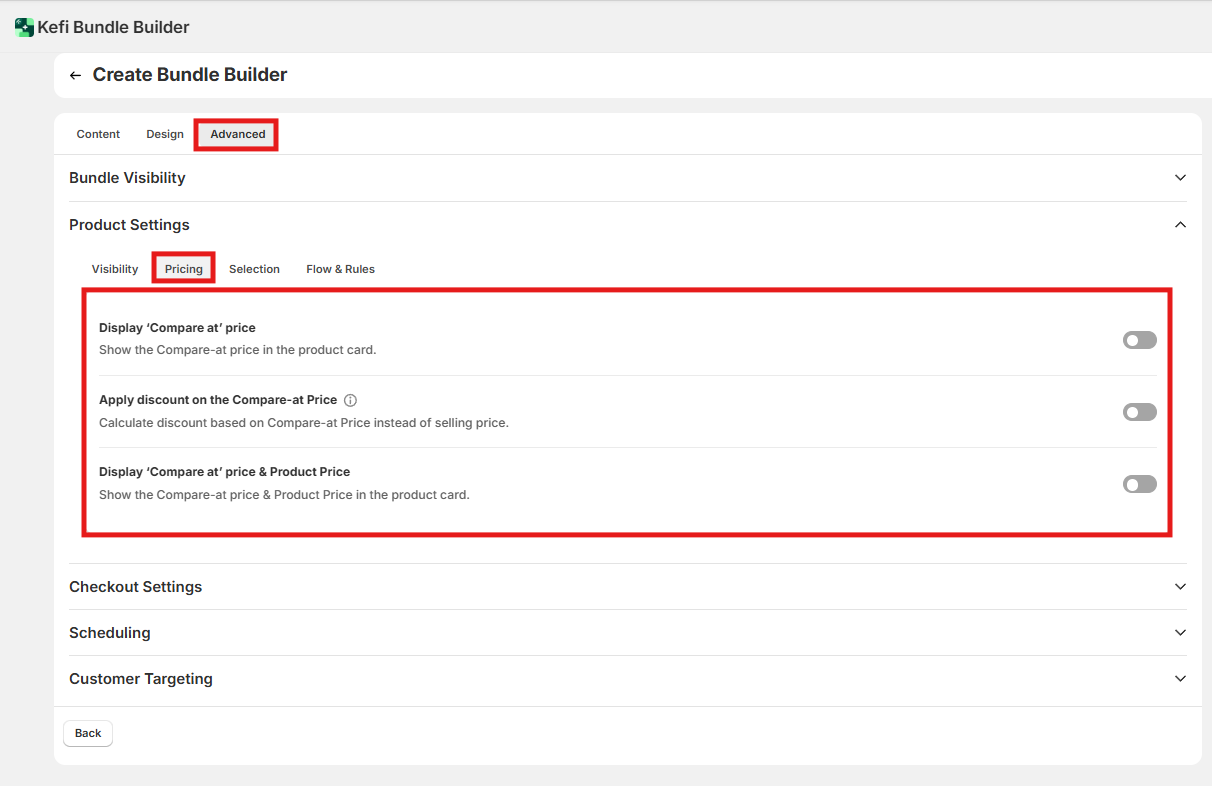
Where to find these settings
Display options
Advanced: discount on compare-at price
The Shopify price gap rule
End-to-end example
FAQ
Where to find these settings
Go to Bundle Builder editor → Advance tab →Product Settings → Pricing tab.
Display options
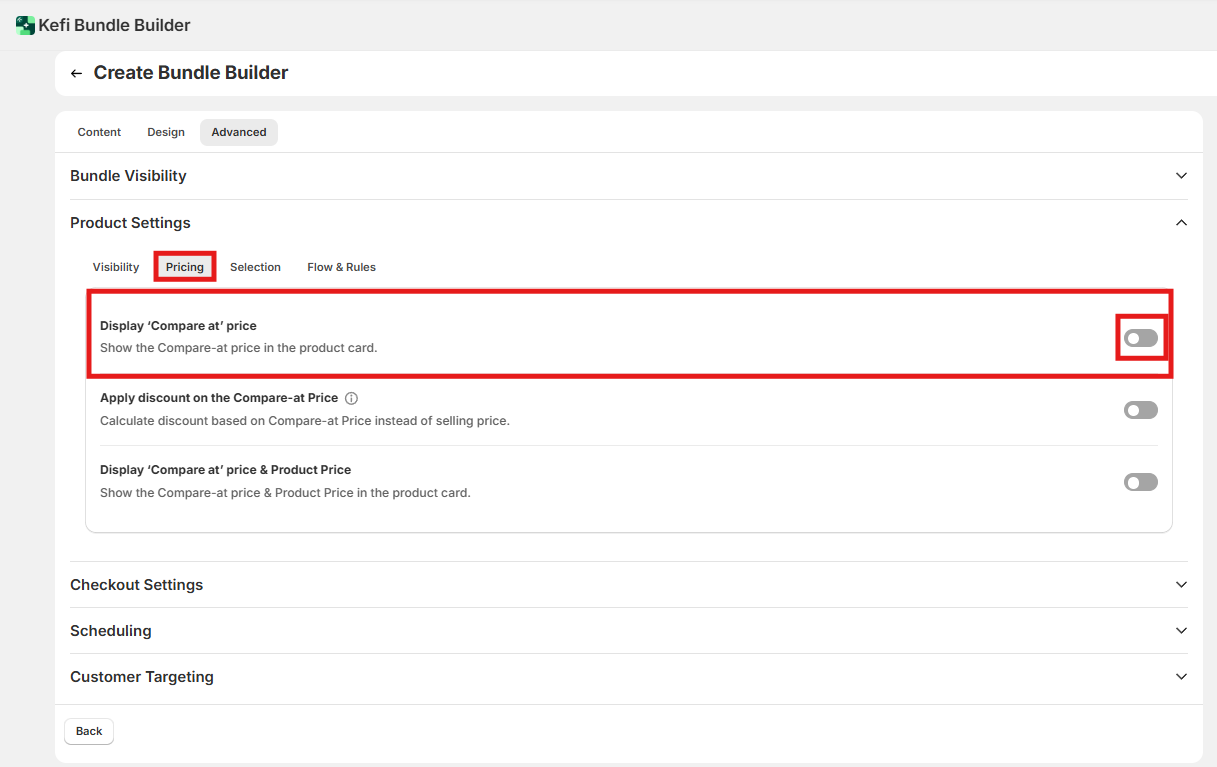
Display compare-at price
Default: Off — no compare-at price appears on product cards inside the bundle.
When enabled: Each product card inside the bundle shows the original compare-at price (typically shown as a crossed-out figure), so shoppers can see per-item savings at a glance.
When to enable: Turn this on when your products have a compare-at price set in Shopify and you want to surface individual item savings — not just the bundle total. Leave it off if your compare-at prices aren't consistently set, or if you want a cleaner card layout.
Display compare-at price and product price
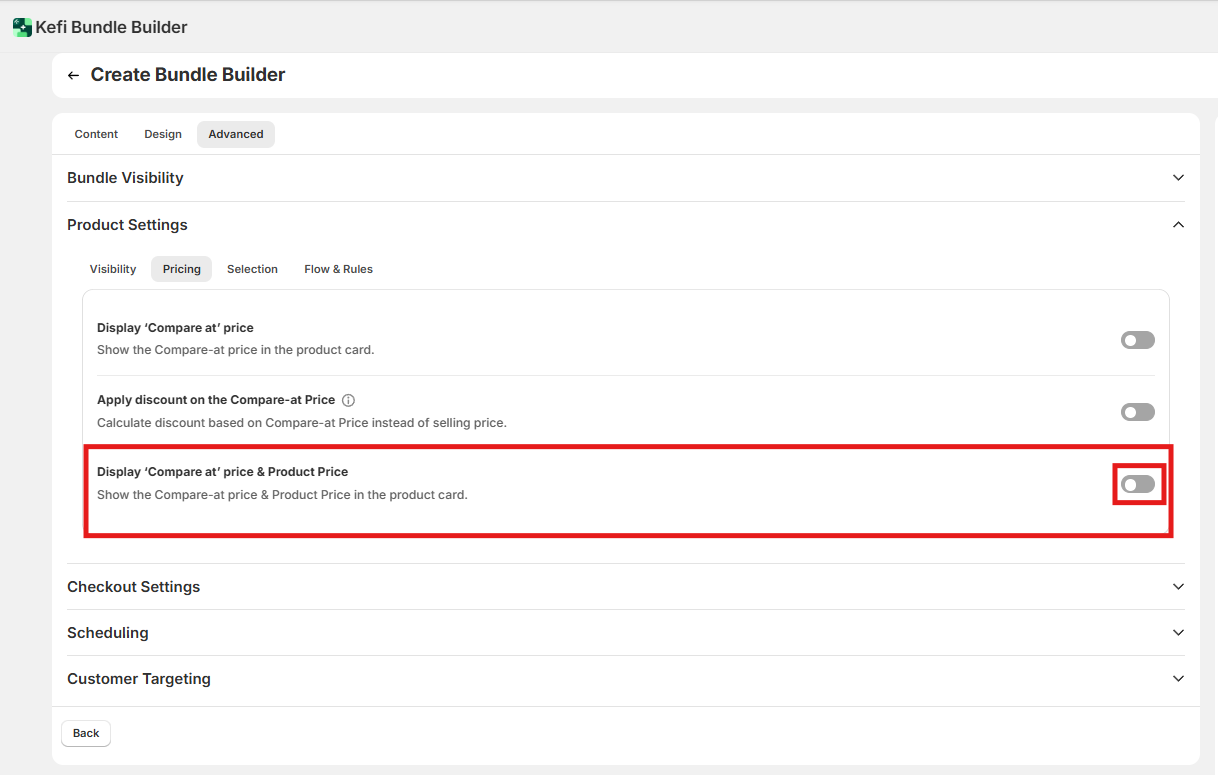
Default: Off — only the bundle/sale price shows on each product card.
When enabled: Both the discounted bundle price and the original compare-at price appear simultaneously on the product card.
When to enable: Use this when you want to show the full "was / now" pricing structure per item. This gives the clearest savings signal and works well for promotional bundles. Requires that compare-at prices are set in Shopify for the products in your bundle.
Advanced: apply discount on compare-at price
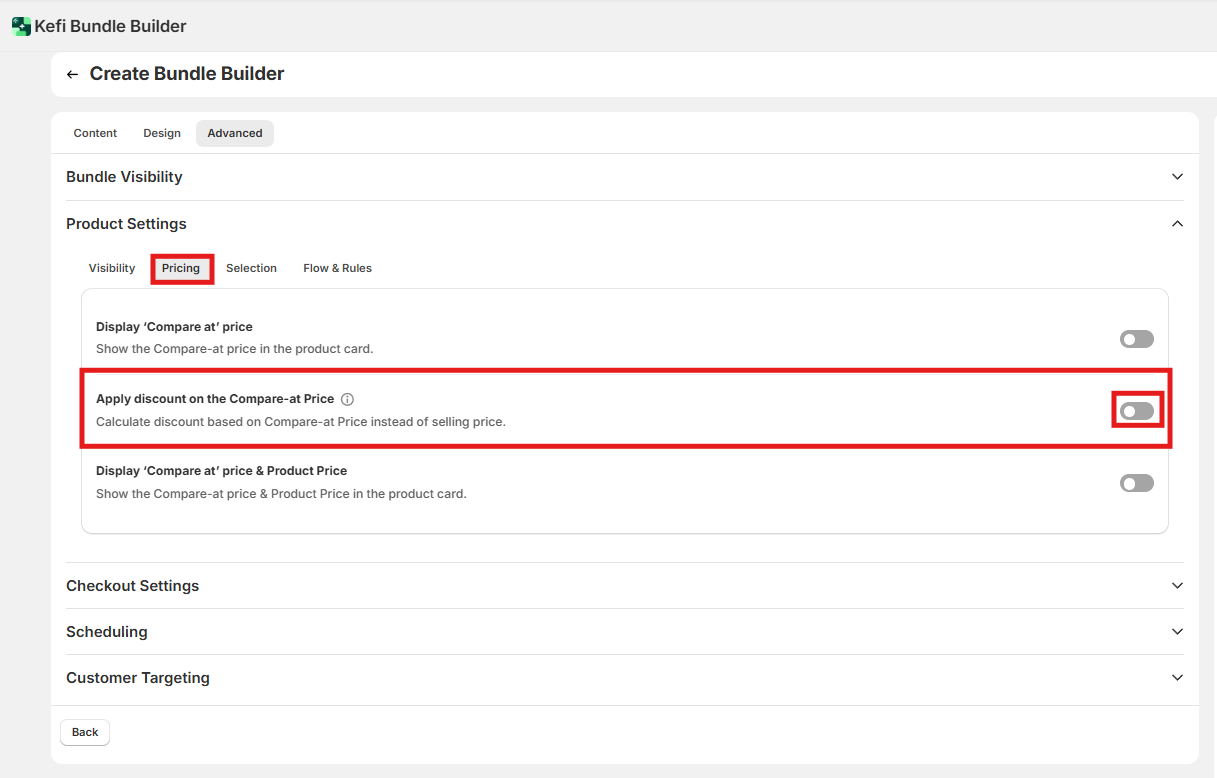
Default: Off — bundle discounts are calculated against each product's current selling price in Shopify.
When enabled: The bundle discount percentage is applied to the compare-at price instead of the selling price. This inflates the effective discount shown to customers if the compare-at price is higher than the selling price.
When to enable: Use this only when you want the bundle discount to appear larger by anchoring it to the original (higher) compare-at price. Be aware of the Shopify price gap rule below before enabling this — it can cause discounts to apply incorrectly if misconfigured.
The Shopify price gap rule
This only applies when "Apply discount on compare-at price" is enabled.
If a product already has a gap between its compare-at price and selling price in Shopify, Shopify is already applying an implicit discount. Your bundle discount must be greater than that existing gap, or the app discount won't apply correctly.
How to calculate your minimum bundle discount:
Find the product's compare-at price and selling price in Shopify.
Calculate the gap: (compare-at − selling price) ÷ compare-at × 100
Set your bundle discount higher than that percentage.
See the reference card above for a worked example with a $100 compare-at / $90 selling price (10% gap → bundle discount must exceed 10%).
End-to-end example: seasonal sale bundle {#example}
Scenario: You're running a summer sale. Products are already marked down in Shopify (compare-at set to original prices). You want to add a bundle discount on top, and make the savings obvious to shoppers.
Settings to use:
Display compare-at price: On
Display compare-at price and product price: On
Apply discount on compare-at price: Off
Why this combination works: The first two settings surface the crossed-out original prices on every card, showing per-item value. Keeping the third setting off means your bundle discount applies cleanly against the current (already-reduced) selling price — no risk of hitting the Shopify price gap issue.
Result: Shoppers see both the marked-down price and original price per item, plus the additional bundle savings on top. The value story is clear without any discount calculation issues.
FAQ
My products don't have compare-at prices set in Shopify. Will enabling display options do anything?
No. These settings only display data that exists in Shopify. If compare-at prices aren't set on the product, the fields will be empty and nothing additional appears on the card.
Can I enable "Apply discount on compare-at price" even when there's no existing Shopify discount (no price gap)?
Yes — if your compare-at and selling price are the same, there's no gap, and any bundle discount you set will apply correctly. The price gap issue only matters when Shopify is already discounting the item.
What happens if I set my bundle discount equal to — not greater than — the Shopify gap?
The app discount may not apply correctly. Set it at least 1% above the existing gap to be safe.
Do these settings affect checkout pricing, or only how prices display in the bundle builder?
The display settings control what appears on product cards in the builder. The "Apply discount on compare-at price" setting affects how the actual discount is calculated. Both should be tested end-to-end in a live preview before launch.