
How to Configure Product Visibility Settings in the Bundle Builder
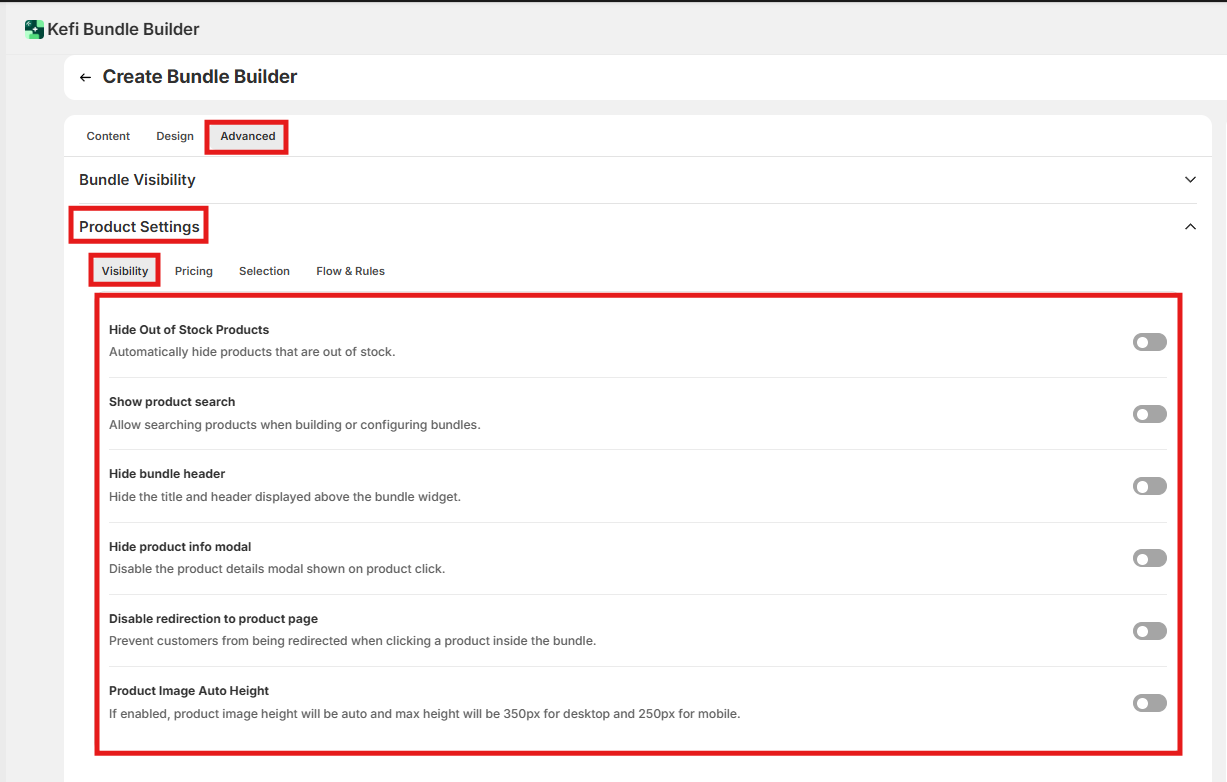
Where to find this: Bundle Builder editor → Advance tab → Product Settings → Visibility tab
In this guide, we’ll walk you through:
Product & Inventory Controls
Search Bar
Layout & Display
Image Display
Recommended Defaults by Scenario
End-to-End Example
FAQ
Product & Inventory Controls
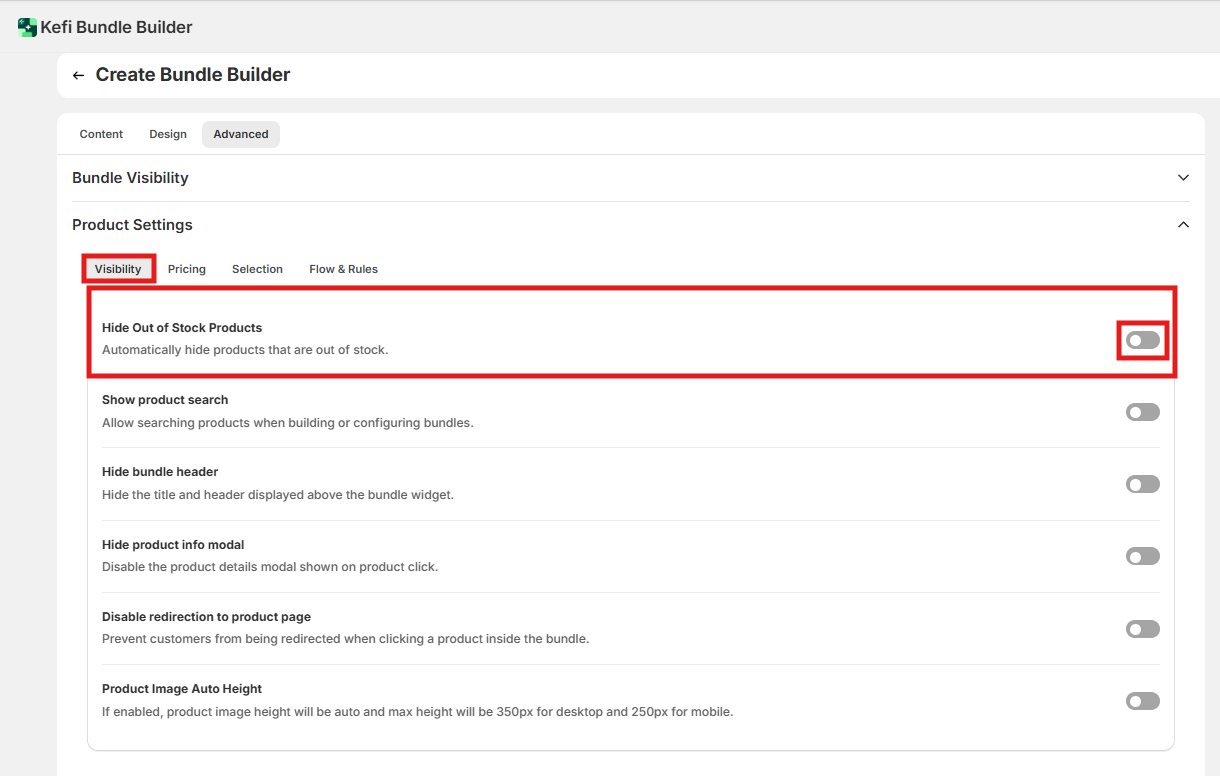
Hide Out-of-Stock Products
Default: Off (out-of-stock products remain visible)
What it does: When enabled, any product that hits zero inventory is automatically hidden from the bundle builder. Customers only see items you can actually fulfill.
When disabled, out-of-stock products stay visible. Customers can still attempt to select them, which may cause friction at checkout or require manual order management on your end.
When to enable: Turn this on if you don't use backorders or pre-orders and want to avoid customer disappointment. Leave it off only if you intentionally want out-of-stock items to remain visible (e.g., for pre-order flows or manual fulfillment).
Search Bar
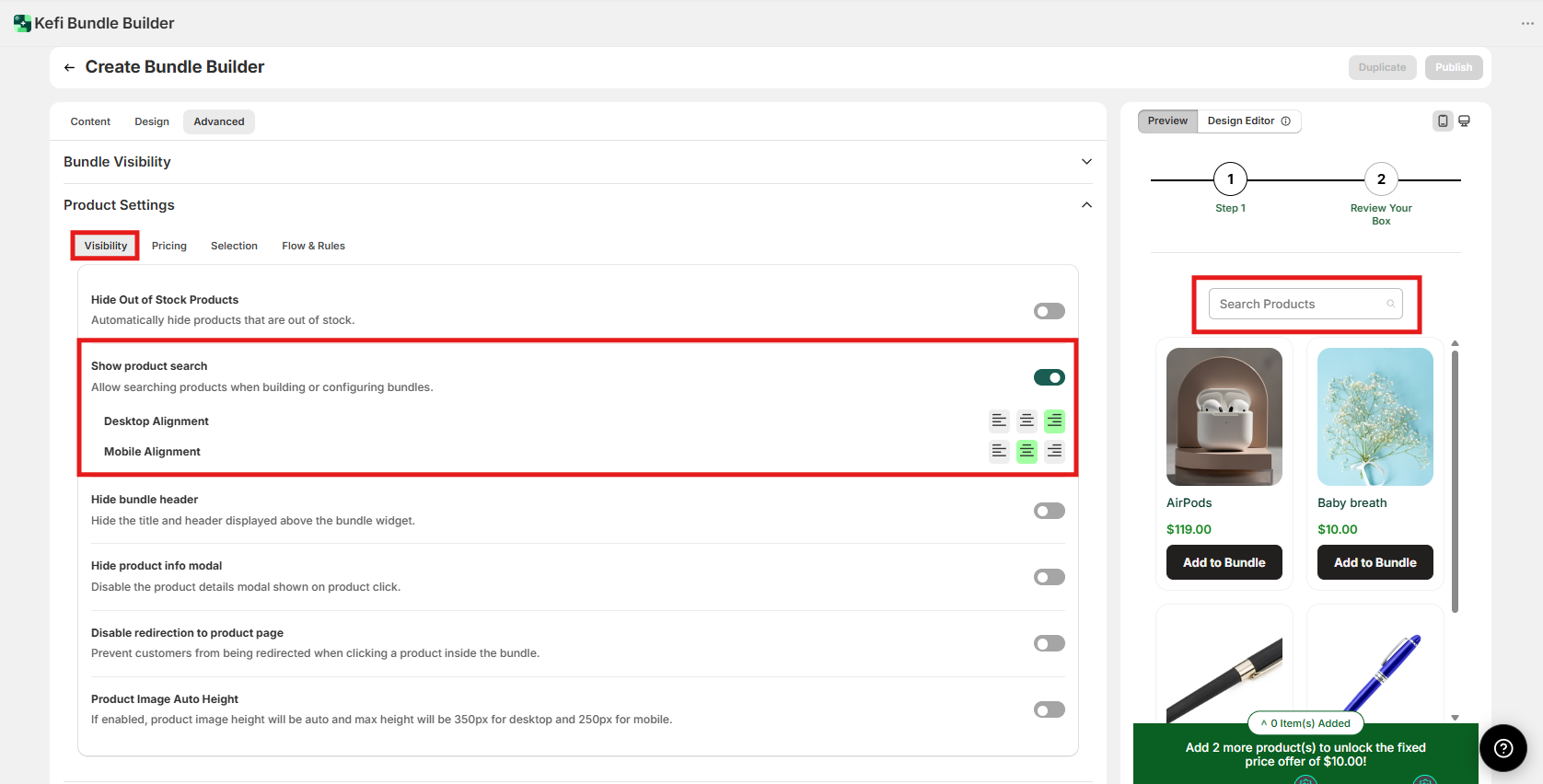
Show Product Search
Default: Off (no search bar shown)
What it does: Adds a search input inside the bundle builder so customers can type and filter products by name instead of scrolling.
When to enable: Enable this when a single step contains more than ~15 products. For smaller product lists, search adds unnecessary UI complexity. If you're using Categories (tabbed layout), evaluate whether tabs already solve the browsing problem before adding search on top.
Search Bar Alignment
These two sub-settings only appear when Show Product Search is enabled.
Desktop Alignment — Controls whether the search bar is left-, center-, or right-aligned on desktop screens. Default is left.
Mobile Alignment — Independently controls search bar position on mobile. Default is left.
When to change: Adjust these to match your storefront's layout or branding. Center alignment works well for full-width builder layouts; left is standard for sidebar-style or narrow layouts.
Layout & Display
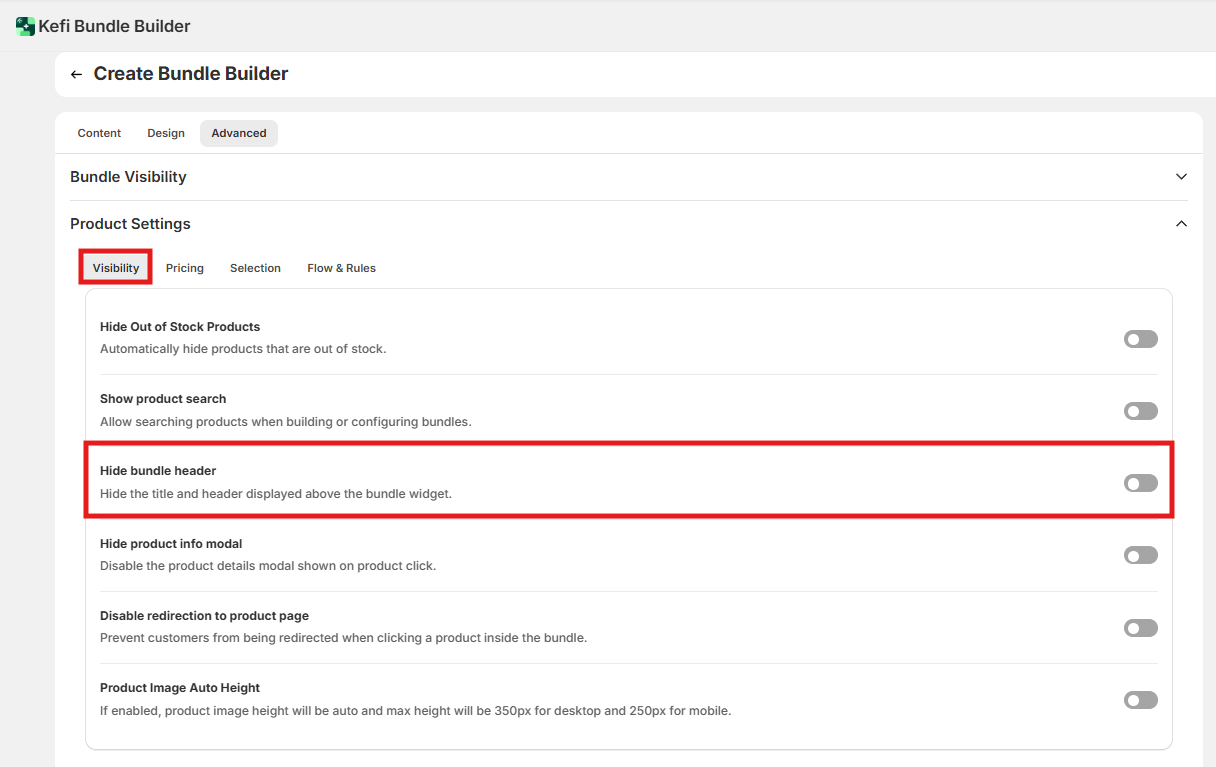
Hide Bundle Header
Default: Off (header is shown)
What it does: When enabled, removes the title and header section that appears above the bundle widget.
When to enable: Use this if your page template already includes a custom heading, or if you want a more minimal, product-focused layout. Leave it off if you want the default title to orient customers before they start building.
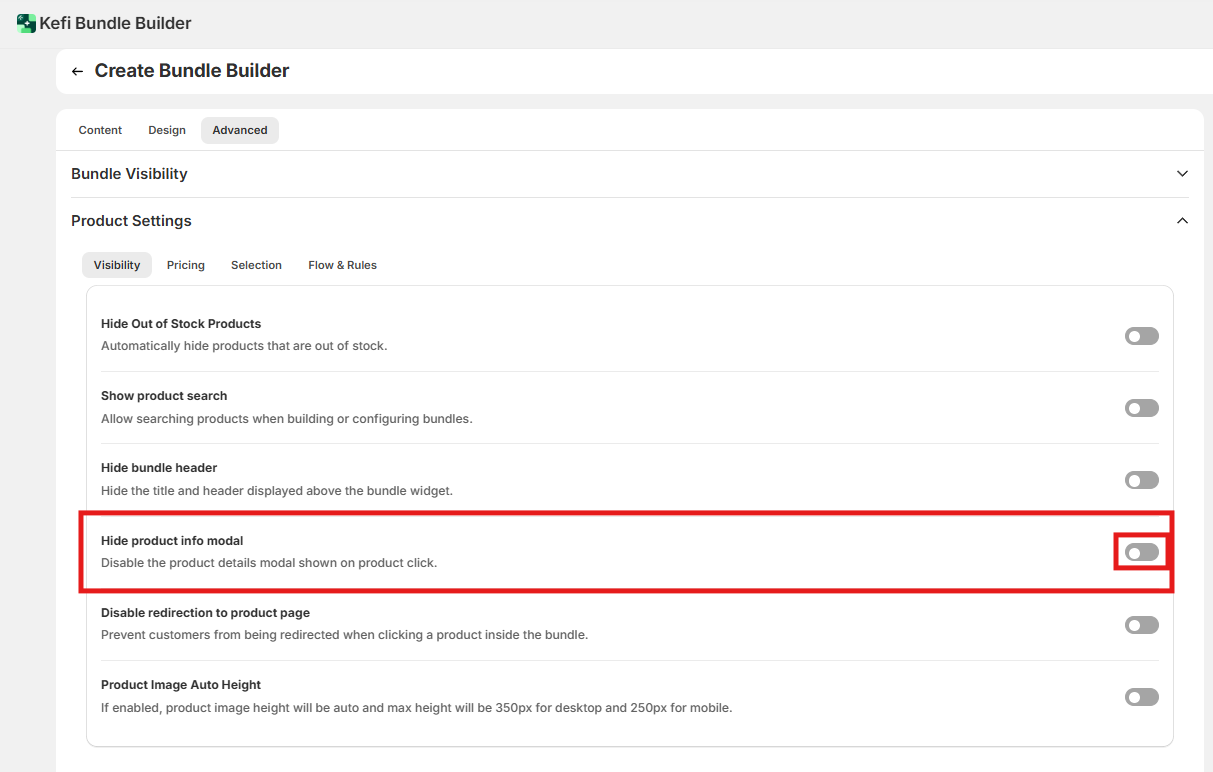
Hide Product Info Modal
Default: Off (clicking a product opens a quick-view modal)
What it does: When enabled, disables the pop-up modal that appears when a customer clicks on a product image or name. Clicking a product does nothing extra — customers can only add it.
When to enable: Turn this on if you want a faster, simpler interaction — especially for bundles with straightforward products that don't need additional description (e.g., commodity items, subscription refills). Leave it off if your products benefit from images, descriptions, or variant details visible before selecting.
Disable Redirection to Product Page
Default: Off (clicking a product can navigate to the product page)
What it does: When enabled, prevents the browser from navigating away to the individual product page if a customer clicks on the product. The customer stays inside the bundle builder.
When to enable: Enable this for almost all bundle setups. Allowing customers to leave mid-build typically results in abandoned bundles. Only leave this off if you have a deliberate reason to let customers exit to a product page (e.g., a high-consideration product that requires detailed specs before purchasing).
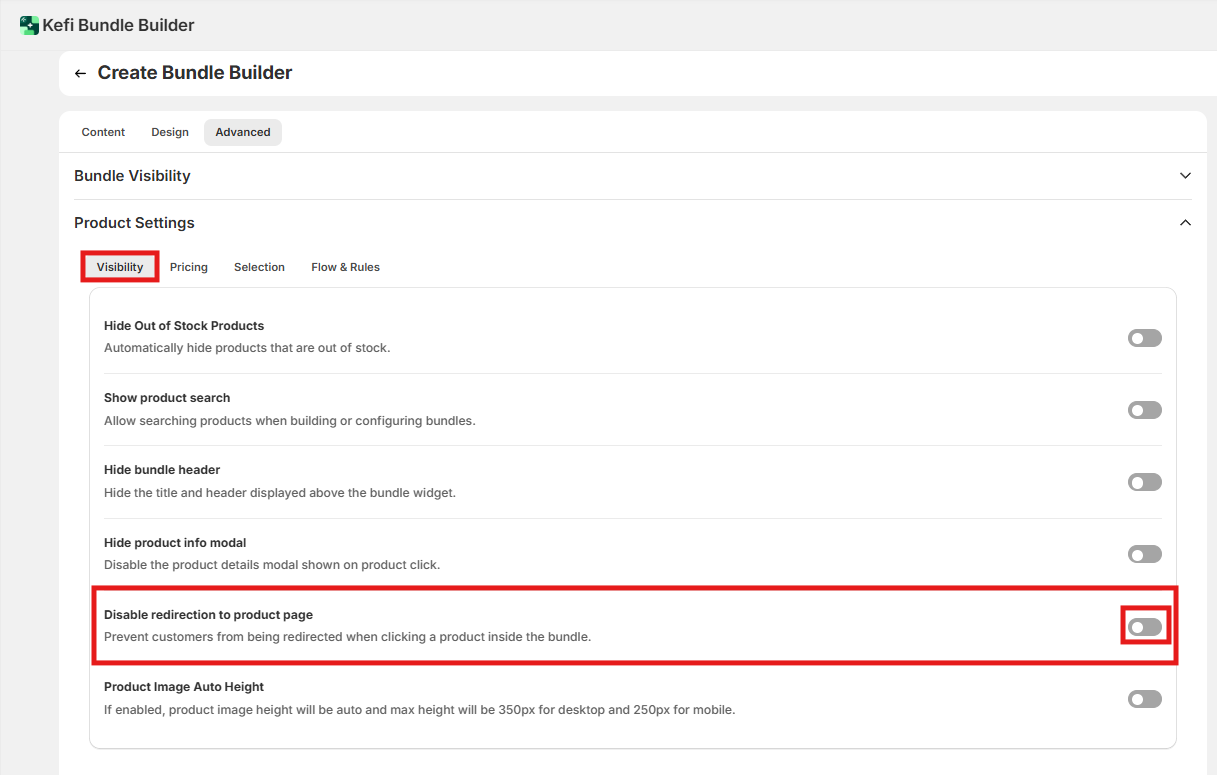
Image Display
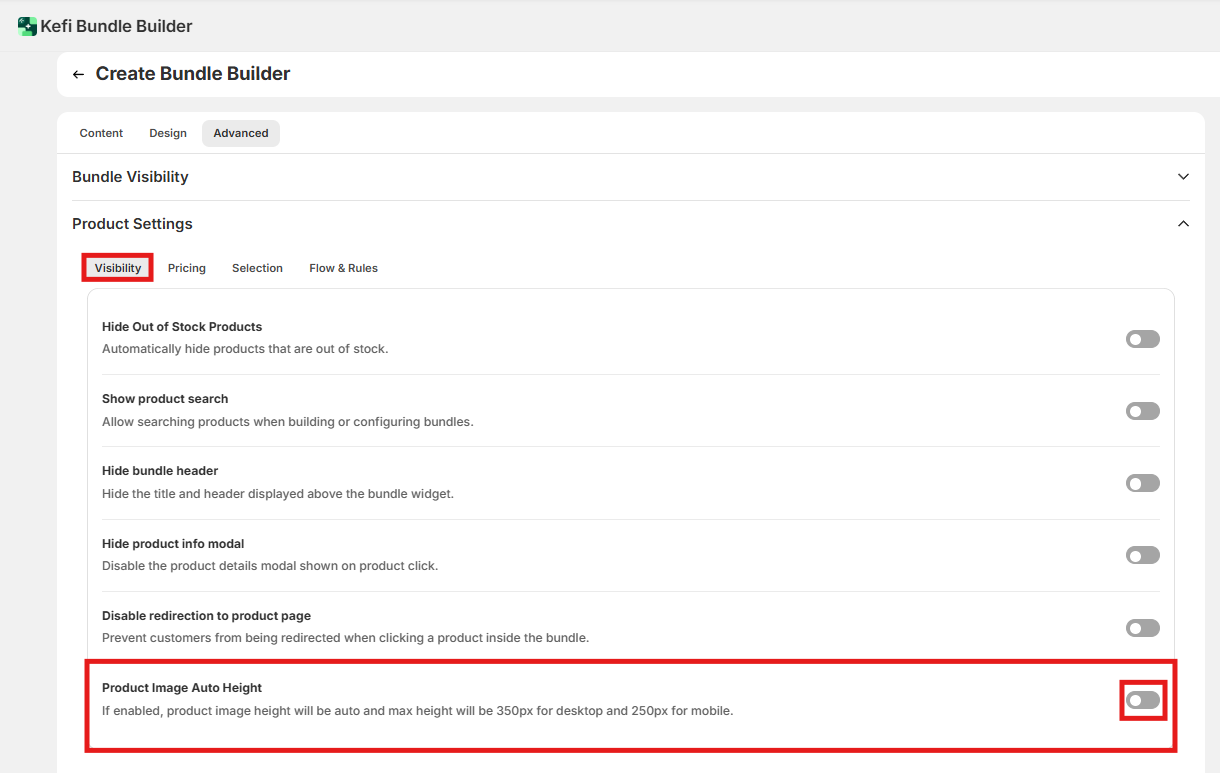
Product Image Auto Height
Default: Off (images render at their native aspect ratio)
What it does: When enabled, the builder automatically adjusts product image heights to keep the product grid visually consistent. Heights are capped at:
Desktop: 350px maximum
Mobile: 250px maximum
When disabled, images render at whatever height their natural aspect ratio produces. This can result in an uneven grid if your product catalog uses inconsistently sized images.
When to enable: Turn this on if your product images vary in aspect ratio and you want a clean, uniform grid. Leave it off if all your images are already a consistent size — enabling it unnecessarily can cause minor cropping on some images.
End-to-End Example: A Curated Gift Box
Goal: A "Build Your Own Skincare Set" bundle with 3 product steps and a clean, focused experience.
Setup:
Hide Out-of-Stock Products: On — customers only see what's available
Show Product Search: Off — fewer than 15 products per step, tabs handle browsing
Hide Bundle Header: Off — the default title helps orient first-time visitors
Hide Product Info Modal: Off — skincare products benefit from modal descriptions and ingredient lists before customers commit
Disable Redirection to Product Page: On — keeps customers inside the builder
Product Image Auto Height: On — product images were shot at varying dimensions; auto height keeps the grid tidy
Result: Customers move through a focused, distraction-free builder. They can browse product details without leaving the step. Unavailable items never appear. The grid looks consistent regardless of photo format.
FAQ
If I enable "Hide Out-of-Stock Products," what happens mid-session if an item sells out?
The product will be hidden the next time the builder loads or the step re-renders. If a customer has already added a now-out-of-stock item to their in-progress bundle, behavior depends on checkout inventory validation — not this setting. Test your specific checkout flow to confirm.
Can I hide the product info modal on some steps but not others?
No. Hide Product Info Modal is a global setting that applies to all steps in the bundle builder. If you need different behavior per step, it's not currently supported through this setting.
Does "Disable Redirection to Product Page" also affect the product info modal?
No. These are independent settings. Disabling redirection only stops navigation away from the builder; the modal (if enabled) still works normally on click.
My search bar is enabled but customers can't find some products. What's wrong?
Search matches against product titles. Check that your product names in Shopify are clear and match what customers would type. Tags and descriptions are not searched.
Does "Hide Bundle Header" also hide the step progress bar?
The header and the progress bar are separate UI elements. Hiding the header removes the title/description above the builder widget but should not affect the step progress indicator. Verify in your storefront after enabling.
What happens to Auto Height on images taller than 350px on desktop? They are capped at 350px. How the overflow is handled (crop vs. letterbox) is not specified in the current documentation. Test with your actual product images before rolling out.