
How to Manage Bundle Visibility in the Bundle Builder
Control where your bundle builder appears in your store — from upsell buttons on product pages to direct links and manual HTML embedding.
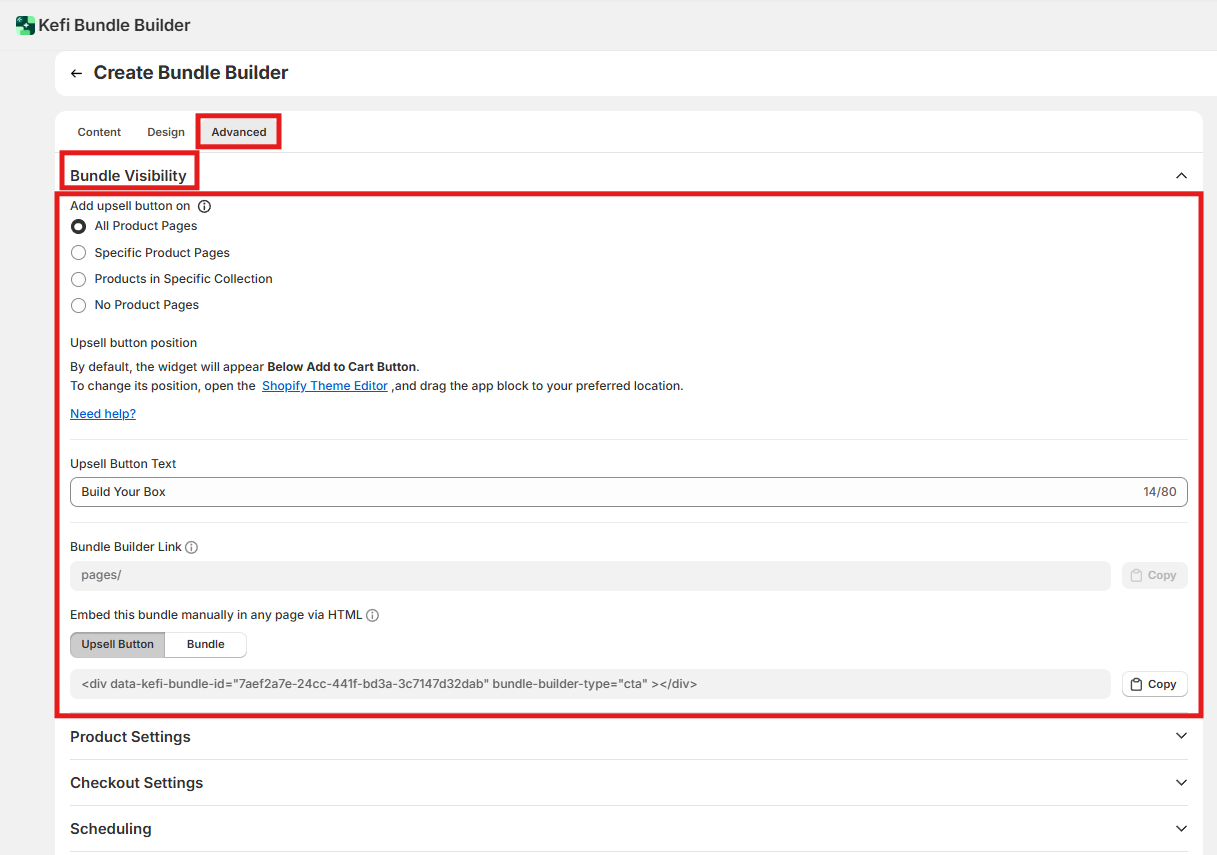
Where to find this: Bundle Builder editor → Advanced tab → Bundle Visibility
On this page
Upsell button placement
Upsell button customization
Bundle builder link
Embed via HTML
Upsell button placement
Adds a CTA button on your product pages that sends shoppers directly to your bundle builder. Choose which pages the button appears on.
Add upsell button on Default: No Product Pages Controls where the upsell button is shown across your store.
All Product Pages — Shows the button on every product page in your store.
Specific Product Pages — You hand-pick which individual product pages show the button.
Products in Specific Collection — Shows the button only on products belonging to collections you choose.
No Product Pages — The automatic upsell button is disabled across your store.
When to change: Enable on All Product Pages if your entire catalog is relevant to the bundle. Use Specific Product Pages or Collections if only certain products are logical entry points into the bundle builder.
Upsell button customization
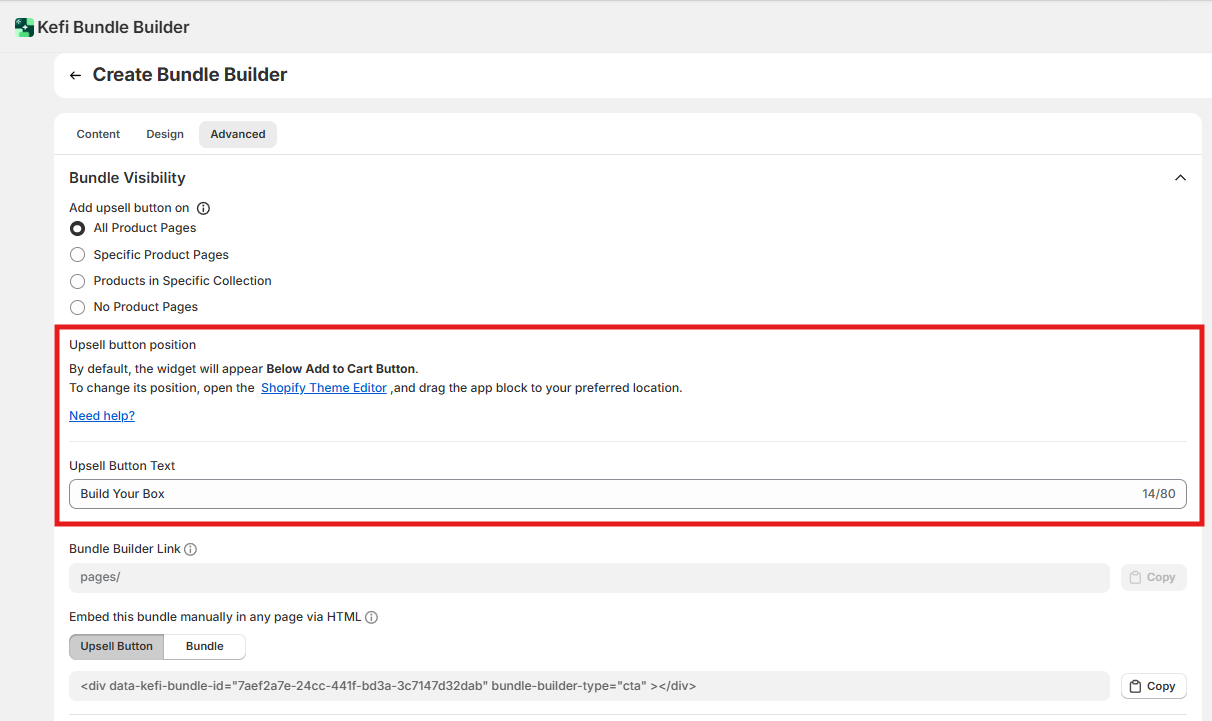
These settings control how the upsell button looks and where it sits on the page.
Upsell Button Text Default: Build Your Box The label shown on the button. Update this to match your brand's copy (e.g., "Customize Your Set" or "Build a Bundle"). When to update: Any time the default label doesn't fit your product or brand voice. Keep it short — this button sits alongside the Add to Cart button and competes for attention.
Upsell Button Position Default: Below the Add to Cart button Controls where the button appears on the product page. When to change: If you want the button above Add to Cart, or repositioned within your layout, open the Shopify Theme Editor and drag the app block to your preferred location. This cannot be changed from within the bundle builder settings alone.
Bundle builder link
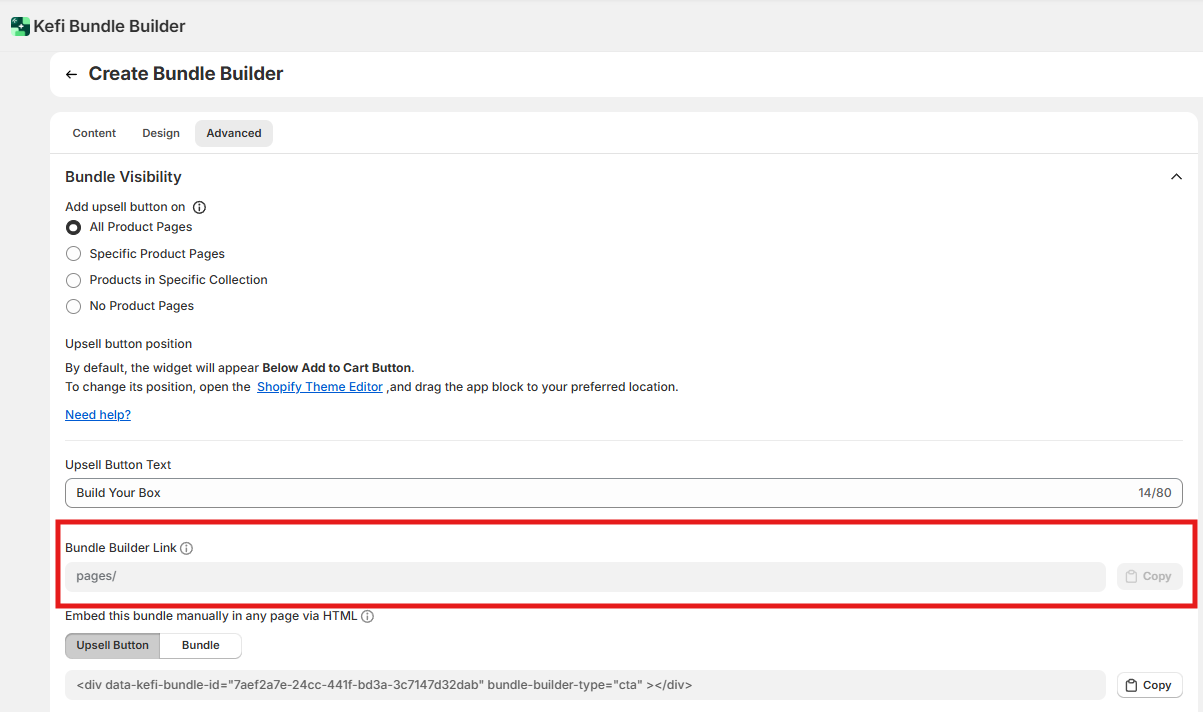
Bundle Builder Link A direct URL to your bundle builder page. Use this for email campaigns, social media posts, paid ads, or anywhere you want to send traffic straight to the bundle builder without going through a product page first.
The /pages/ prefix is fixed and cannot be changed. The slug — the text after the last slash — is editable. Keep it short and descriptive (e.g., /pages/build-your-box).
When to use: Any time you're running a campaign that should land directly on the bundle builder. Also useful as a navigation link in your header or footer.
Embed via HTML
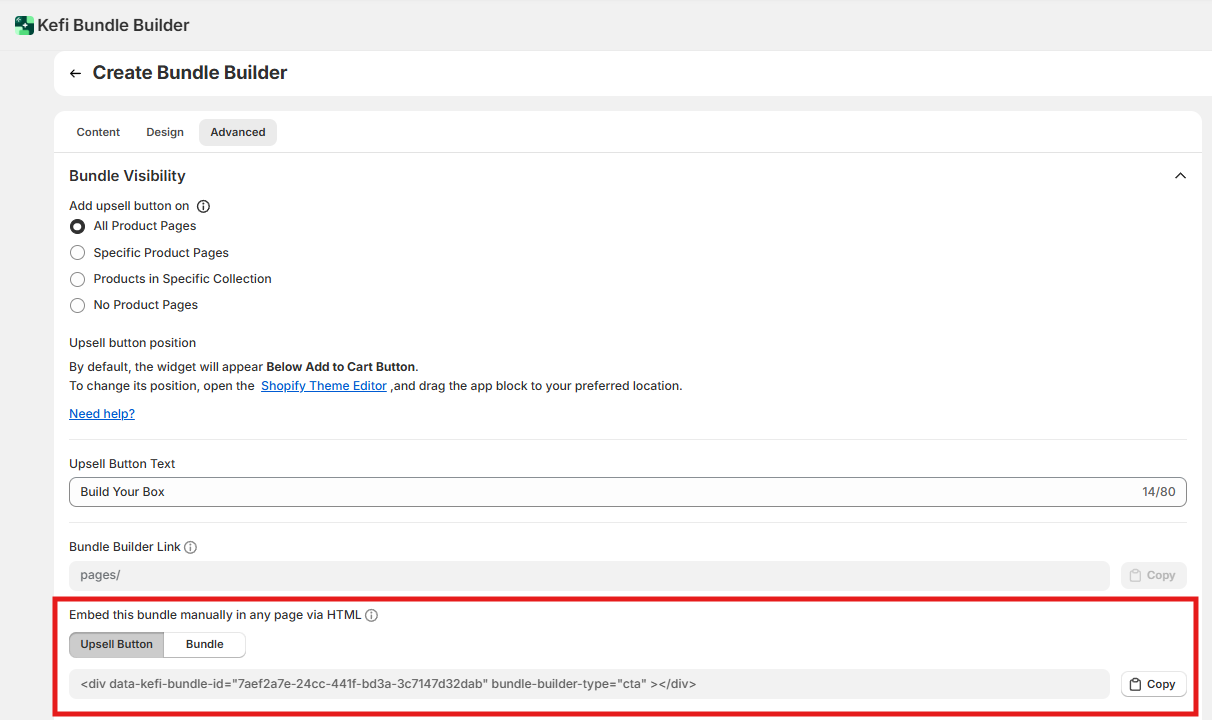
For custom page layouts, you can manually place the bundle button or the full bundle builder anywhere in your theme using HTML tags.
Upsell Button tag Embeds just the CTA button on any custom page or section. Copy the provided <div> tag and paste it into your theme HTML where you want the button to appear.
Full Bundle tag Embeds the entire bundle builder interface into any page or blog post. Copy the full bundle tag and paste it into your theme HTML at the desired location.
When to use: Use HTML embedding when the automatic upsell button placement doesn't fit your theme, or when you want the full bundle builder to appear on a non-standard page (e.g., a landing page or campaign post).
For a step-by-step guide on manual placement, see How to add the Kefi Bundle Builder on any page.
Recommended defaults by scenario
Scenario | Recommended approach |
New store, just getting started | Set upsell button to All Product Pages with default text. Use the bundle link in your navigation. |
Large catalog, only some products relate to the bundle | Use Specific Product Pages or Products in Specific Collection to avoid showing the button irrelevantly. |
Running a paid campaign or email promotion | Use the Bundle Builder Link as your campaign destination. No button placement needed. |
Custom theme with non-standard layout | Use HTML embedding for the button or full builder. Skip the automatic placement settings. |
End-to-end example: seasonal gift bundle promotion
Goal: Drive traffic to a "Build Your Holiday Set" bundle from both product pages and an email campaign.
Go to Advanced tab → Bundle Visibility in the bundle builder settings.
Set Add upsell button on to Products in Specific Collection — select your "Holiday" collection so the button only appears on relevant products.
Set Upsell Button Text to Build Your Holiday Set to match the campaign.
Copy the Bundle Builder Link and paste it into your email campaign CTA and any social media posts.
Open the Shopify Theme Editor and drag the app block above the Add to Cart button so the bundle CTA is the first action customers see.
Preview a product page from the Holiday collection to confirm the button appears correctly.
Click the button to verify it lands on the correct bundle builder page.
FAQ
Can I use the Bundle Builder Link as a navigation menu item in Shopify?
Yes. Copy the link and add it as a custom URL in your Shopify navigation settings under Online Store → Navigation.
What's the difference between the upsell button embed tag and just using the Bundle Builder Link?
The upsell button tag renders a styled button in your theme that links to the builder — useful when you want the button to appear inline within custom page content. The bundle link is just a URL you can use anywhere — in email, ads, or as an anchor tag in your own HTML.
If I set the upsell button to No Product Pages, does that affect the HTML embed?
No. The HTML embed tags work independently of the upsell button placement setting. Disabling the automatic button only removes it from product pages — manually embedded tags are unaffected.
Can I edit the full URL of my bundle builder page, including the /pages/ prefix?
No. The /pages/ prefix is fixed by Shopify's page structure. Only the slug after the final slash is editable from within the bundle builder settings.