
How to Configure Flow and Conditional Rules in the Bundle Builder
In this article:
Where to find these settings
Conditional rules
Enable conditional rules
Trigger: if selected products include
Action: show or hide products
Adding multiple rules
Automation: auto-advance to next step
End-to-end example
FAQ
Where to find these settings {#access}
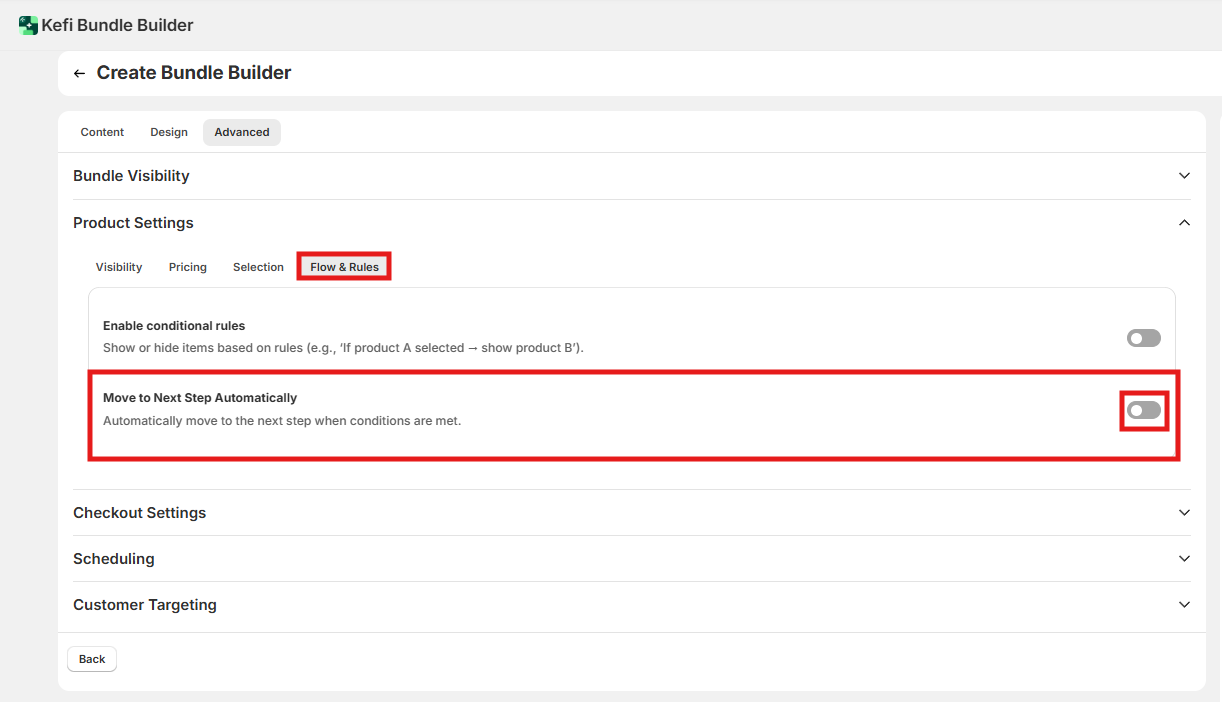
Go to Product Settings → Flow & Rules tab inside the Bundle Builder.
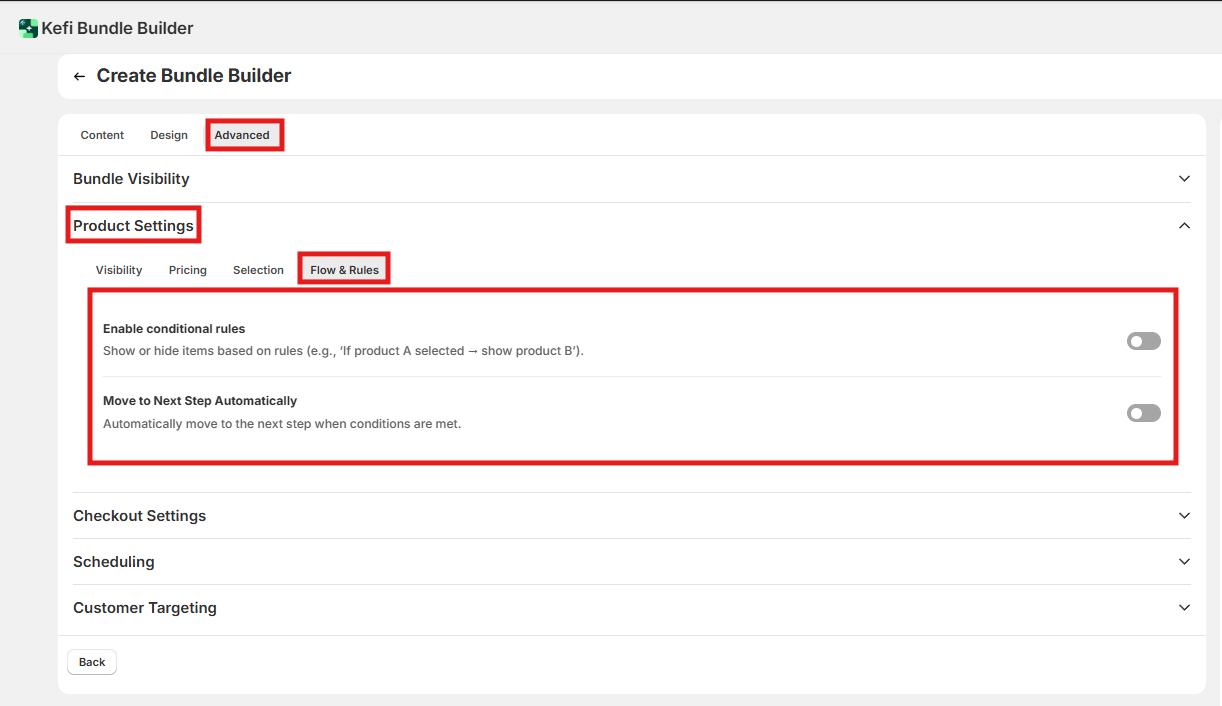
Conditional rules
Conditional rules let you control which products are visible in the bundle based on what a customer has already selected. Use them to surface relevant add-ons, prevent incompatible combinations, or guide customers through a logical sequence.
Enable conditional rules
Default: Off — all products in the bundle are visible to every customer at all times, regardless of their selections.
When enabled: The rules engine activates. Any rules you've configured will run in real time as customers make selections.
When to enable: Turn this on any time you need the product list to respond to customer choices — for example, to show compatible accessories only after a base product is selected, or to hide conflicting variants.
Note: Enabling this toggle activates the logic engine, but nothing changes for customers until you've also configured at least one trigger and action below.
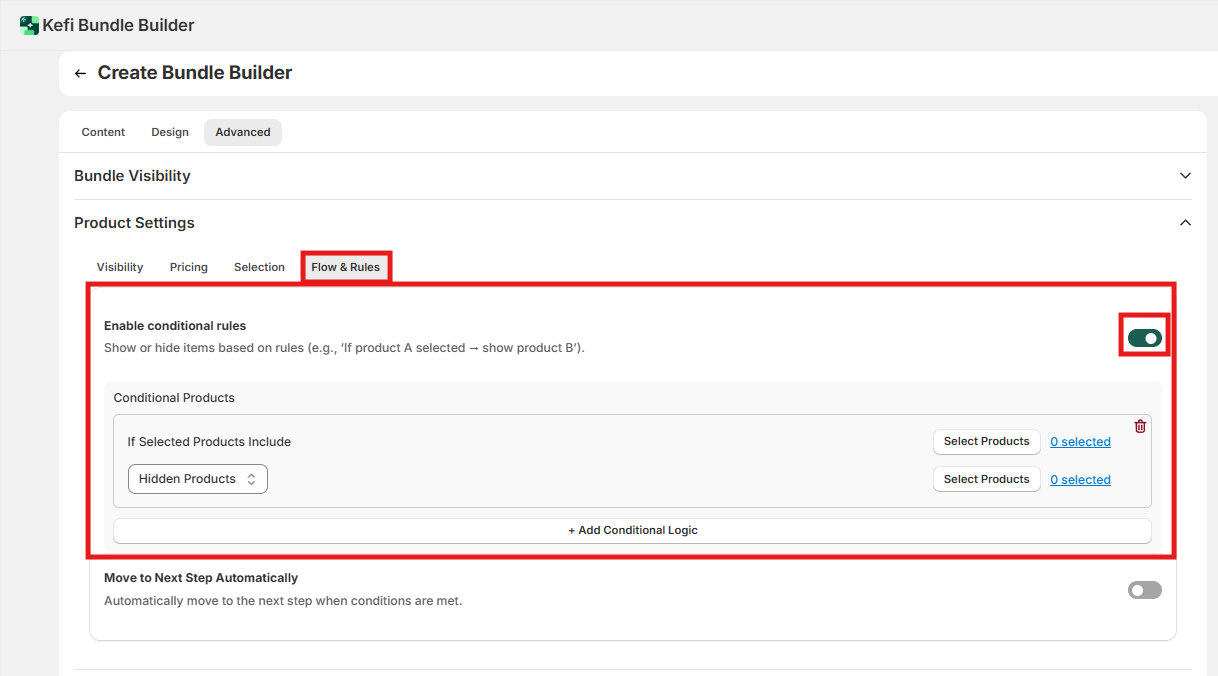
Trigger: if selected products include
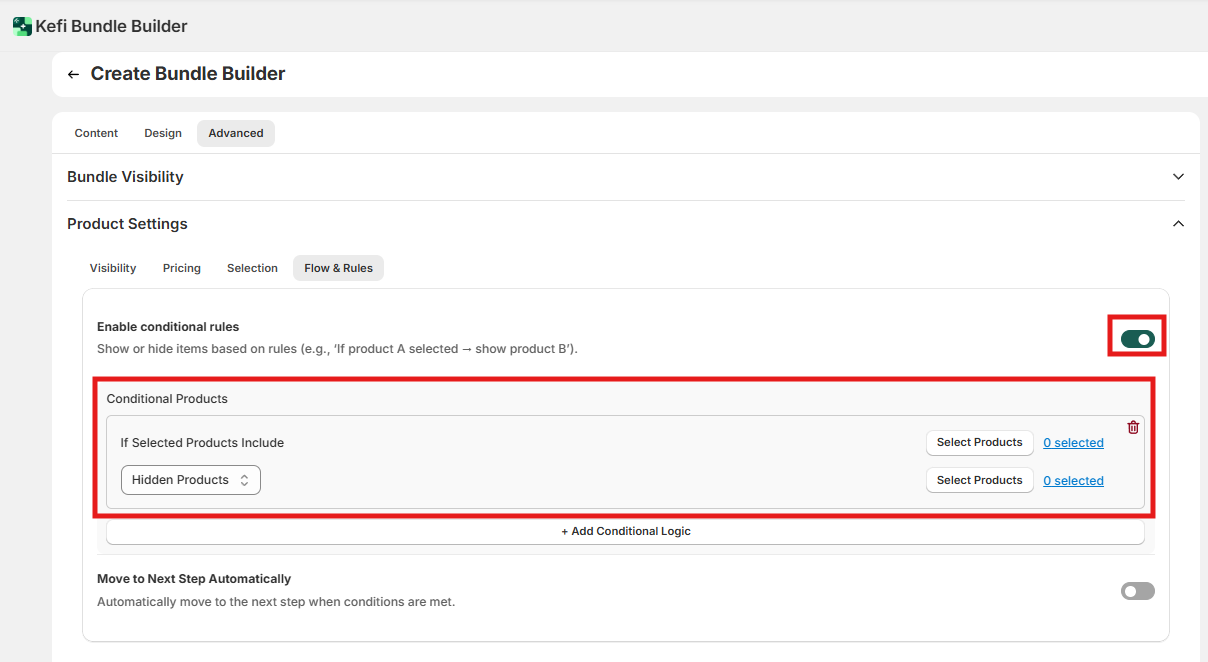
This defines what the customer must select to fire a rule. Pick one or more products; when a customer adds any of them to their bundle, the associated action runs.
When to configure: Set this any time you want a specific product selection to change what else is visible. You can create separate rules with different triggers for different products.
Action: show or hide products
Once the trigger fires, you choose what happens to a set of other products:
Show products — the listed products become visible only after the trigger product is selected. Before that, they're hidden.
When to use Show: Use this for add-ons, accessories, or upgrades that only make sense in combination with a specific product. Keeps the builder uncluttered for customers who don't need those options.
Hide products — the listed products disappear once the trigger product is selected.
When to use Hide: Use this to prevent incompatible combinations — for example, hiding a scent variant that can't be bundled with a specific base product.
Adding multiple rules
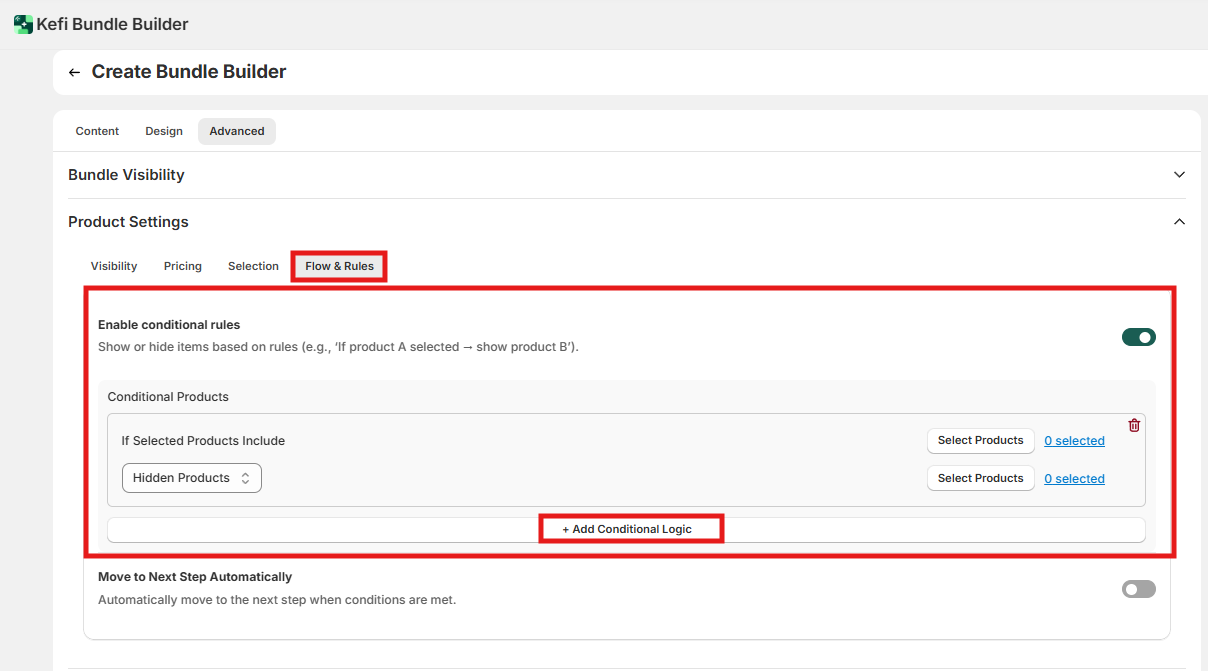
Default: One rule block per bundle.
Click + Add Conditional Logic to add additional rules. Each rule has its own trigger and action and runs independently.
When to use: Use multiple rules when you have several products that each unlock or block different options — for example, a three-step build-your-own bundle where each step's selections affect the next.
Automation: auto-advance to next step
Default: Off — customers must manually click a button to move to the next step in the bundle, even after meeting the step's conditions (e.g., filling a quantity slot).
When enabled: The bundle builder automatically moves the customer to the next step as soon as the current step's conditions are satisfied — no button click needed.
When to enable: Turn this on for simple, linear bundles where you want the fastest possible path to checkout. Works best when each step has a clear completion state (a fixed quantity or item limit). Leave it off for complex bundles where customers may want to review or change their selections before moving on, or where steps use conditional rules that benefit from a deliberate pause.
End-to-end example: skincare routine builder
Scenario: You sell skincare products. Customers build a routine: first they pick a cleanser, then a moisturizer. Some moisturizers require a specific serum to be offered as an add-on; a particular "sensitive skin" cleanser should hide all exfoliants.
Settings to configure:
Enable conditional rules: On
Rule 1 — Trigger: Hydrating Moisturizer → Action: Show Vitamin C Serum, Hyaluronic Serum
Rule 2 — Trigger: Sensitive Skin Cleanser → Action: Hide AHA Exfoliant, BHA Exfoliant
Auto-advance: Off
Why this setup works: The two rules run independently. A customer who picks the Hydrating Moisturizer sees the serum options surface automatically. A customer who picks the Sensitive Skin Cleanser has the exfoliants removed — regardless of what moisturizer they chose. Auto-advance is off because customers in a skincare routine builder benefit from pausing to review before moving on.