
How to Position Bundles in Your Store?
Adding product bundles to your Shopify store can significantly boost average order value and improve customer
experience—but only if they're placed strategically on your product
pages.
With Kefi, you have full flexibility in how and where your bundles appear. Whether you prefer a quick setup using default placement, want more control through Shopify’s theme editor, or need complete customization using Liquid code, Kefi makes it simple.
In this guide, we’ll walk you through
three easy ways to position your bundles—so you can ensure they show up exactly where they’ll have
the most impact. Let’s get started.
Option 1: Default Placement Below Add to Cart Button
If you’re looking for the quickest way to get started, this is the go-to method.
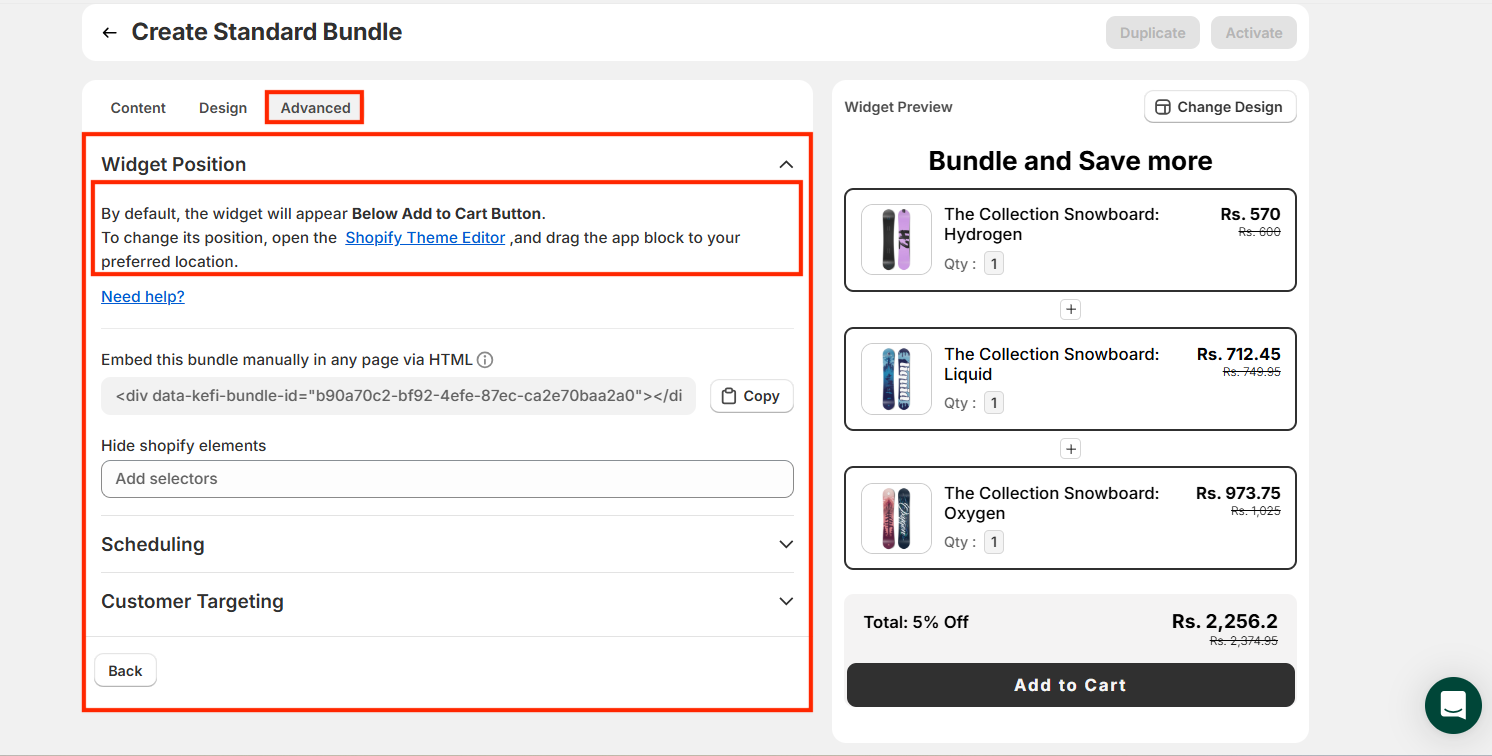
By default, once a bundle is created and assigned to a product, the Kefi widget automatically appears
right below the ‘Add to Cart’ button on that product’s page.
This ensures your bundle gets prime visibility—right when the customer is about to make a purchase decision.
-
No setup required
-
Great for fast implementation
-
Perfect for most standard Shopify themes
Option 2: Customize Position Using Shopify Theme Editor
Want to fine-tune where the bundle appears on the product page? Use Shopify’s built-in theme editor for full
drag-and-drop control. Here’s how:
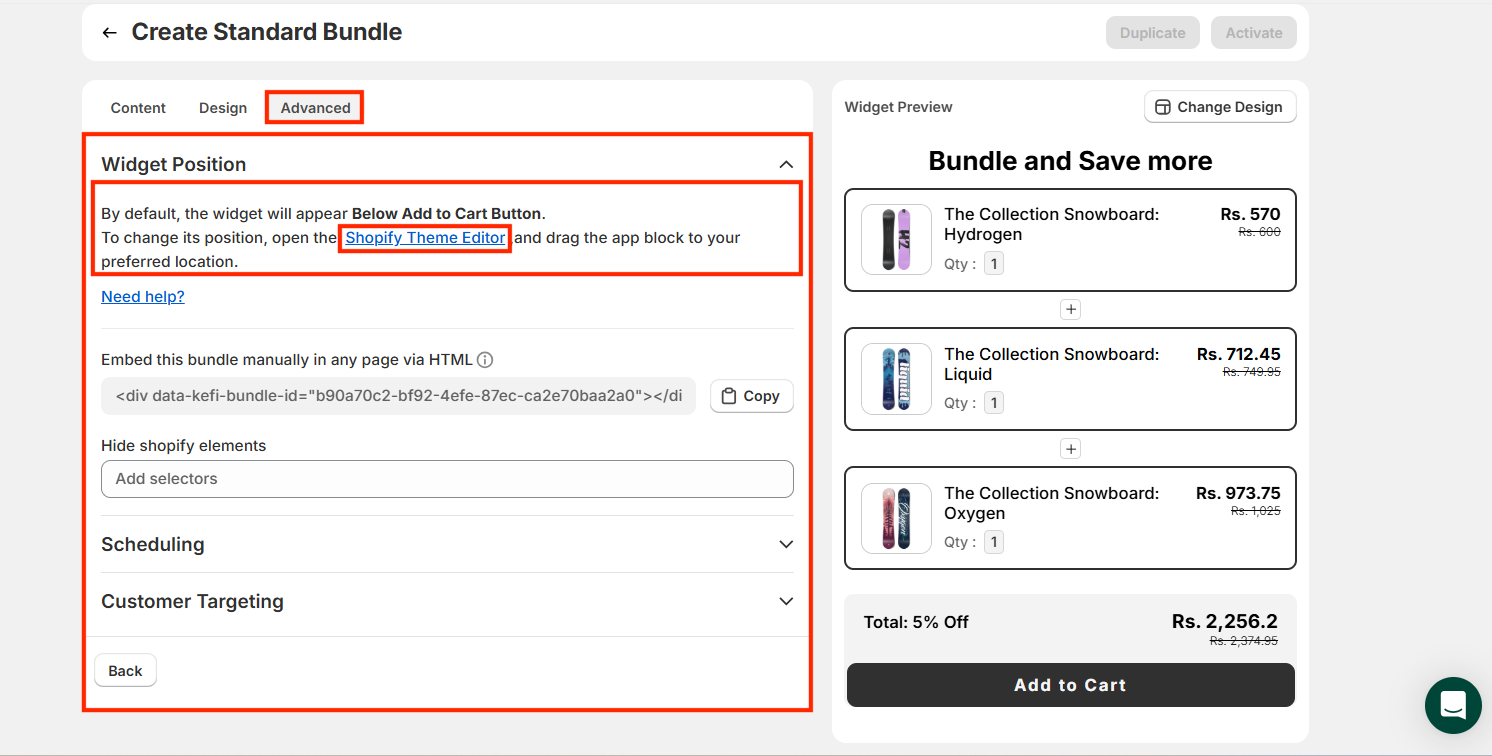
STEP 1: Go to your Shopify Theme Editor using the link
provided in the app. Or, you can directly add Kefi’s app block to the editor. The Kefi's
placeholder for respective bundle will get added as shown in the image.
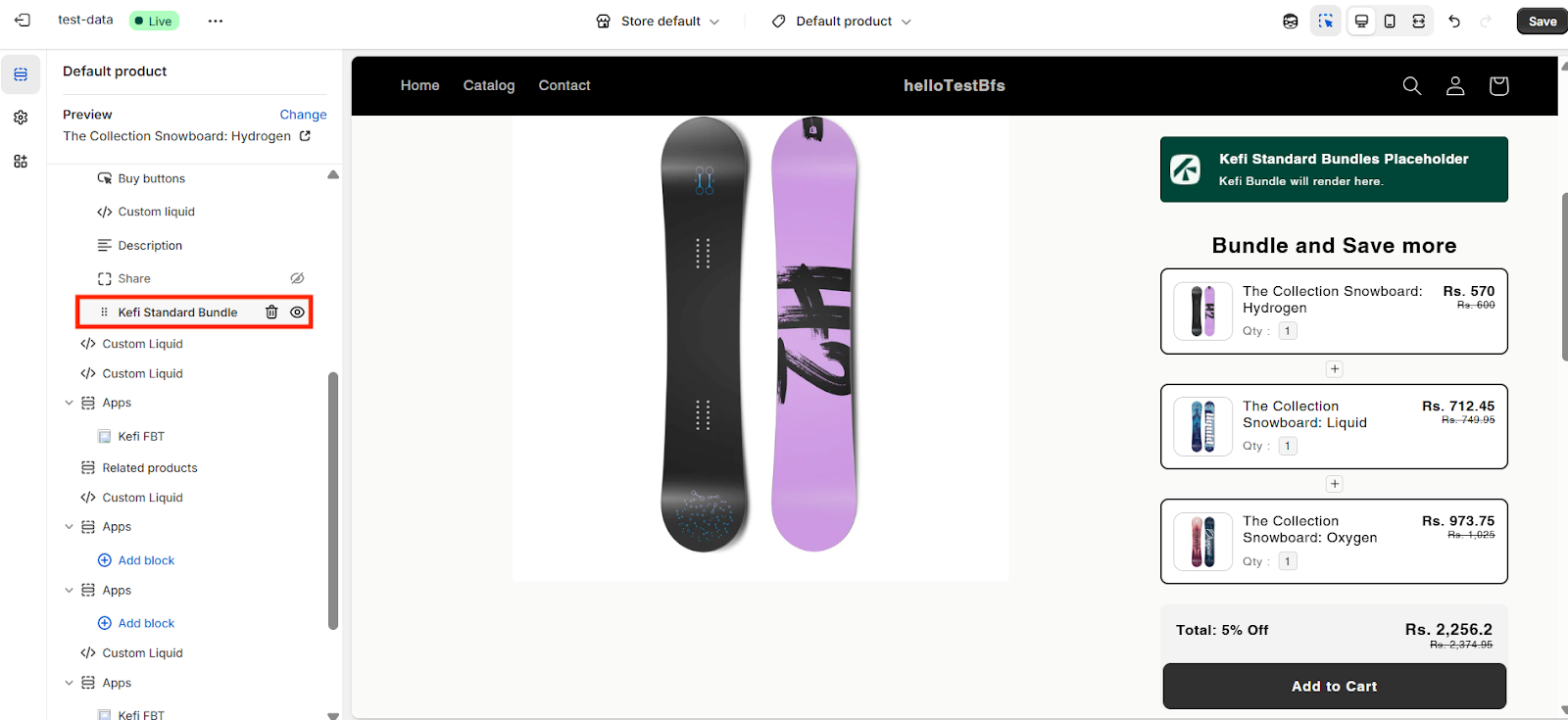
STEP 2: You can easily move the bundle block to your desired position on the page within the theme
editor. Just make sure the bundle is saved and published, and that the
product selected in the theme matches the product included in the bundle.
This ensures the bundle displays correctly in the preview. Once you're happy with the placement, save the changes and check it live on your store.
Option 3: Use Embed Code for Custom Liquid Placement
For advanced users or custom Shopify themes, you can manually place the bundle widget anywhere using its unique
embed ID.
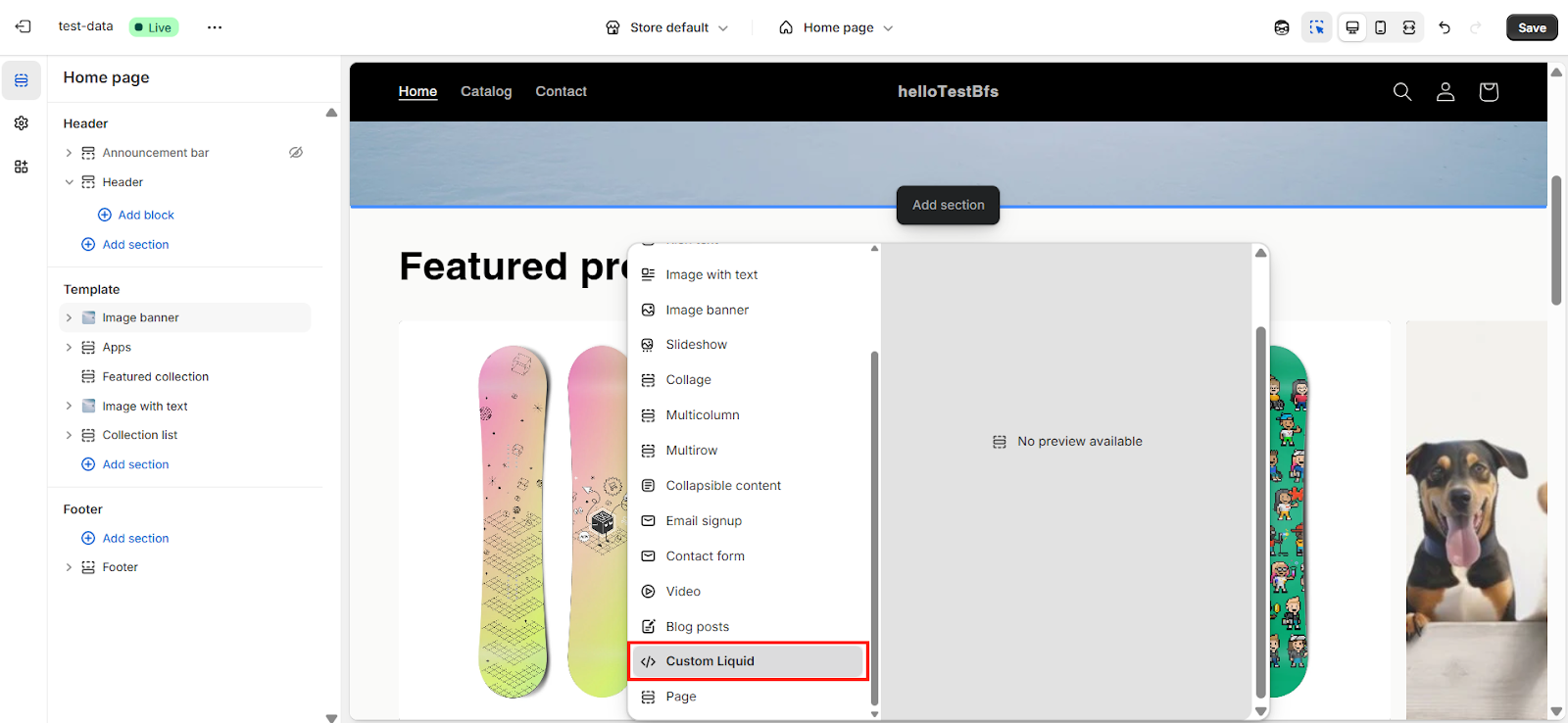
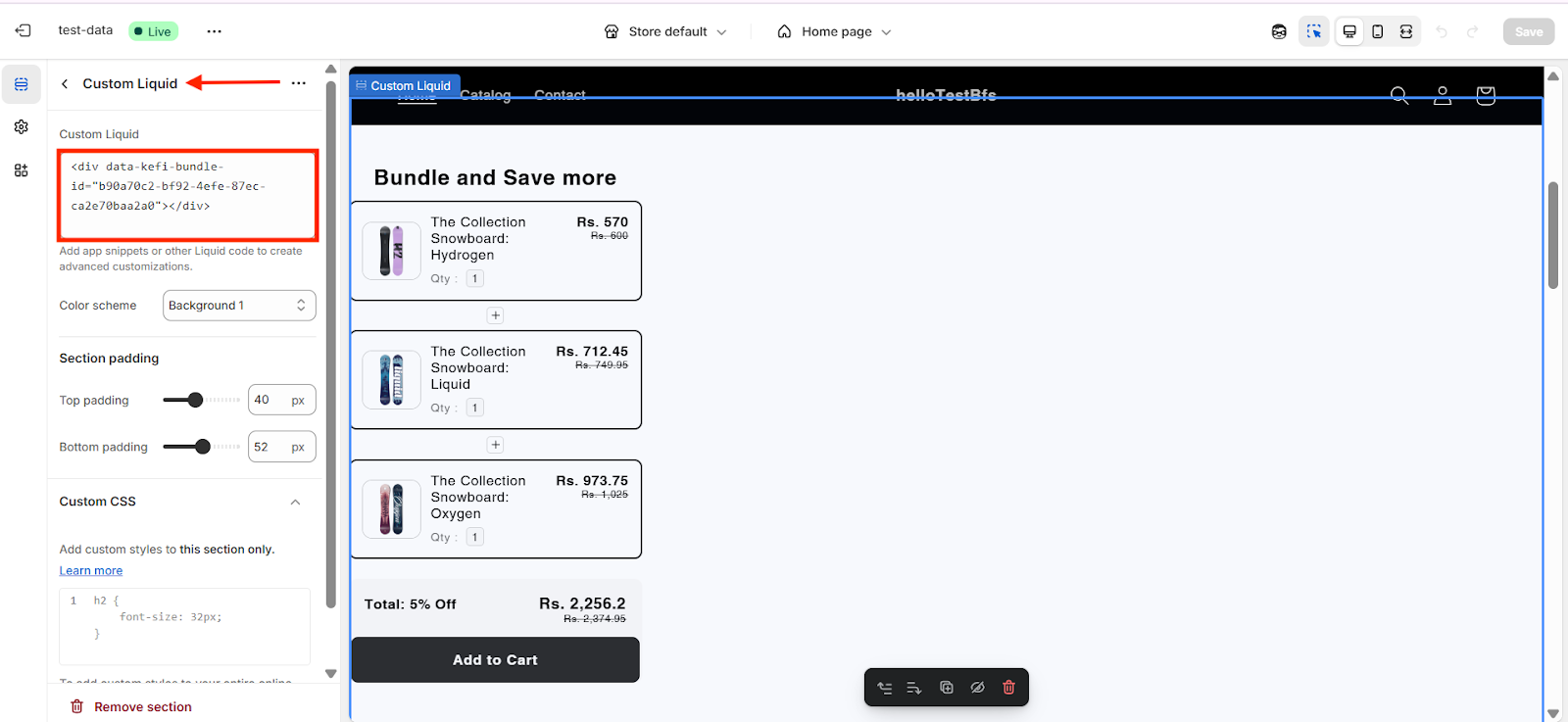
Each bundle comes with a unique embed ID that you can copy and paste into your store’s
custom Liquid code on any page where you want the bundle to appear. This is a manual setup but
gives you full control over placement. You can also style it using your own CSS to match your brand.
Need Help?
-
Live Chat: Available via the Kefi Bundles app or website.
-
Email: [email protected]