
How to Set Product Selection Rules in the Bundle Builder
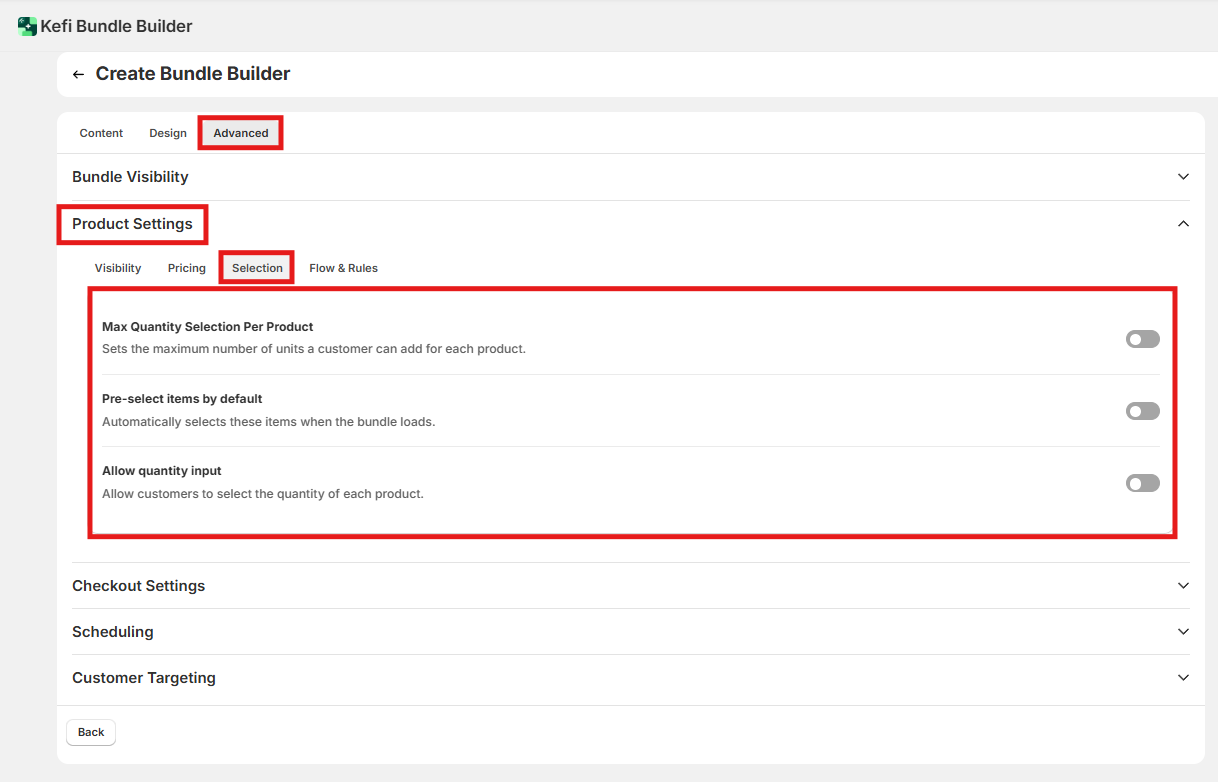
Where to find this: Bundle Builder editor → Advance tab → Product Settings → Selection tab
In This Guide We'll Cover
Quantity Restrictions
Pre-selected Products
Recommended Defaults by Scenario
End-to-End Example: A "Pick Your Pack" Coffee Bundle
FAQ
Quantity Restrictions
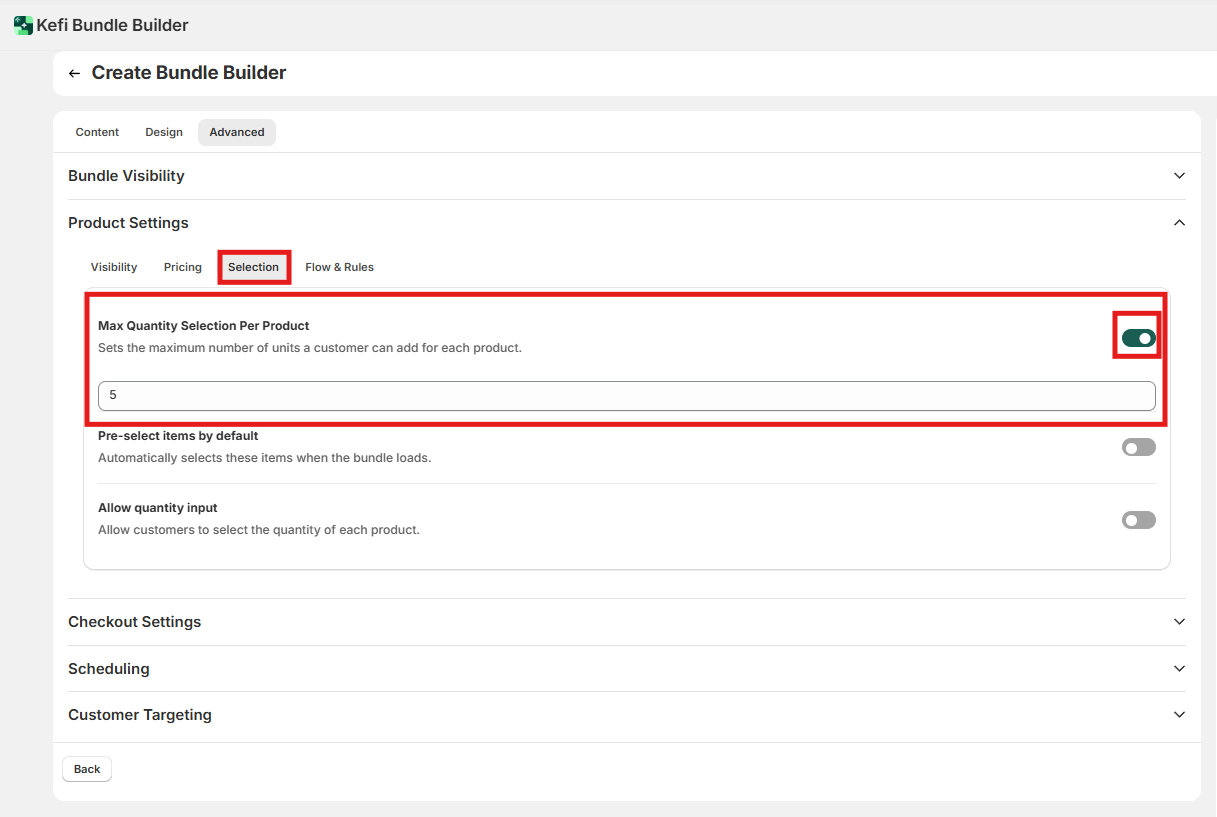
Max Quantity Selection Per Product
Default: Off (no per-product quantity cap)
What it does: When enabled, sets a hard limit on how many units of a single product a customer can add to their bundle — regardless of the overall bundle size or step rules.
For example, if you set this to 3, a customer building a 12-item bundle can add at most 3 units of any one product. They'd need to fill the remaining slots with other items.
When to enable: Use this to encourage variety — especially useful for snack boxes, sampler packs, or any bundle where the value proposition is trying multiple products. Leave it off if customers should be free to load up on a single favorite (e.g., a consumable refill bundle).
Pre-selected Products
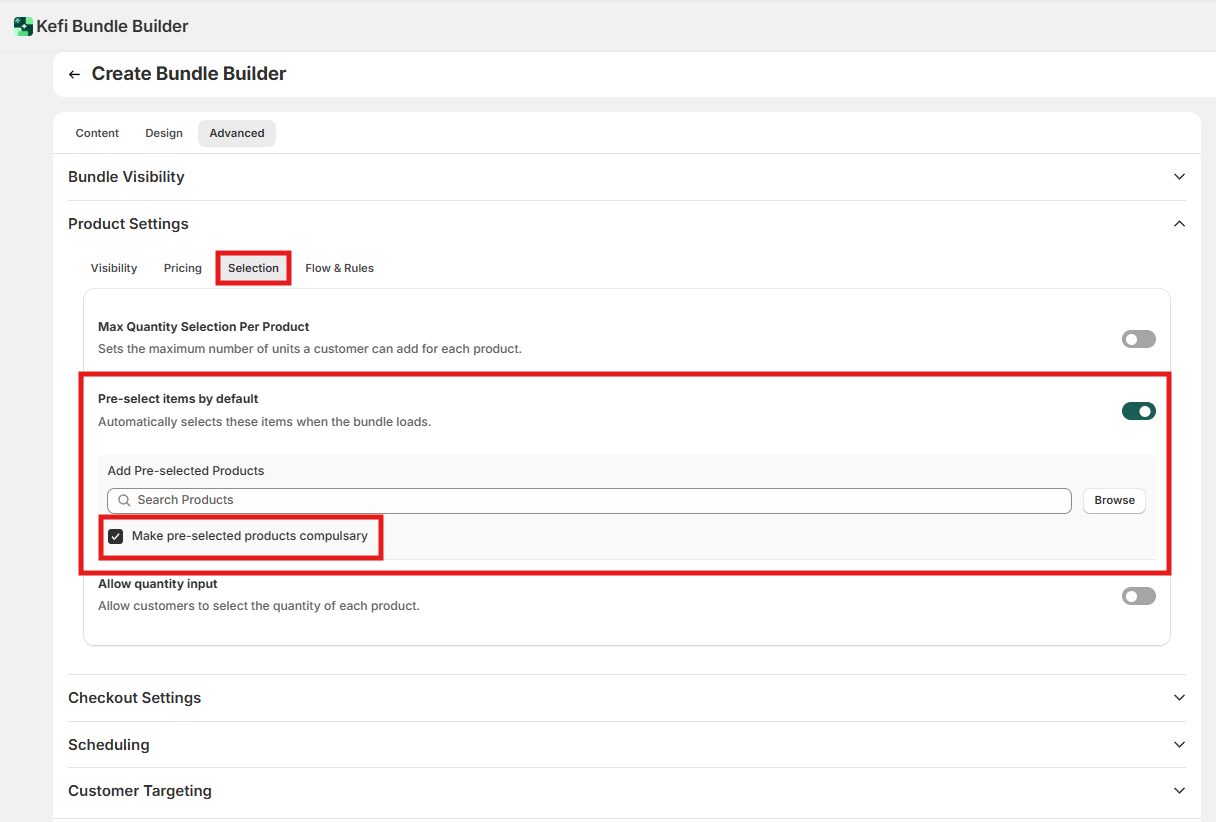
Pre-select Items by Default
Default: Off (bundle starts empty)
What it does: When enabled, specific products are automatically added to the customer's bundle as soon as the builder loads. Customers arrive at a pre-filled starting point rather than an empty selection.
When to enable: Use this when you have a core set of products that most customers should include — for example, a "starter" item that anchors the bundle, or a hero SKU you want guaranteed visibility. Avoid pre-selecting too many items upfront, as it can feel presumptuous and may increase bundle abandonment.
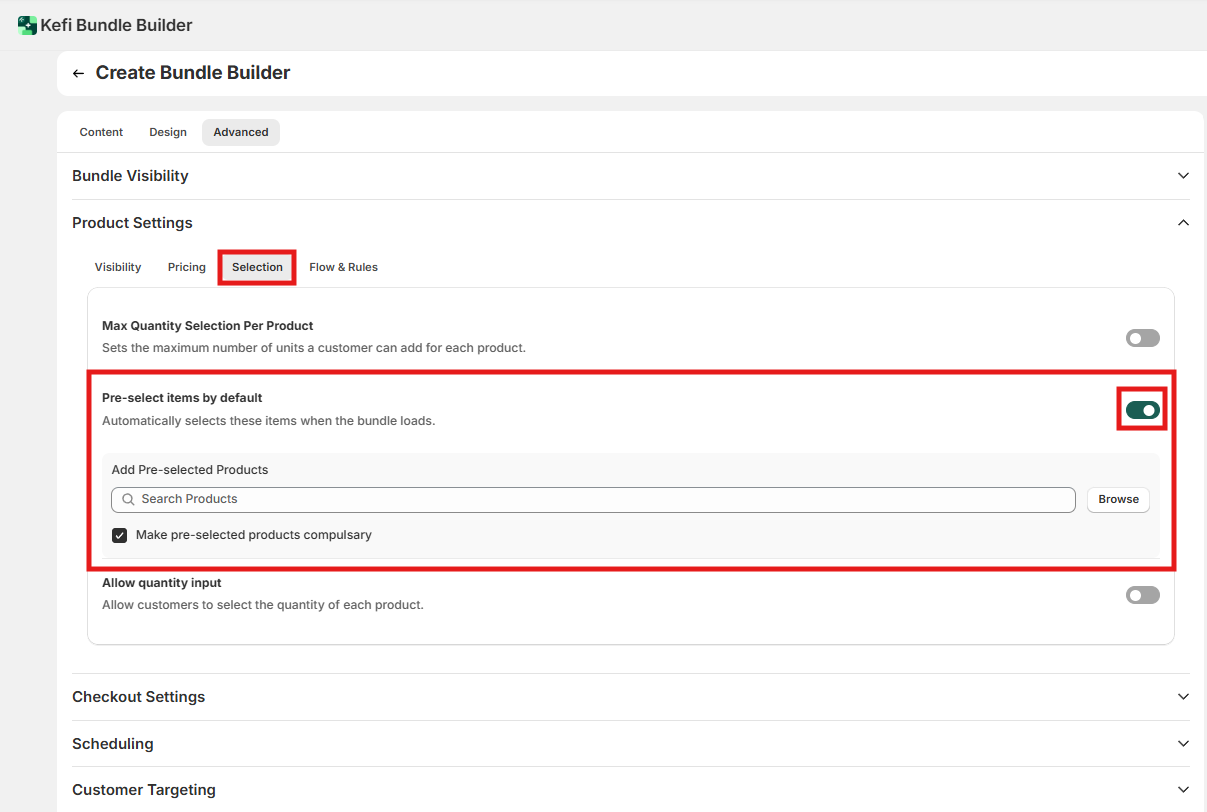
Add Pre-selected Products
This field only appears when Pre-select Items by Default is enabled.
What it does: Lets you search and select the specific products that will be pre-loaded into the bundle. You choose which items, not just how many.
When to use: Be deliberate here. Pre-selected products take up slots in the customer's bundle count (if you have step-level quantity rules), so factor that into your step configuration. For example, if your step requires exactly 6 items and you pre-select 2, customers only need to pick 4 more.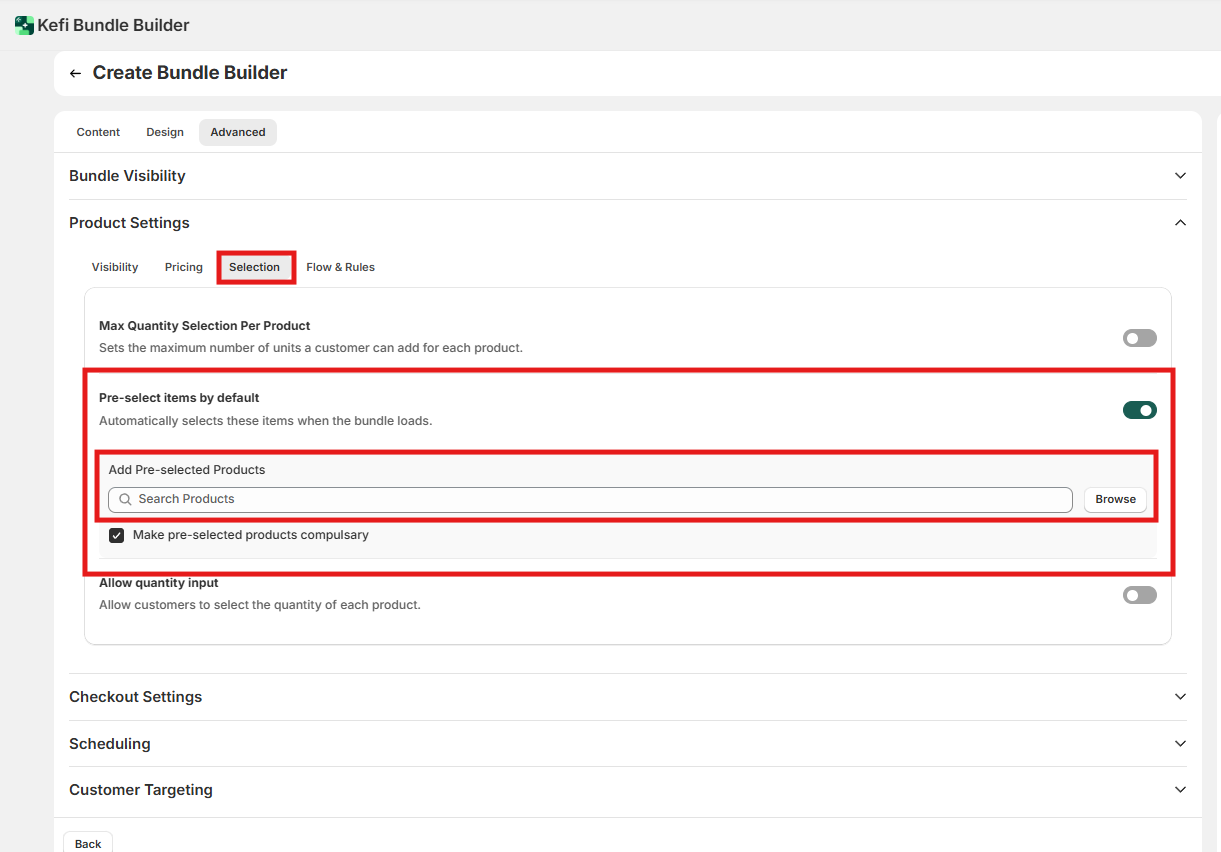
Make Pre-selected Products Compulsory
Default: Off (customers can remove pre-selected items)
What it does: When enabled, pre-selected products are locked into the bundle. Customers cannot remove them. The items appear in the builder but without a remove or deselect option.
When disabled, pre-selected items are just defaults — customers can remove them and replace them with other products.
When to enable: Use this when a specific product must always be included in the sale — for example, a base product, a required accessory, or a compliance item. This is also useful for "build around a hero product" bundles where the anchor SKU is non-negotiable. Avoid using this purely as a sales tactic to force high-margin items on customers — it can create friction and erode trust if the requirement isn't clearly communicated.
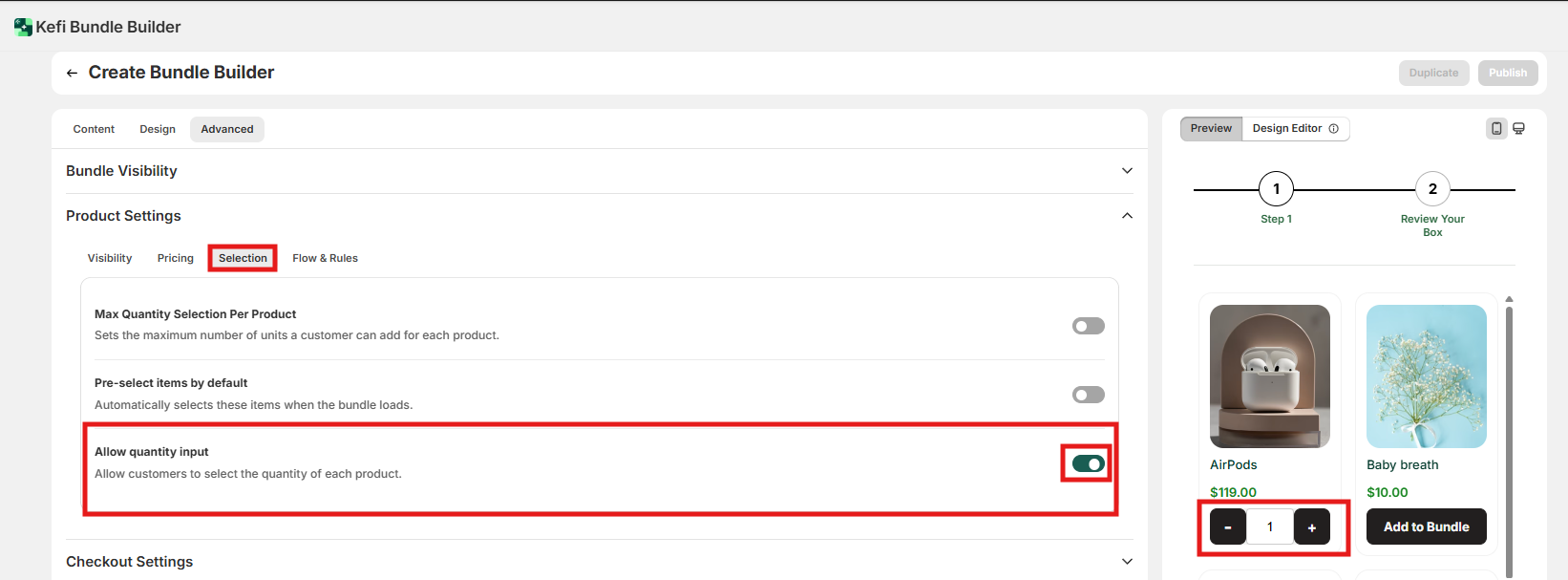
Allow Quantity Input
Default: Off (each click adds one unit)
What it does: When enabled, a quantity input (typically a number field or +/− stepper) appears on each product card. Customers can type or increment the number of units they want instead of clicking the product multiple times.
When disabled, each click on a product adds exactly one unit. To add 4 of something, the customer clicks 4 times.
When to enable: Turn this on for bundles where customers are likely to add multiple units of the same item — it's a significantly better experience than repeated clicking. If your bundle logic encourages one-of-each selection (e.g., a "try one of everything" sampler), leaving it off keeps the interaction simpler.
Recommended Defaults by Scenario
Scenario | Max Qty Per Product | Allow Qty Input | Pre-select Items | Make Compulsory |
Variety sampler / "try everything" box | ✅ On (e.g., 2) | Off | Off | — |
Refill or replenishment bundle | Off | ✅ On | ✅ On | Off |
Curated box with a required hero product | Off | Off | ✅ On | ✅ On |
High-consideration gift bundle | Off | ✅ On | Off | — |
End-to-End Example: A "Pick Your Pack" Coffee Bundle
Goal: A 6-bag coffee bundle where customers must include one signature blend, can pick up to 2 bags of any other single roast, and can manually set quantities rather than clicking repeatedly.
Setup:
Max Quantity Selection Per Product: On, set to 2 — prevents customers from loading up entirely on one roast and encourages variety
Allow Quantity Input: On — customers are selecting specific quantities of each bag; a stepper is much cleaner than repeated clicks
Pre-select Items by Default: On — the signature house blend is pre-loaded as the anchor product
Add Pre-selected Products: Signature House Blend (1 unit)
Make Pre-selected Products Compulsory: On — the house blend is always included; it's the bundle's core product and part of the brand story
Step rule to pair with this: Total Quantity is equal to 6, with tooltip: "Add 5 more bags to complete your pack" (accounting for the 1 pre-selected item).
Result: Customers land on a builder with one bag already in their bundle, choose 5 more from the catalog, and can't add more than 2 of any single roast. The house blend is guaranteed in every order.
FAQ
If I pre-select a product and make it compulsory, does it still count toward the step quantity limit?
Almost certainly yes — but verify this in your own setup. If your step rule requires exactly 6 items and 1 is pre-selected and locked, customers should only need to pick 5. Update your tooltip message to match (e.g., "Pick 5 more items to continue").
What happens if a pre-selected product goes out of stock?
If "Hide Out-of-Stock Products" is enabled in your Visibility settings, the product may be hidden — but it's unclear whether this overrides the pre-selection. Test this scenario before relying on compulsory pre-selection for a product with volatile inventory.
Can I set different max quantity limits for different products?
No. Max Quantity Selection Per Product applies a single cap across all products in the step. You can't set product A to a max of 2 and product B to a max of 5 within the same step.
Can customers add more units of a compulsory pre-selected product? The pre-selected quantity is fixed, but whether customers can add additional units of that same product on top of the locked one is not explicitly documented. Verify this in your storefront if it's relevant to your bundle logic.