
How to Set Up Discounts in the Bundle Builder
Define how customers save — from flat discounts to tiered pricing and fixed box deals.
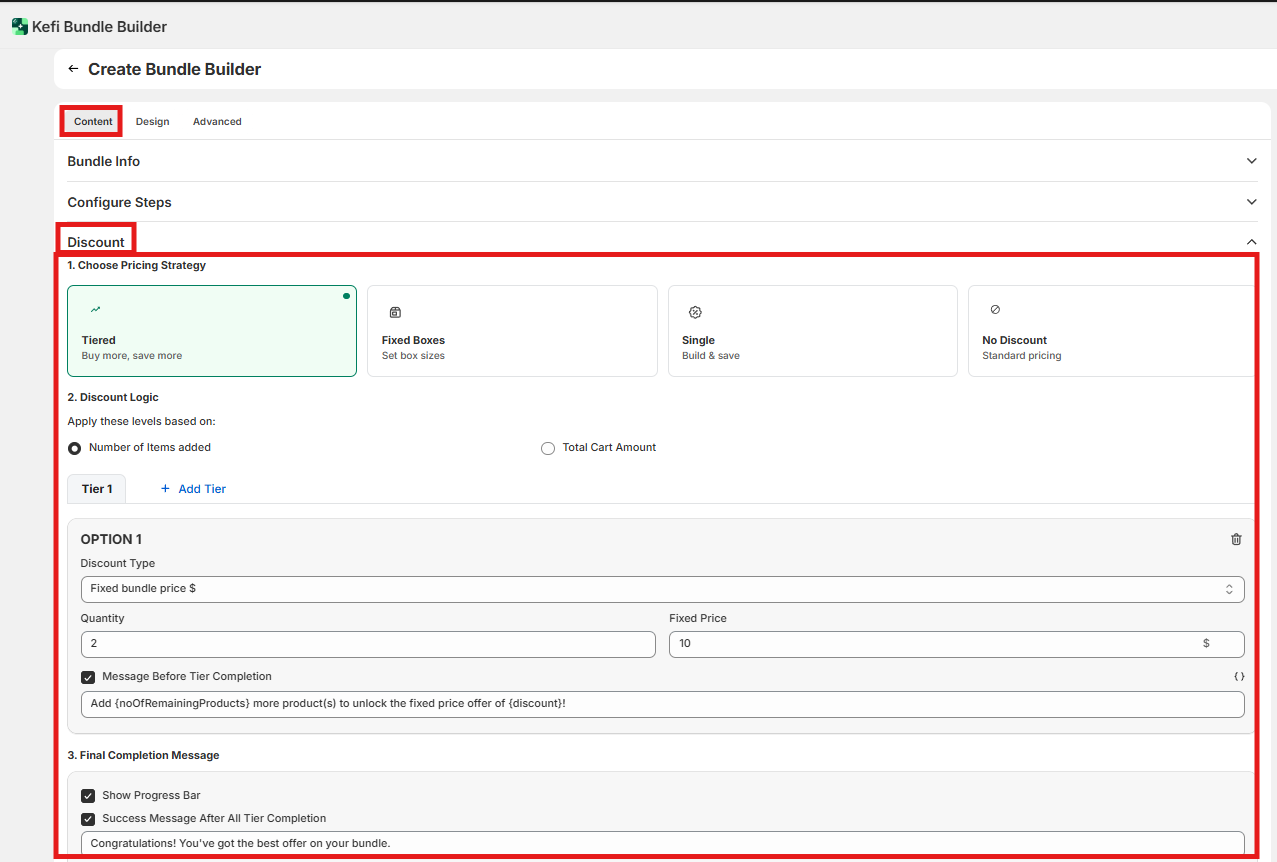
Where to find this: Bundle Builder editor → Content tab → Discount section
On this page
Tiered discount (buy more, save more)
Fixed boxes (set box sizes)
Single discount (flat bundle saving)
No discount
Discount combinations
Recommended defaults by scenario
End-to-end example: tiered skincare bundle
FAQ
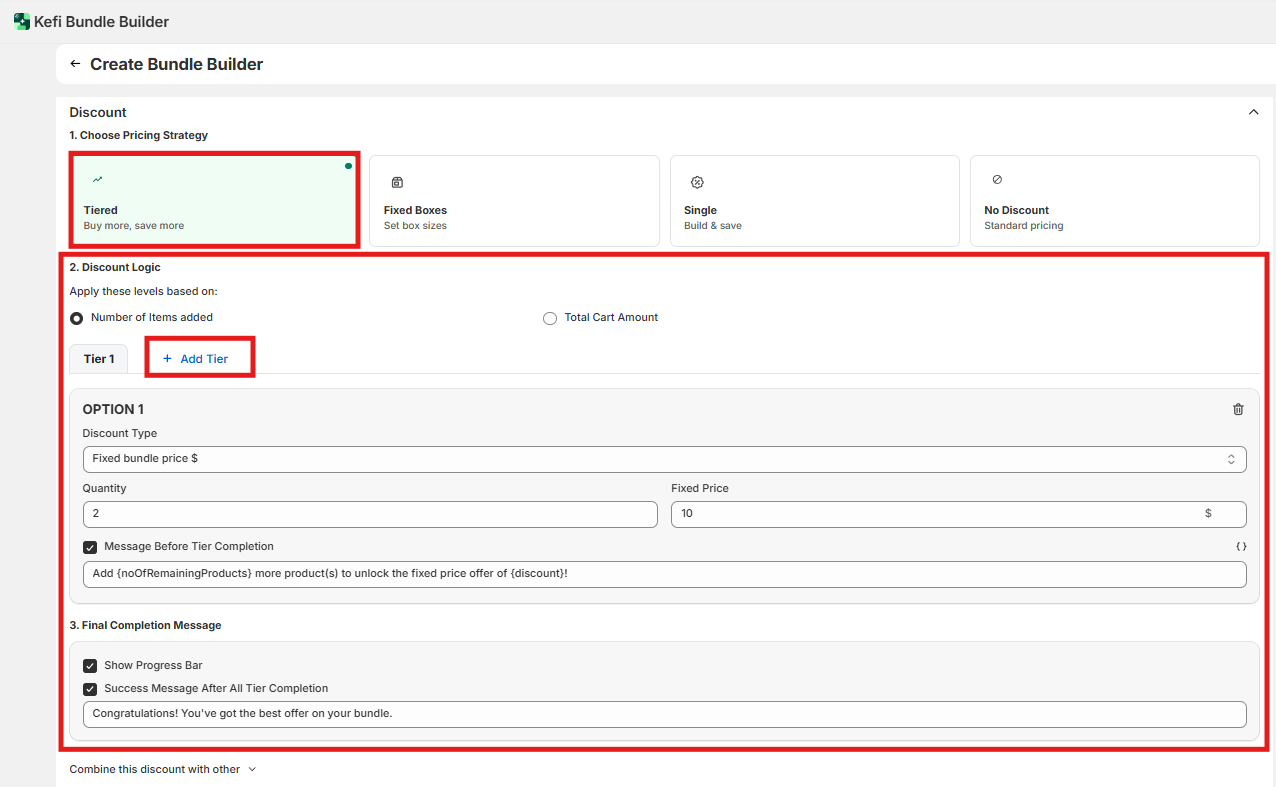
Tiered discount (buy more, save more)
Rewards customers with larger discounts as they add more items or spend more. Best for encouraging upsells and increasing average order value.
Discount logic Choose what triggers each tier:
Number of Items — discount unlocks when the customer adds a set quantity of products.
Total Cart Amount — discount unlocks when the cart value crosses a set threshold.
Discount type Applies per tier. Choose one:
Percentage — deducts a % from the bundle total (e.g., 10% off).
Fixed Amount — deducts a specific dollar value (e.g., $5 off).
Fixed Bundle Price — sets the entire bundle to a flat price (e.g., any 5 items for $40).
Tier messaging: Set a message that appears before the customer reaches the next tier (e.g., "Add 2 more items to unlock 20% off"). This is the primary lever for nudging customers to the next level. When to update: Always fill this in for tiered setups — without it, customers have no visibility into what they're working toward.
Show progress bar: When enabled, displays a visual progress indicator showing how close the customer is to the next tier. When to enable: Turn on for any tiered setup. A progress bar significantly increases the chance customers push to the next tier.
Success message: Text shown when a customer reaches a tier (e.g., "You've unlocked 20% off!"). When to update: Always add this — it confirms the discount has applied and rewards the customer for reaching the tier.
Fixed boxes (set box sizes)
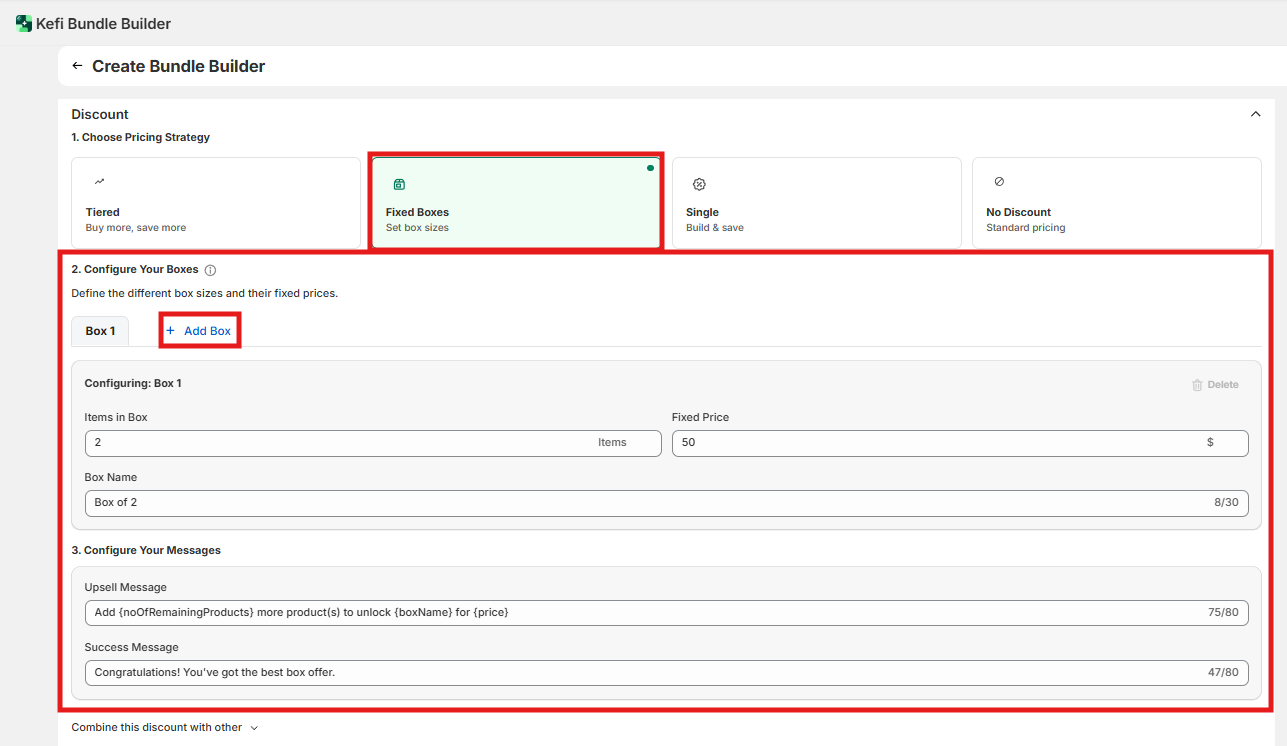
Ideal for curated sets where customers must fill a specific quantity to unlock a deal — for example, a "Box of 6" at a flat price. Customers see available box sizes and unlock larger boxes as they add more products.
Items in box The quantity a customer must select to complete and unlock that box size.
Fixed price The flat price for that completed box, regardless of which products the customer picks.
Box name: A custom label for the box shown to customers (e.g., "Starter Box," "Large Box"). When to update: Always name your boxes — it makes the size options scannable and easier to compare.
Upsell message: Shown while the customer is building toward the next box size (e.g., "Add 2 more to unlock the Large Box!"). When to update: Always fill this in. Without it, customers don't know a larger box exists or how close they are to unlocking it.
Success message: Shown when a box is completed and the price locks in. When to update: Add a short confirmation (e.g., "Your Large Box is ready — $50 flat!").
Single discount (flat bundle saving)
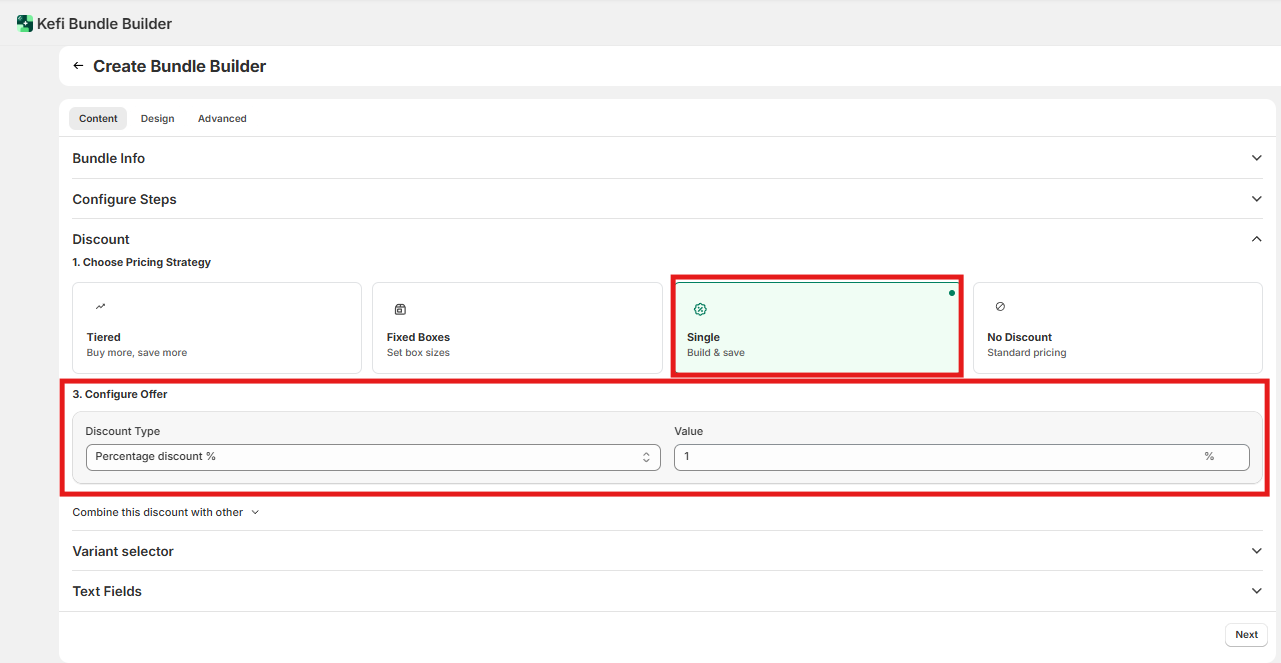
A flat discount that applies to the entire bundle regardless of how many items the customer selects. The simplest setup — one discount, always on.
Discount type Choose one:
Percentage — deducts a % from the bundle total (e.g., 15% off everything).
Fixed Amount — deducts a flat dollar value from the total (e.g., $10 off).
Fixed Price — sets the entire bundle to one price regardless of contents (e.g., any bundle for $30).
Value The number that corresponds to your chosen discount type (e.g., 15 for 15%, or 30 for a $30 fixed price).
When to use: Use Single when you want a consistent, always-visible saving without any purchase threshold. Works well for introductory bundles or straightforward product sets.
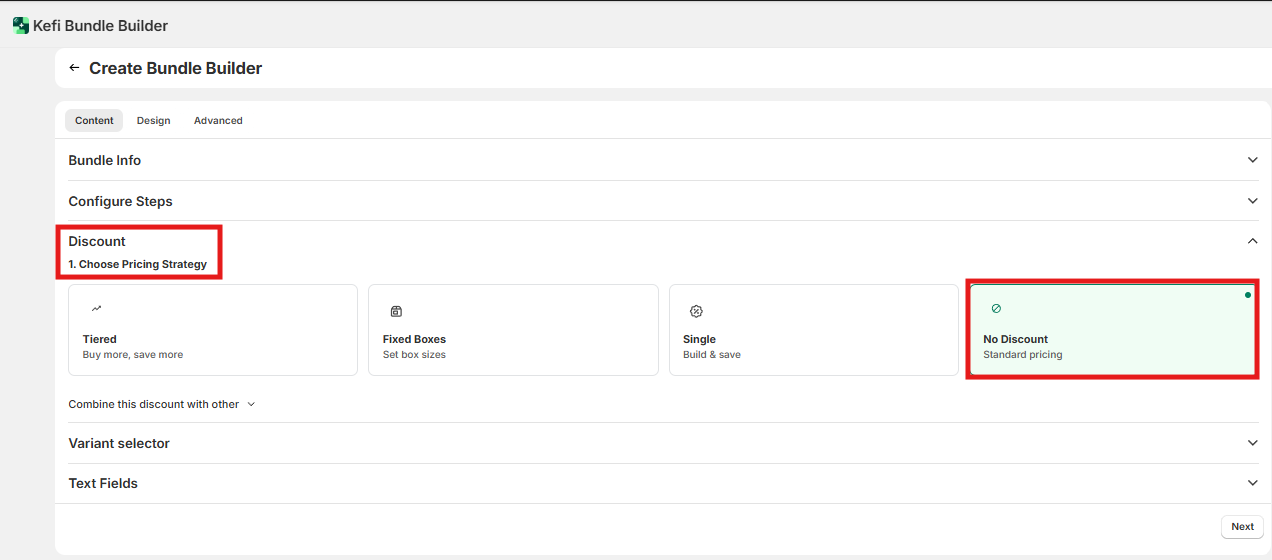
No discount
Select this if you want to use the bundle builder purely as a selection or merchandising tool, with no additional savings applied. Products are sold at their standard Shopify prices.
When to use: Useful when the value is in the curation itself — for example, a gift box builder or a subscription customization flow where price incentives aren't the goal.
Discount combinations
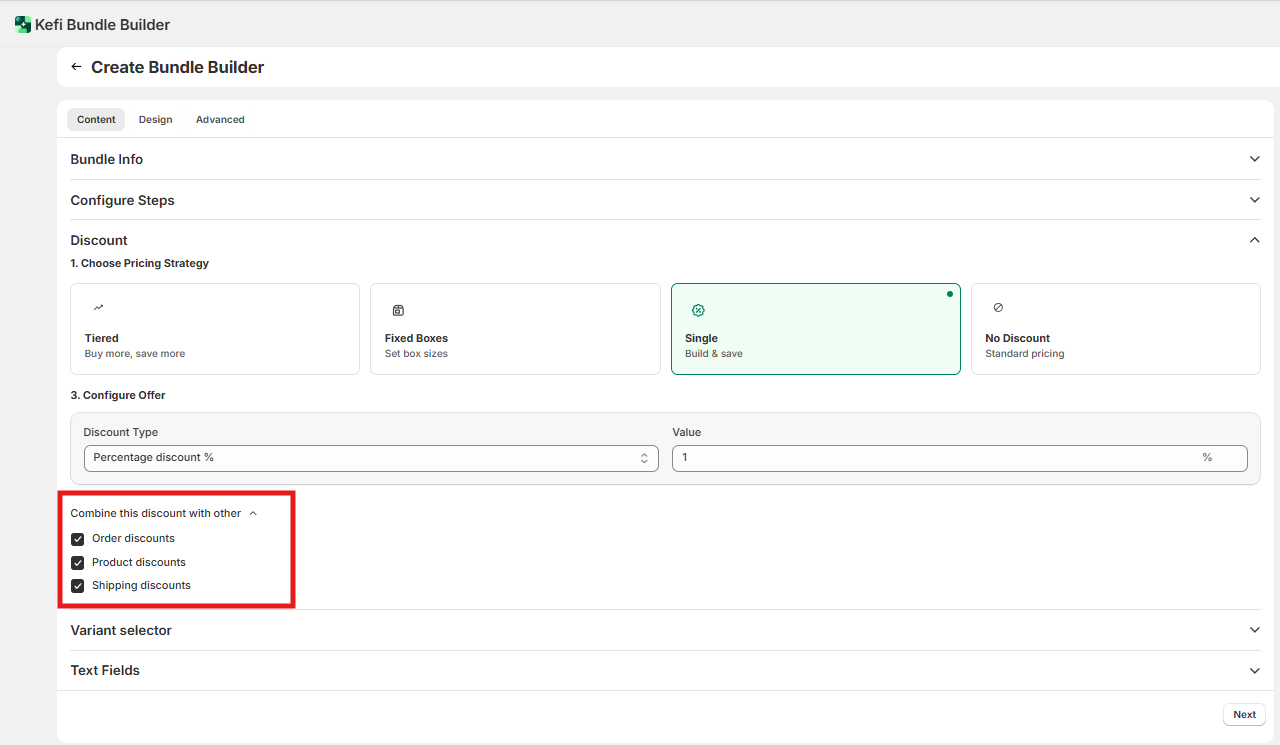
Controls how your bundle discount interacts with other active Shopify promotions. Found at the bottom of the Discount section.
Combine with order discounts: When enabled, allows order-level coupon codes to stack on top of the bundle discount. When to enable: Turn on if you run sitewide coupon campaigns and want bundle customers to benefit from both savings.
Combine with product discounts: When enabled, allows individual product-level sale prices to stack with the bundle discount. When to enable: Turn on carefully — stacking product discounts with a bundle discount can reduce margins significantly. Only enable if you've accounted for this in your pricing.
Combine with shipping discounts: Off When enabled, allows free shipping codes to apply alongside the bundle discount. When to enable: Safe to enable in most cases, as shipping discounts don't affect product margin.
Discount type reference
Discount type | How it works | Example |
Percentage | Deducts a % from the bundle total | 20% off any bundle |
Fixed Amount | Deducts a specific dollar value | $10 off the bundle |
Fixed Price | Sets the entire bundle to a flat cost | Any 3 items for $30 |
Recommended defaults by scenario
Scenario | Recommended approach |
Maximizing average order value | Use Tiered with Number of Items. Enable progress bar and fill in all tier messages. |
Curated gift sets with set quantities | Use Fixed Boxes. Name each box clearly and always add upsell messages between sizes. |
Simple "bundle and save" offer | Use Single with a Percentage discount. Clean, low-friction setup. |
Bundle as a selection tool, no deal | Use No Discount. No configuration needed beyond the product setup. |
End-to-end example: tiered skincare bundle
Goal: A 3-step "Build Your Skincare Routine" bundle that rewards customers for adding more products — 10% off at 3 items, 20% off at 5 items.
Go to Content tab → Discount section in the bundle builder settings.
Select Tiered as the pricing strategy.
Set Discount Logic to Number of Items.
Set Tier 1 — 3 items, Percentage, 10%. Add message: "Add 2 more items to unlock 20% off!"
Set Tier 2 — 5 items, Percentage, 20%. Add success message: "You've unlocked 20% off your routine!"
Enable Show Progress Bar so customers can see how close they are to the next tier.
Under Discount Combinations, enable Combine with shipping discounts if you're running a free shipping promotion alongside this bundle.
Save and preview as a customer — add items one by one to confirm the progress bar advances and messages appear at the correct thresholds.
FAQ
Can I use more than one pricing strategy on the same bundle? No. You select one strategy per bundle — Tiered, Fixed Boxes, Single, or No Discount. If you need different strategies for different product sets, create separate bundles.
Can I set different discount types per tier in a Tiered setup? No. The discount type (Percentage, Fixed Amount, or Fixed Price) is set once and applies across all tiers. Only the threshold and value change per tier.
Can I use the Bundle Builder Link or upsell button alongside any discount strategy? Yes. Visibility settings and discount settings are independent. Any traffic method — upsell button, direct link, or HTML embed — will land customers on the same bundle with whichever discount strategy you've configured.
Does the Fixed Price discount type work per item or for the whole bundle? Fixed Price sets the total cost of the entire bundle, not per item. A "3 items for $30" setup means the whole bundle costs $30 regardless of which 3 products the customer picks.