
What is a Mix and Match Bundle and How to create it: A Complete Overview
A Mix & Match (Sectional) Bundle is an advanced version of traditional Mix & Match bundles that
allows you to divide a customizable bundle into distinct sections—each representing a product category, collection, or
type. This format gives customers more structured flexibility, encouraging them to mix different item types while
still maintaining your bundle logic.
Unlike a basic Mix & Match Bundle, where shoppers choose multiple
items from a single product pool, Sectional Bundles offer multiple product pools—one for each
section.
Why Use Sectional Mix & Match Bundles?
This advanced bundling method
empowers you to guide the customer journey while still allowing creative freedom. It’s ideal for curated shopping
experiences that maintain structure, such as building routines, creating outfits, or sampling variety
packs.
Key Benefits of Sectional Bundles
Curated Customization: Set
required sections like “Pick 1 Cleanser,” “Pick 1 Serum,” “Pick 1
Moisturizer.”
Higher Average Order Value: Structure encourages complete sets and larger
orders.
Flexible Discount Logic: Offer discounts based on total items, number of sections
completed, or predefined combinations.
Inventory Clarity: Sectioned setup keeps stock synced
by product type.
Enhanced UI/UX: Easier for shoppers to understand and complete bundles with
clear steps and visual
segmentation.
Use Cases for Mix and Match Sectional Bundles
Fashion: Build your outfit
– Choose 1 Polo, 1 Solid Tee, and 1 Relaxed Fit Shirt to get 10% OFF.
Snacks: Mix your flavors – Pick any 3
from Chips, Nuts, and Sweets to unlock bundle pricing (3 for $15, 5 for $22, 7 for $28).
Skincare: Create your
skincare routine – Bundle a Cleanser, Serum, and Moisturizer for 15% OFF.
Jewelry: Design your set – Select 1
Ring, 1 Earring, and 1 Bracelet to get 20% off your custom jewelry set.
How to Create a Mix & Match
(Sectional) Bundle in Kefi Bundle Builder
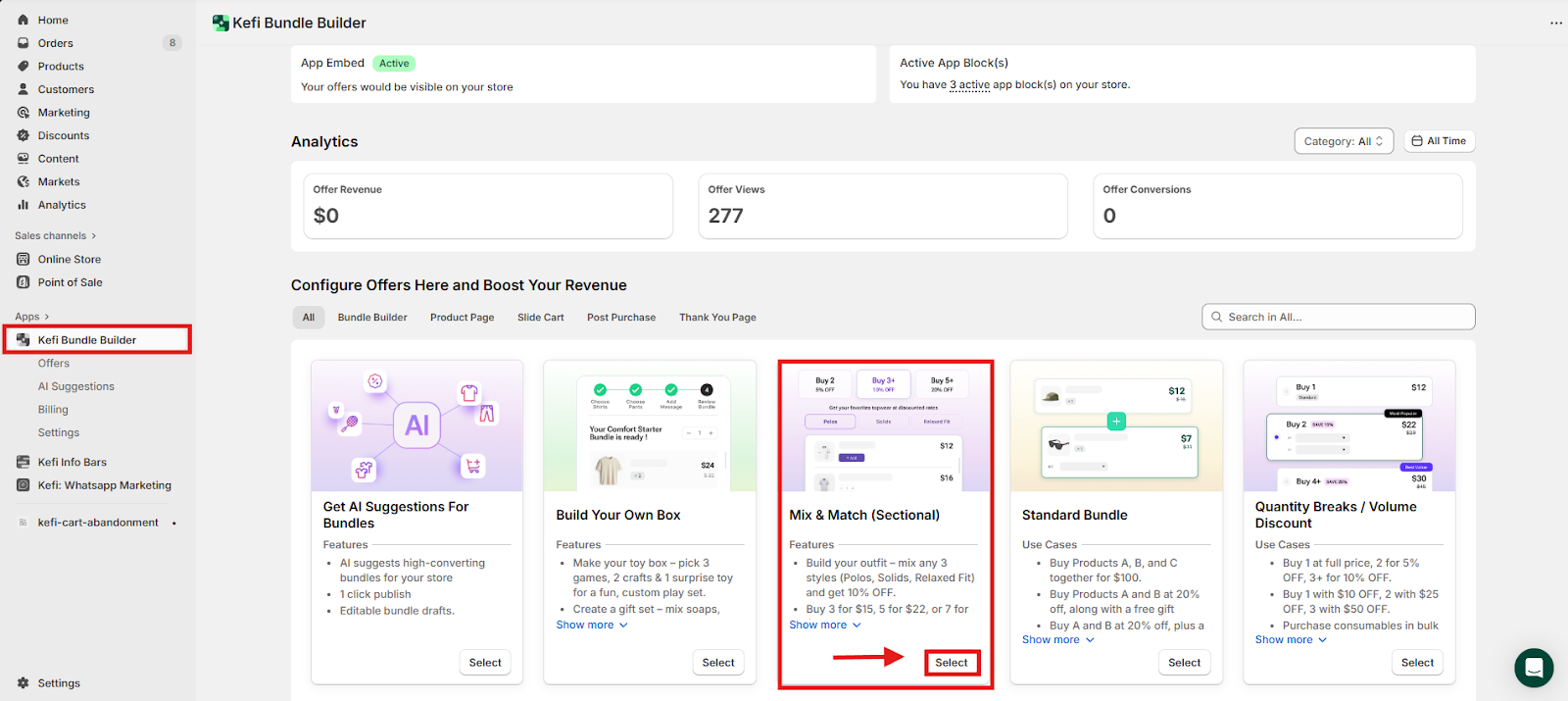
STEP 1
Go to the Kefi Bundle Builder homepage
and select the Mix and Match (Sectional). Click
“Select”
STEP 2
Once you've selected Mix & Match (Sectional) as your bundle type, you'll be
taken to the Content Section, where you can configure the main settings for your bundle.
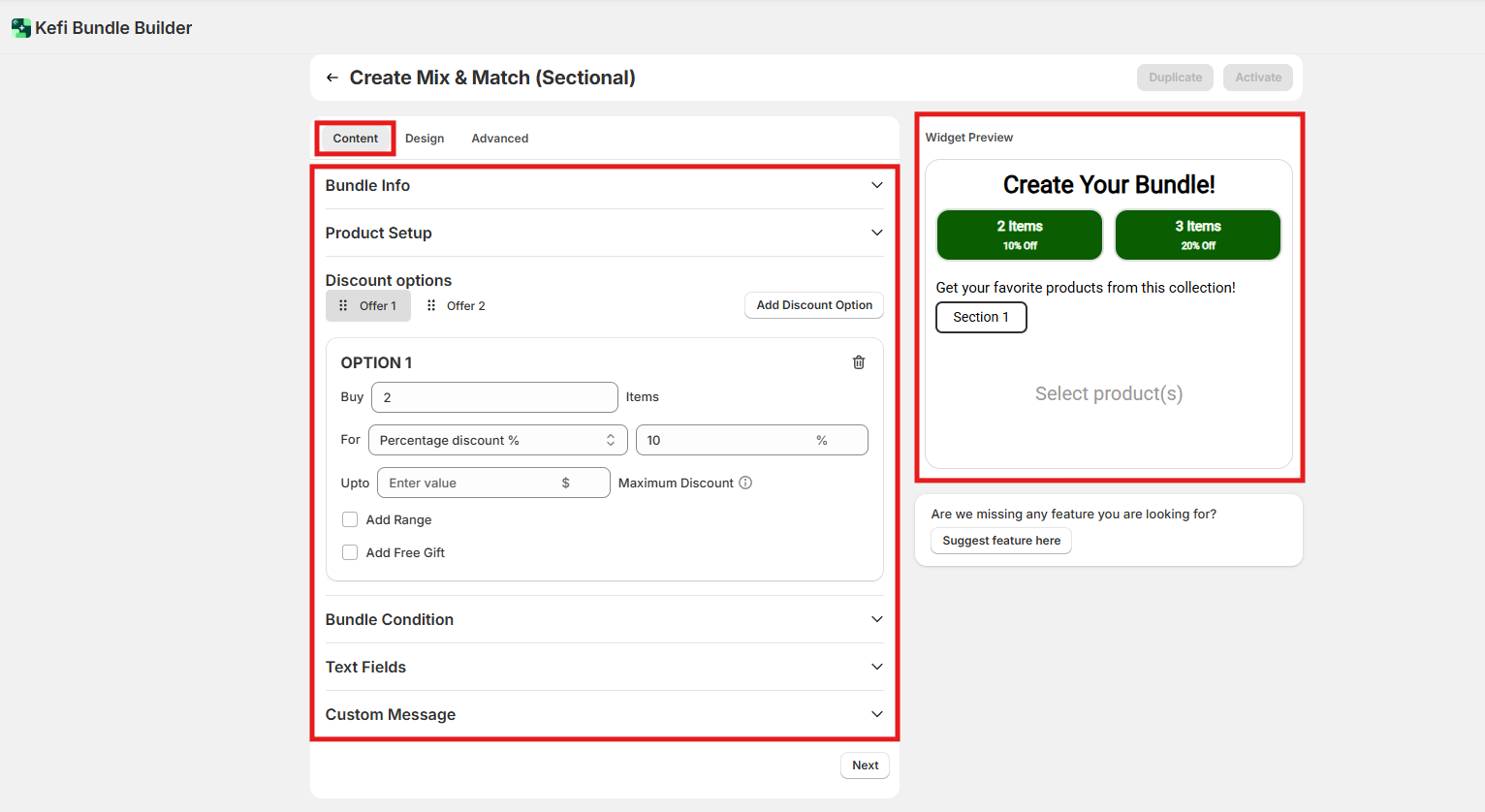
Here’s what you’ll set up:
Bundle Info – Add a title for your bundle.
Product
Setup – Create sections and assign products to each one.
Discount Options – Choose how you want to apply
discounts (percentage, fixed, or tiered).
Bundle Condition – Enable this option to set the conditions for your
bundle.
Text Fields – Customize the text your customers will see, such as headings and buttons.
Custom
Message – Add optional promotional or instructional text.
Widget Preview – See a live preview on the right side
as you make changes.
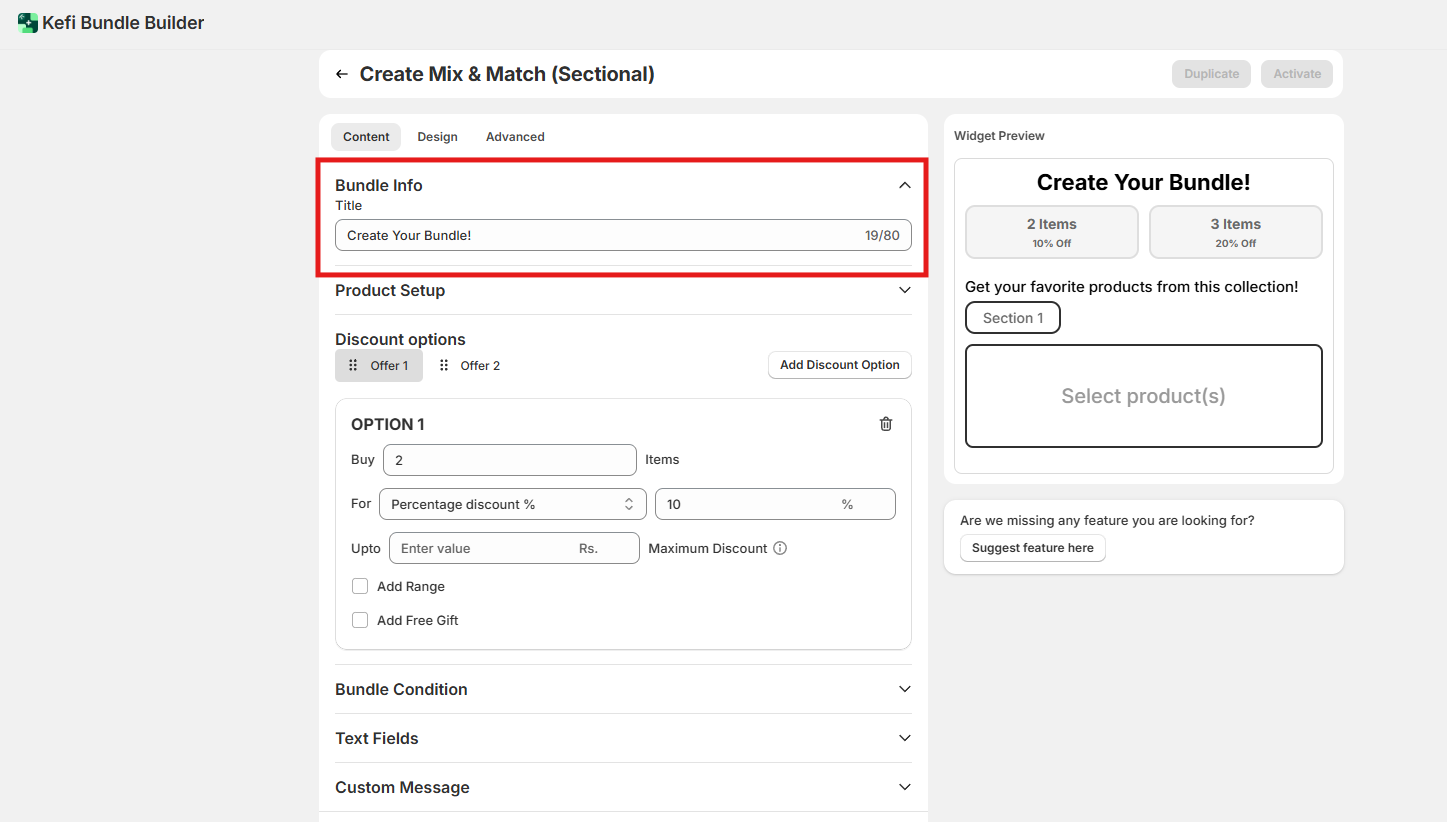
1. Bundle Info
In this section, you can add a title for your Mix and
Match (sectional) Bundle. This title will be visible to customers, so make it clear and appealing.
Character Limit:
You can enter up to 80 characters.
Tip: Use titles like "Build Your Own Snack Box" or "Pick & Save Fashion
Bundle" to attract attention.
2. Product Setup
This is where the sectional logic comes into play:
Create
multiple sections(maximum 6), each representing a product category (e.g., Cleansers, Serums, Moisturizers).
For
each section, choose which products customers can pick from.
Section
Configuration
Within Product Setup, you can create multiple sections to organize your bundle. Each
section allows for:
Section Title – Give each section a clear, customer-friendly title (e.g., “Step 1: Choose
Your Top”).
Section Description – Add a short description to guide your customers on what to select in this
section.
Product Source – Choose to add products manually or pull them from a collection, making it easy to
manage product groups.
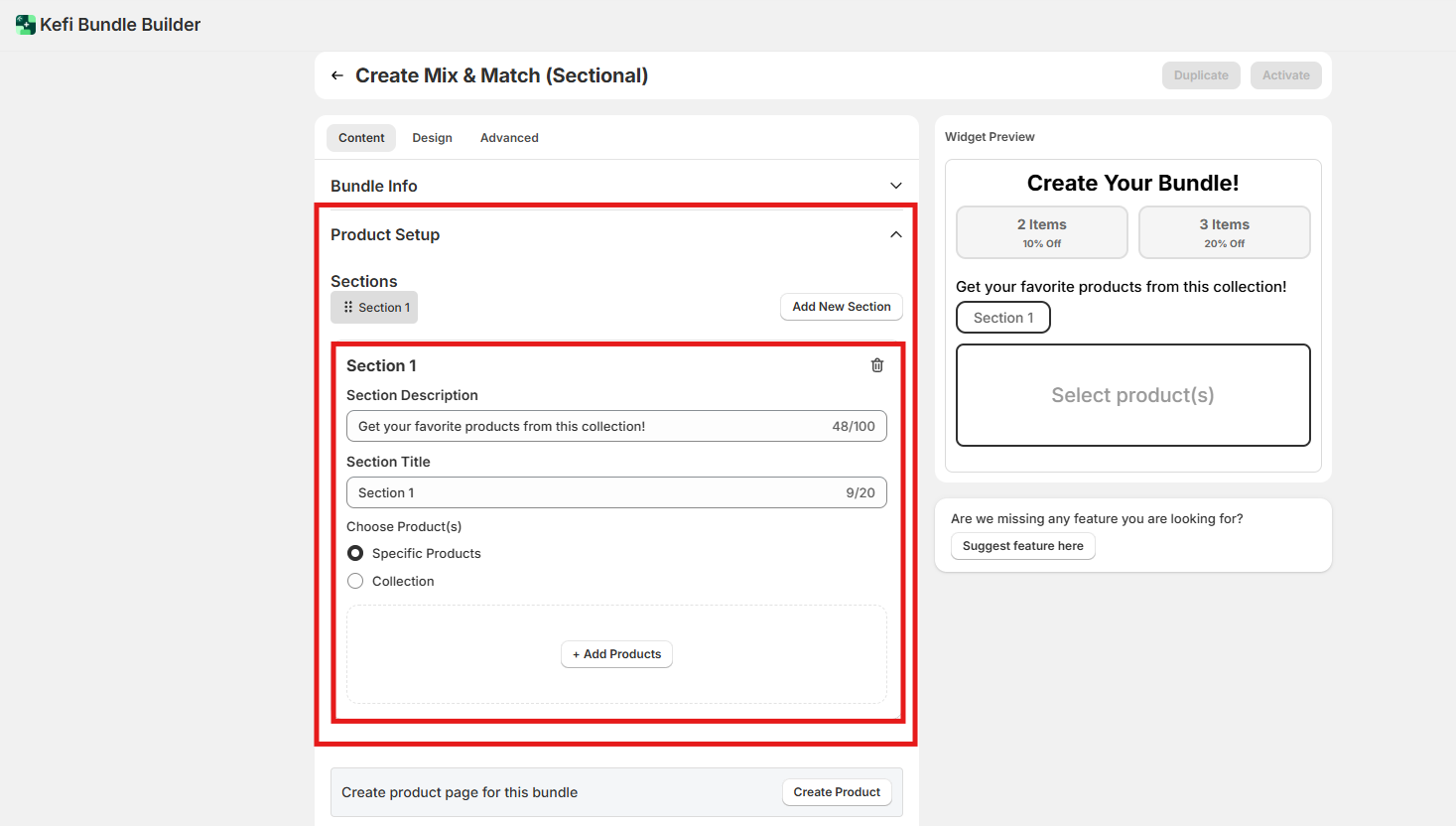
In this guide, we've created two sections, but you can add more using the “Add New Section”
button.
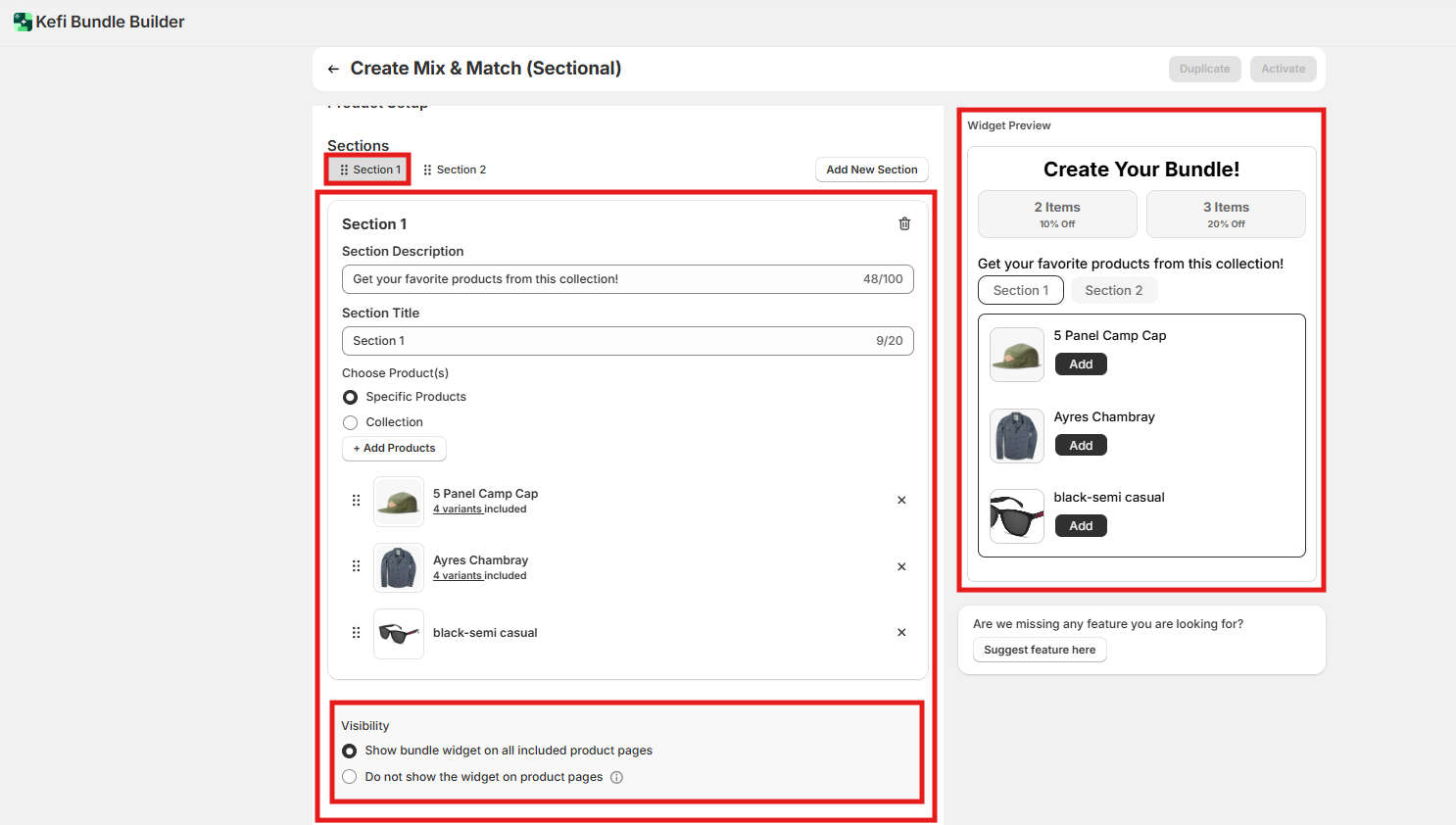
Section 1: Example Setup
In Section 1, we selected the Specific Products option
and manually added three different products to this section. This gives you full control over which individual items
are available for selection.
You’ll also see a Visibility setting, which determines where the bundle widget
will appear:
Show bundle widget on all included product pages
Do not show the widget on product
pages
For this example, we chose the first visibility option, so the bundle widget will be visible on the
product pages of the items included in Section 1. This helps increase visibility and discoverability of the bundle as
customers browse those product pages.
Section 2: Example Setup
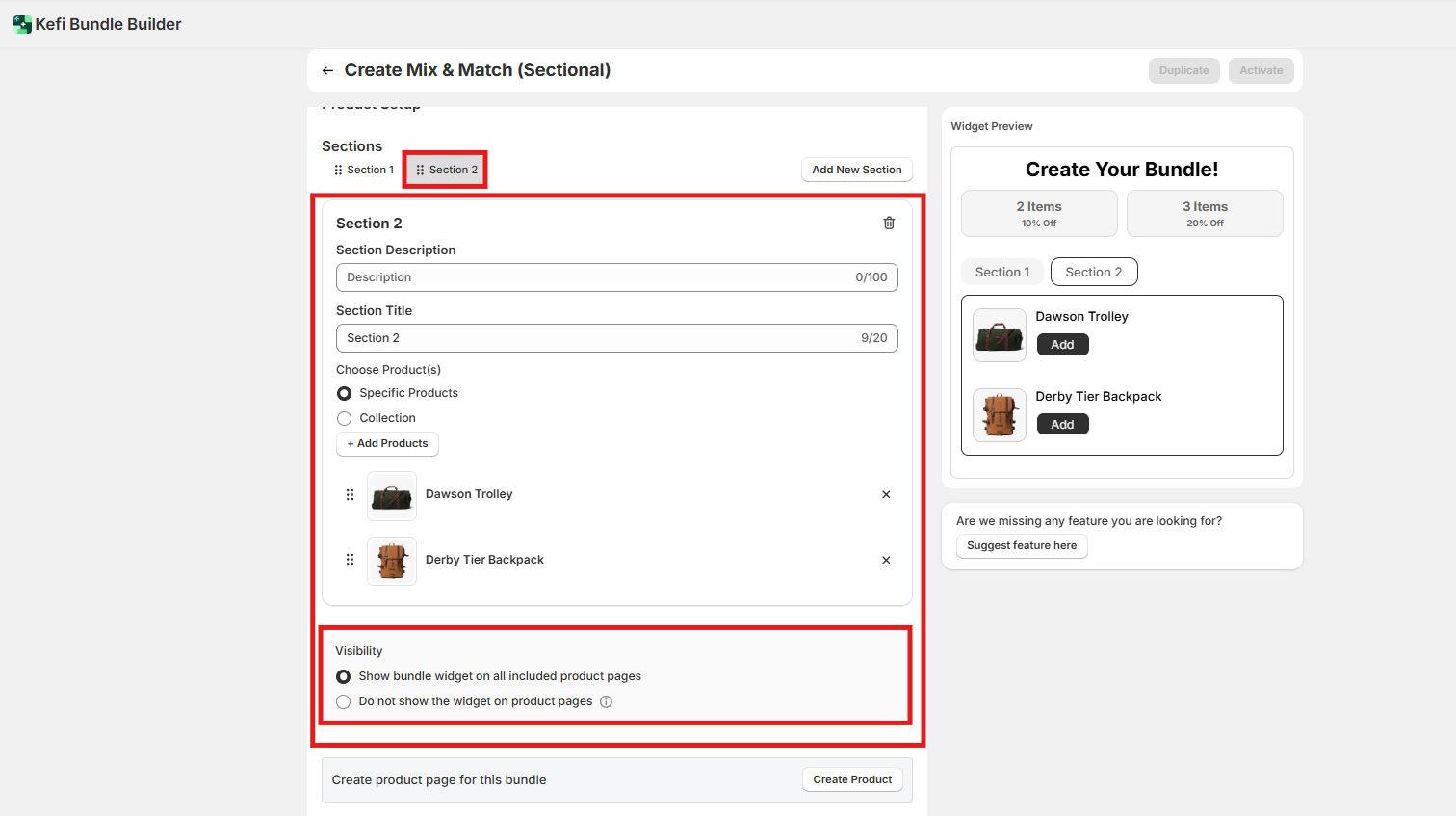
In Section 2, we selected two specific products to include in the
bundle. Like Section 1, we used the Specific Products option to manually choose which items appear in this
section.
The Visibility setting for Section 2 is the same as Section 1:
Show bundle widget on all
included product pages
This ensures the bundle widget is also displayed on the product pages of the two
selected items in Section 2, providing consistent visibility across your bundle setup.
Create a Dedicated Product Page (Optional)
Once you've created your sections, you’ll also
have the option to generate a dedicated product page for your Mix & Match (Sectional) Bundle.
This page
serves as a central location where customers can view and complete the entire bundle experience—ideal for directing
traffic via email campaigns, ads, or navigation menus.
With this option, you can:
Showcase the entire
bundle flow in one place
Drive higher engagement with a fully branded, standalone bundle
experience
Customize the page further with your own descriptions and media
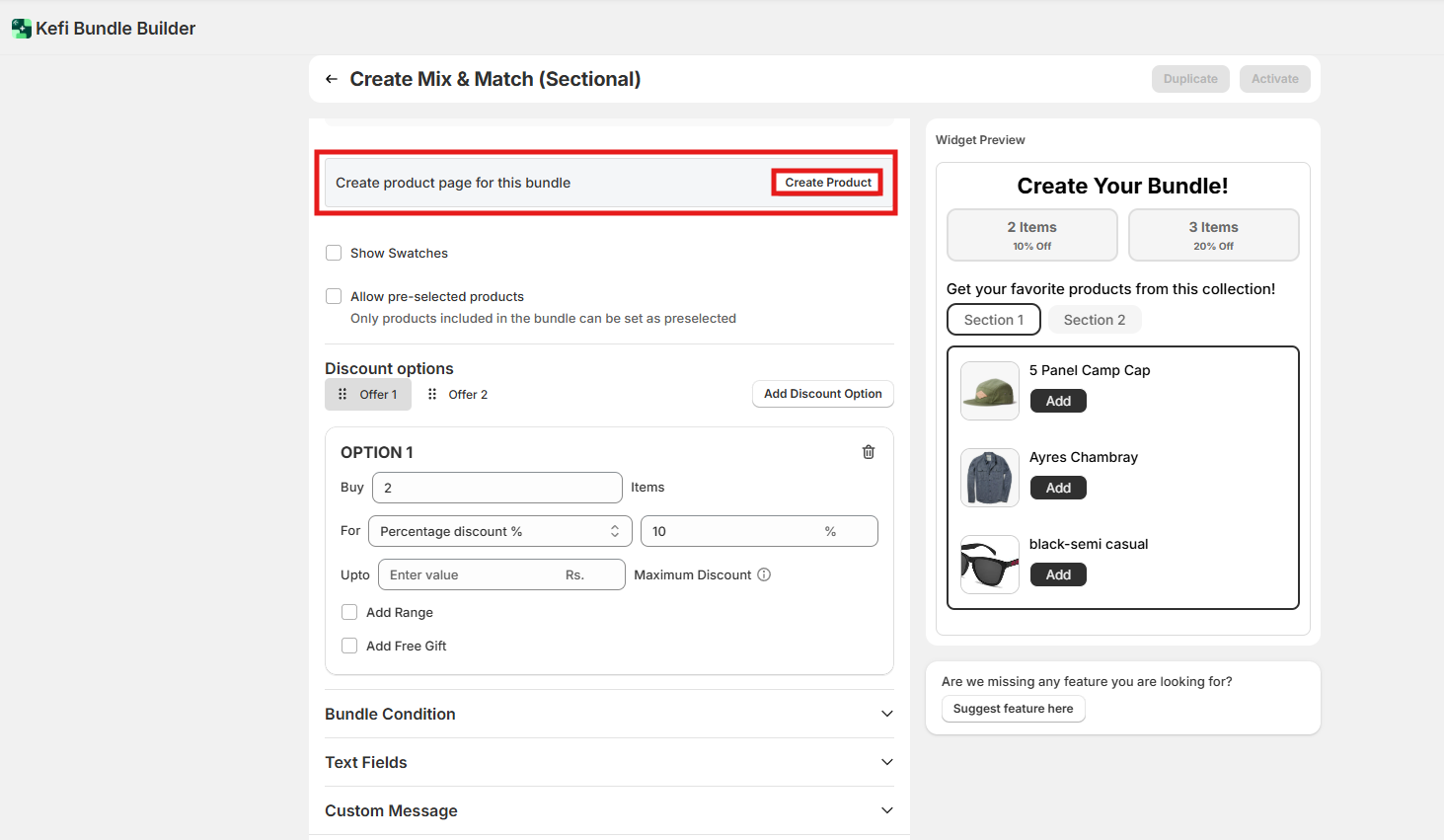
When you click “Create Product”, you’ll be prompted to set up the key
details for your Mix & Match (Sectional) Bundle product page. This allows you to fully customize how the bundle
appears in your
storefront.
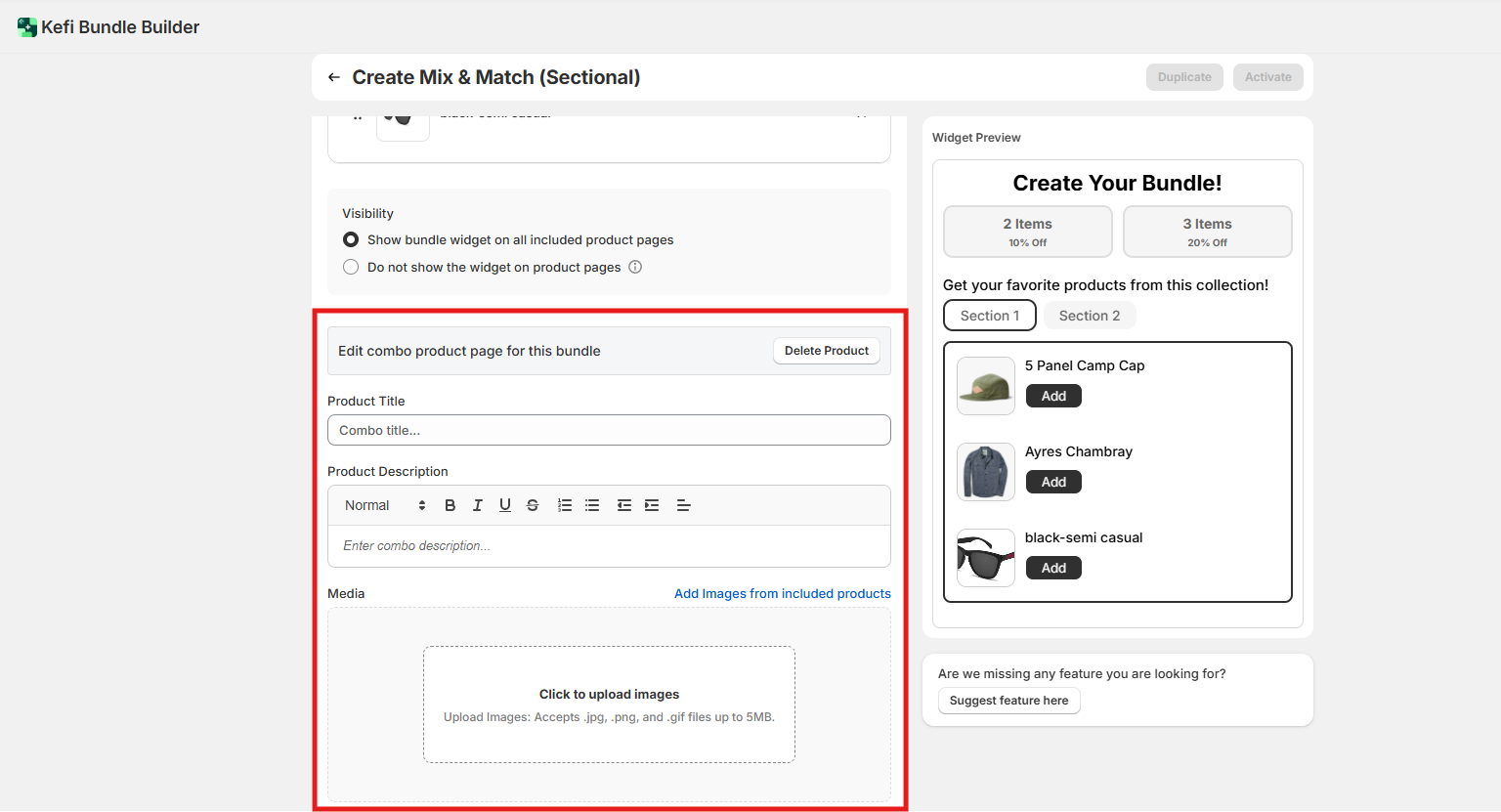
You’ll be able to configure the following:
Product Title – Name your bundle (e.g., “Build
Your Own Skincare Set”).
Product Description – Add details about the bundle, how it works, and any promotional
messaging.
Media Upload – Upload an image or graphic (up to 5 MB) to visually represent your bundle on the
product page.
Variant Swatches and Preselected Products
You have additional customization options to further
enhance the shopping experience:
Show Swatches – Enable this option to display product variants—such as different
colors, sizes, or styles—within the bundle widget. This allows customers to view and select from the available
variants directly in the widget.
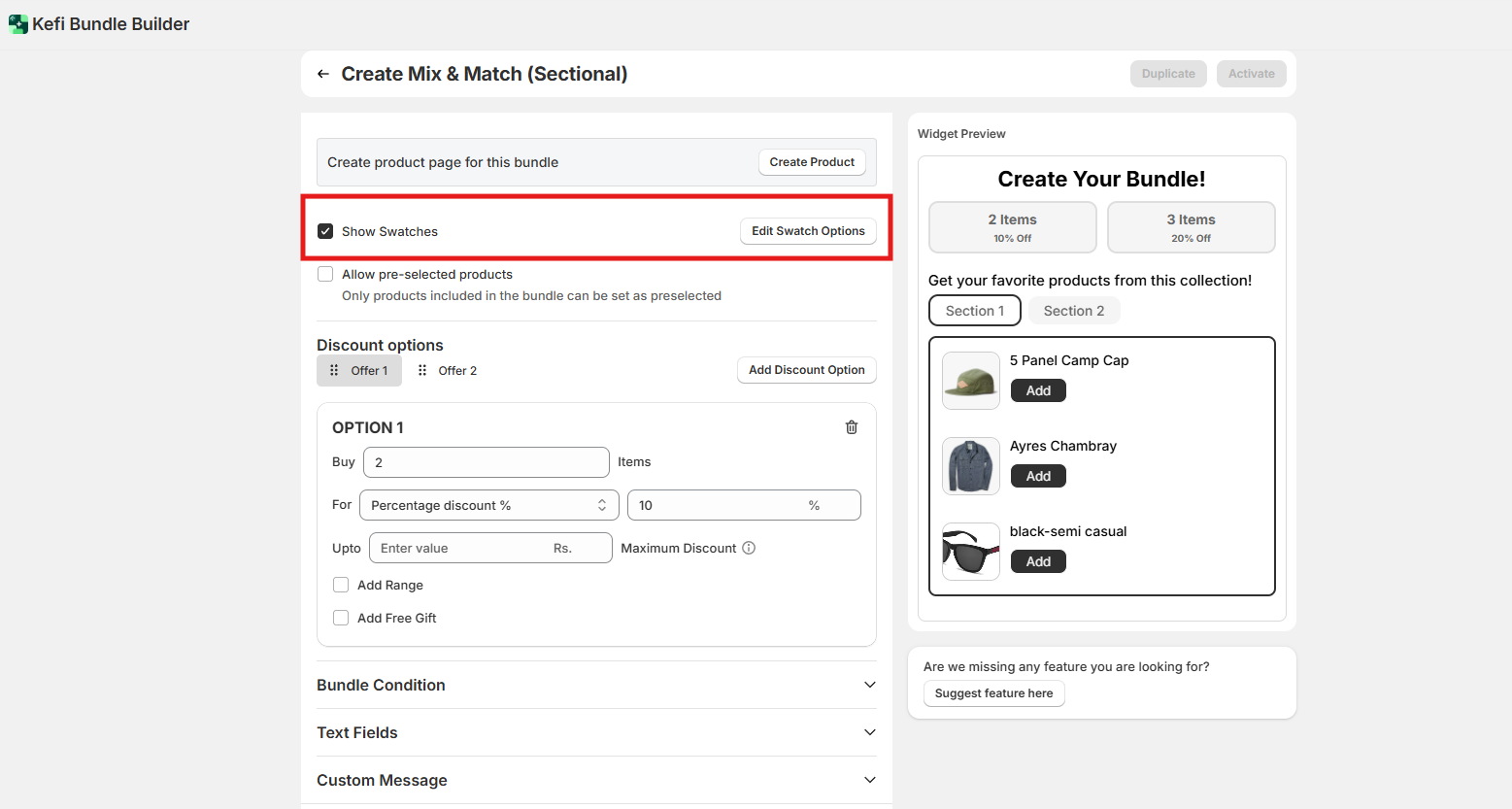
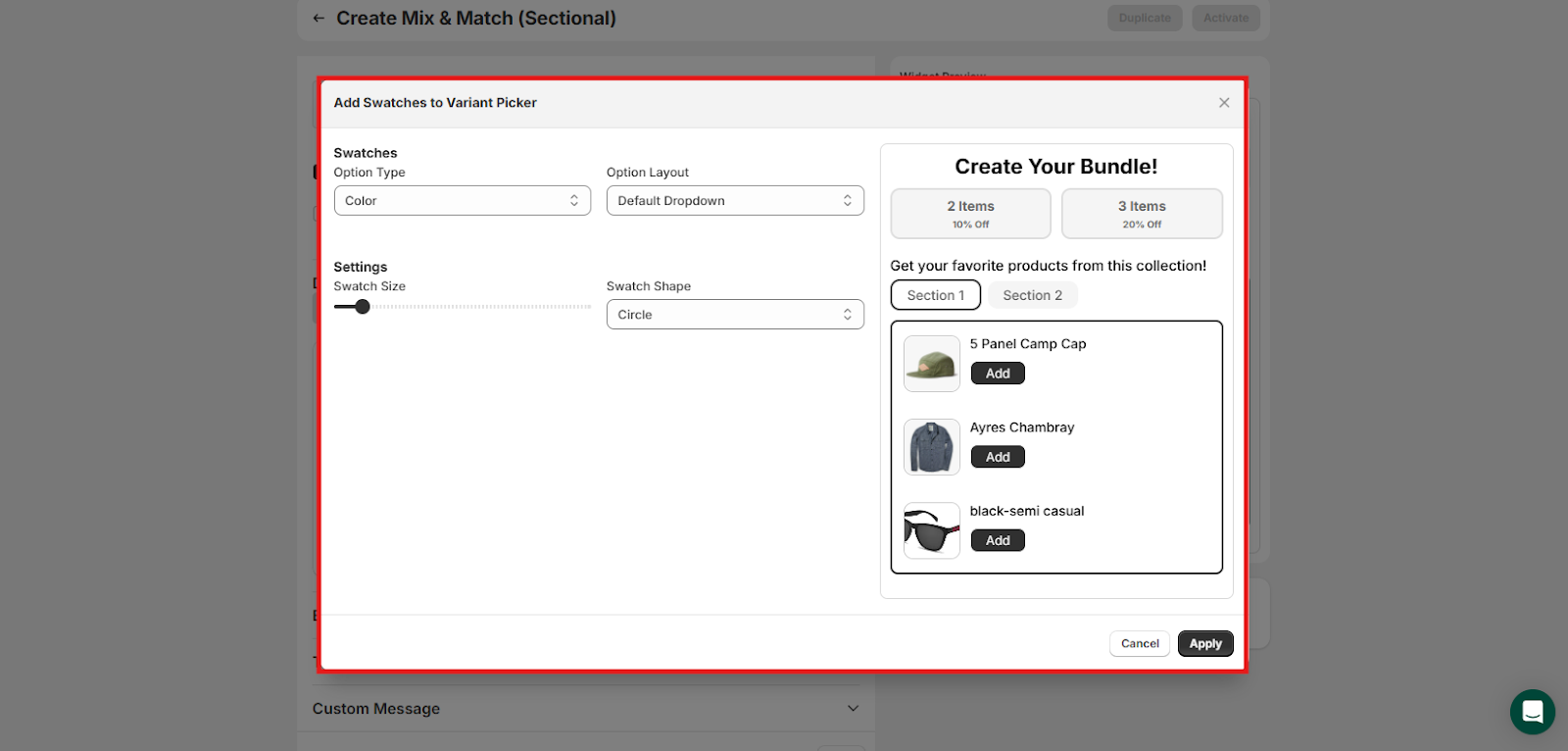
To personalize how these swatches appear, click on Edit Swatches. You can configure:
Swatches Option Type –
For example, Color or Size
Option Layout
Swatch Size
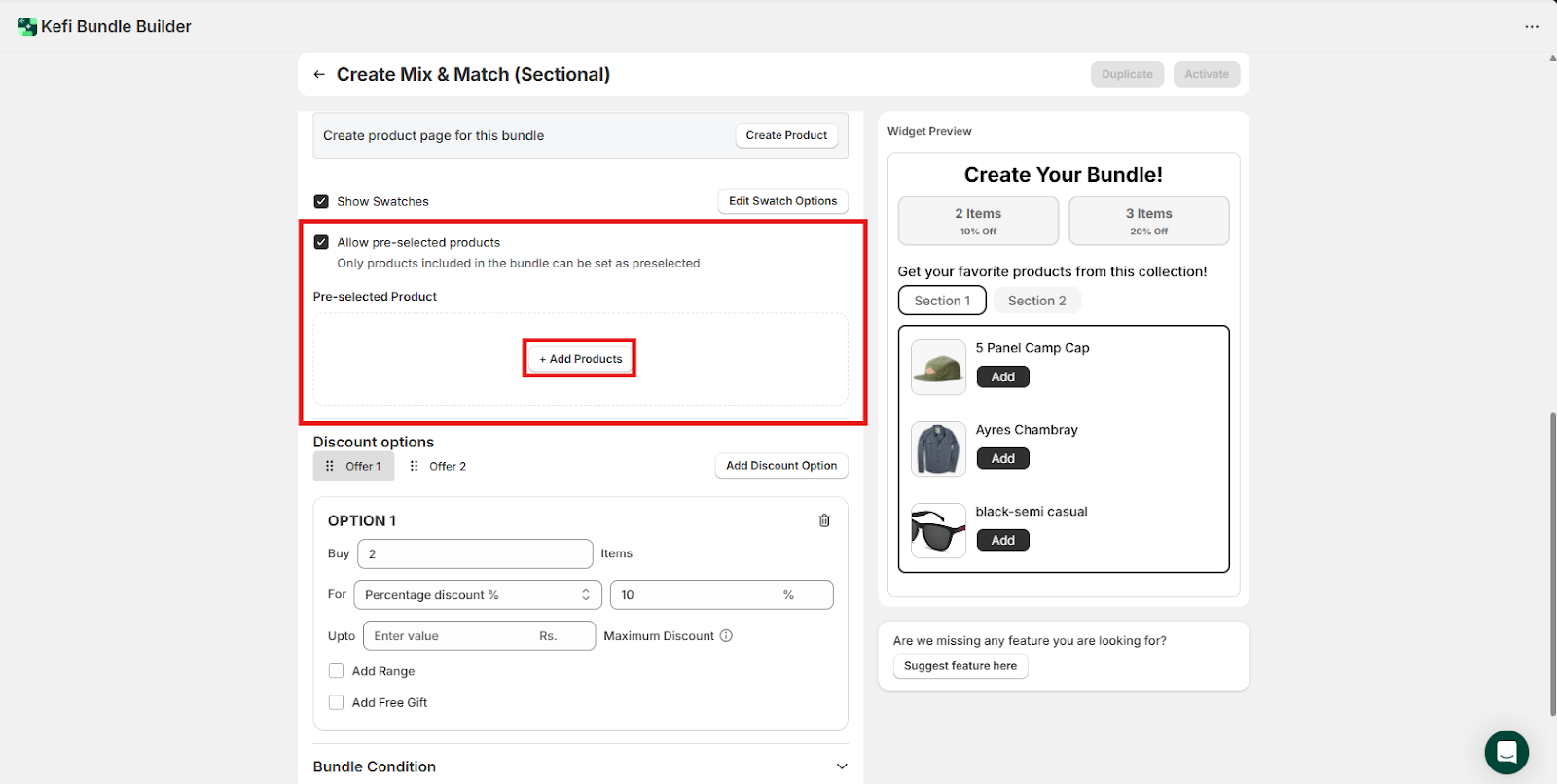
Allow Pre-Selected Products – Enable this option to set certain
products as preselected within the bundle. Only the products included in the bundle can be marked as preselected.
3. Discount Option
This section allows you to set up the discount for your Bundle. Choose the
discount type that best suits your promotion strategy:
Percentage Discount – e.g., “Get 20% off when you buy 3
items.”
Fixed Amount Discount – e.g., “Save $10 on a bundle of 4 products.”
Fixed Bundle Price – Set a single
price for the entire bundle, e.g., “Buy 5 T-shirts for $60.”
Without Discount – Let customers build bundles without
any price reduction, ideal for personalization-only offers.
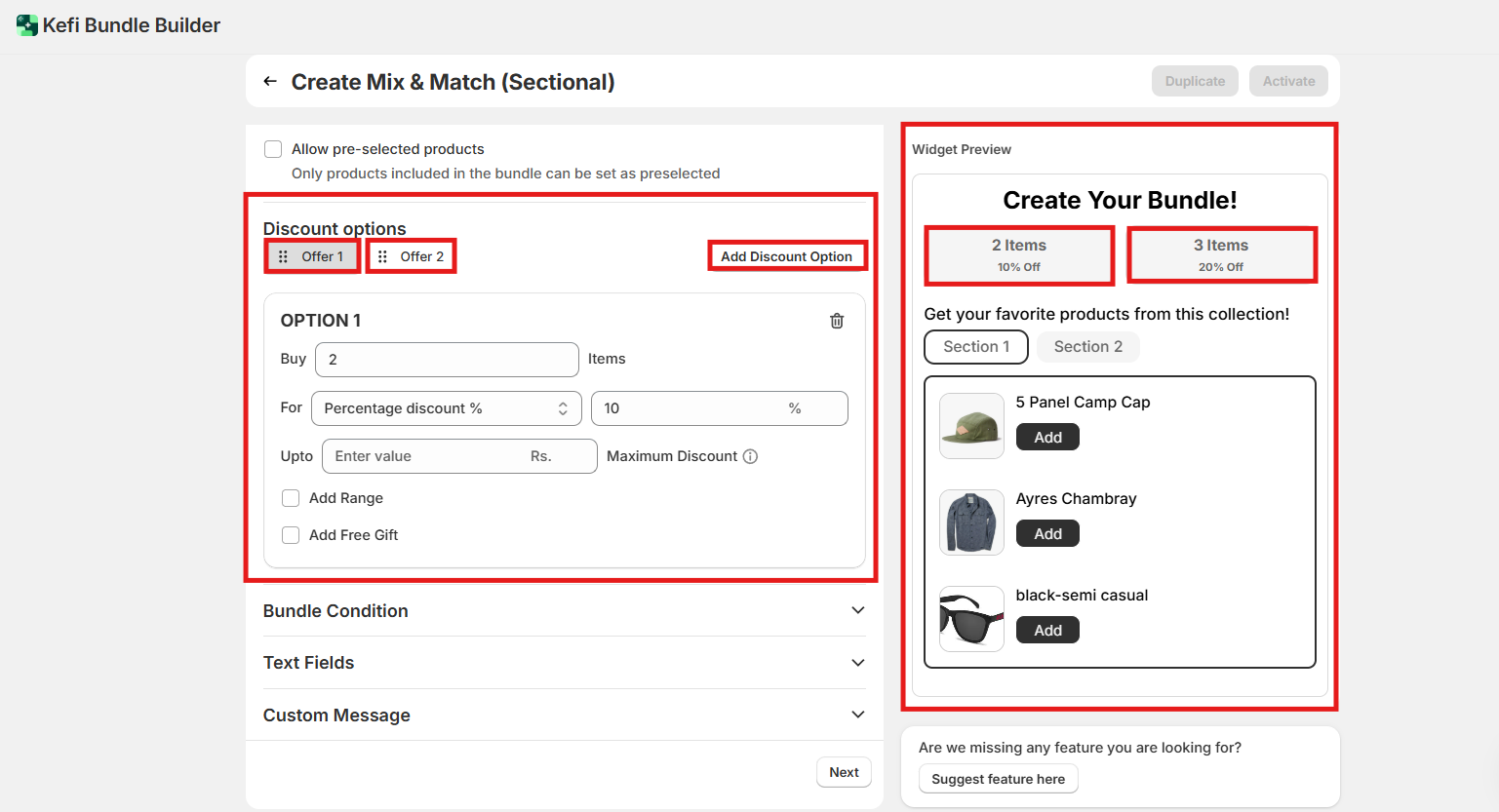
For this guide, we’ve created 2 percentage-based discount offers for both sections to demonstrate how tiered
pricing works:
Offer 1: Buy 2 items – 10% Discount
Offer 2: Buy 3 items – 20% Discount
You can add additional
discount tiers by clicking the “Add Discount Offer” button.
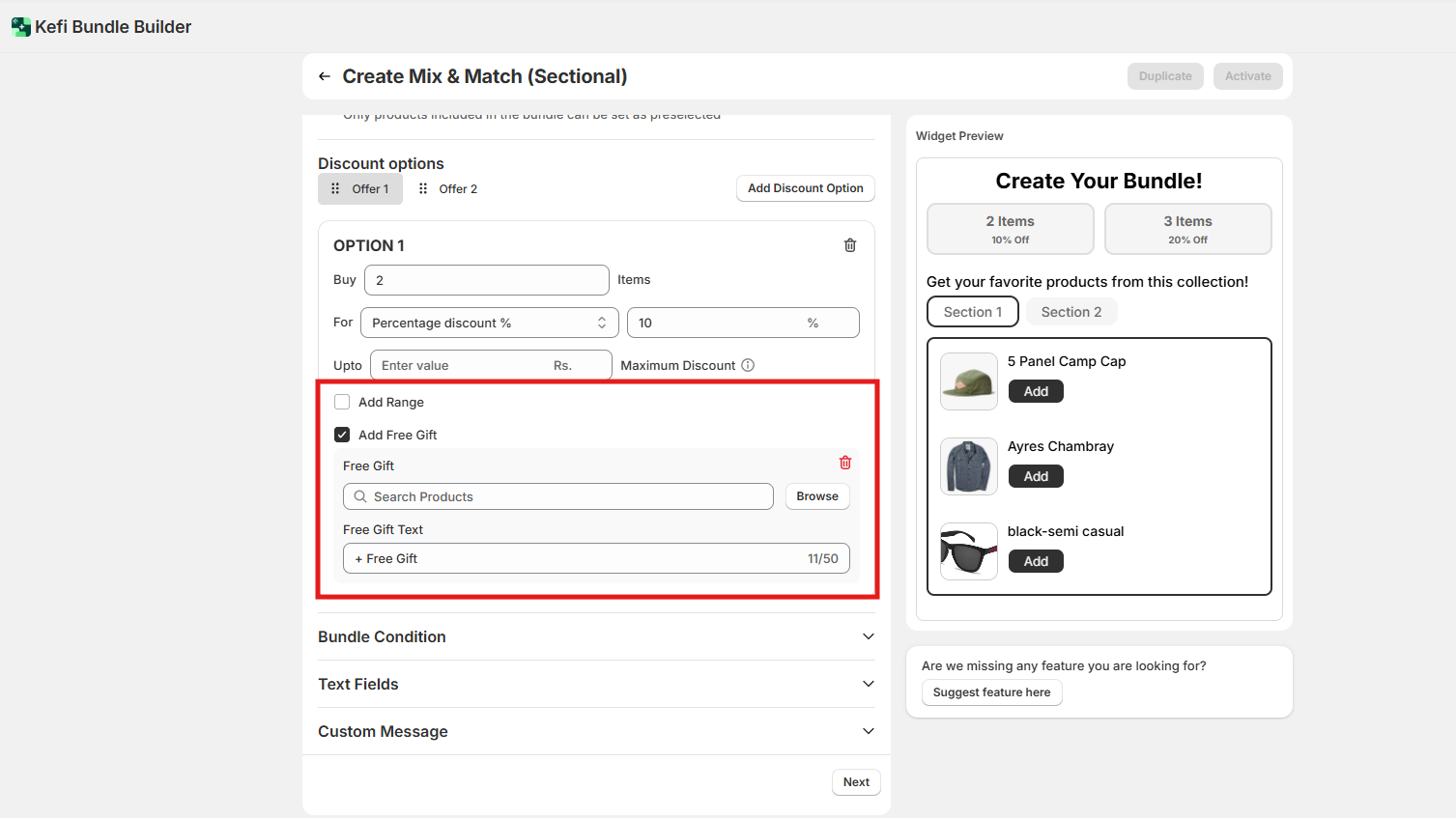
Additional Discount Features:
Set a Range: Define minimum and maximum product quantities
required to activate each offer (e.g., Buy 2–3 items to unlock 10% OFF).
Add a Free Gift: Reward customers with a
free product when they meet bundle criteria.
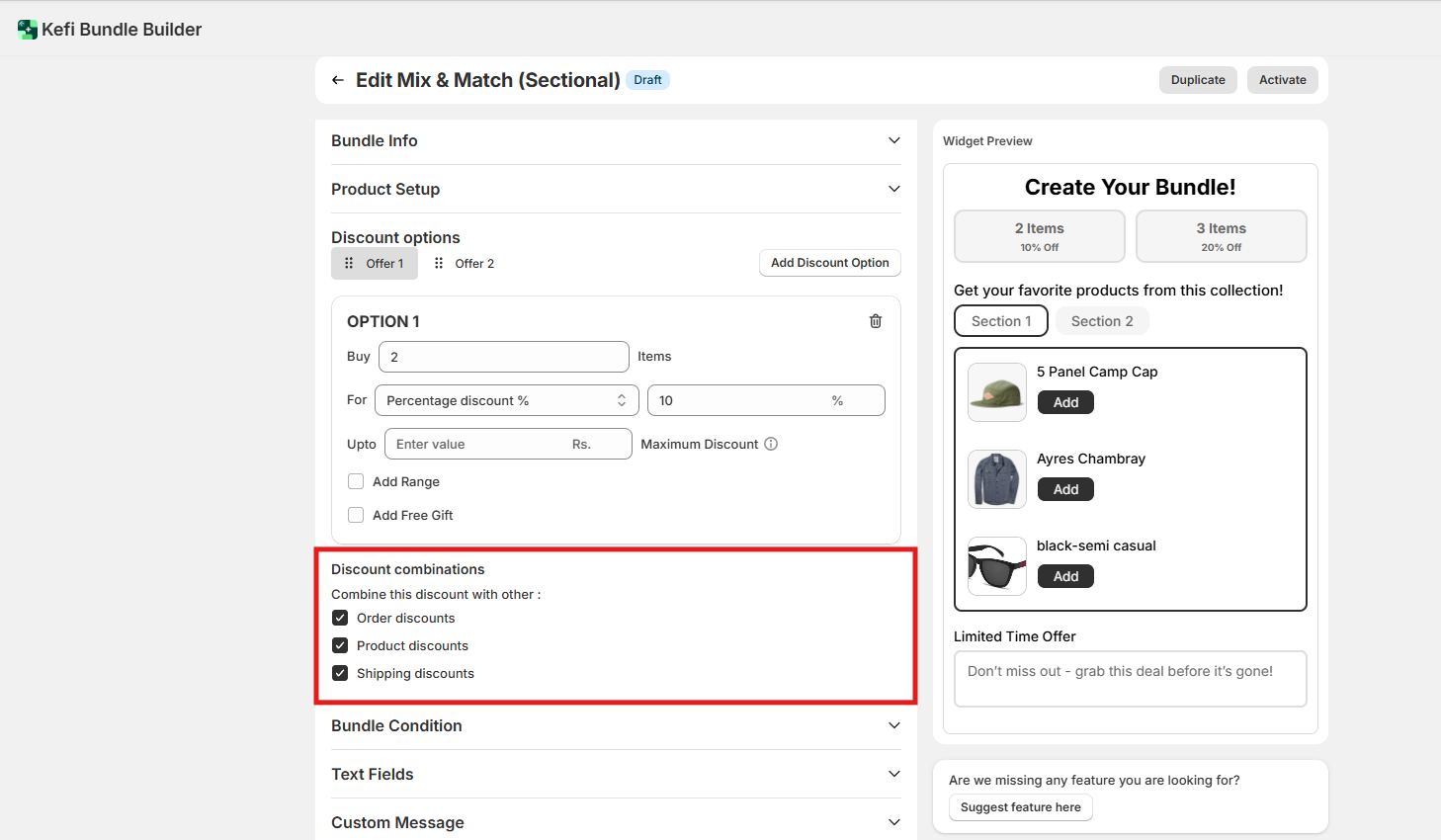
Combine this discount with other:
You can choose to combine your add-on discount with other
types of discounts active in your store, including:
Order Discounts – Overall discounts applied to the total order
value
Product Discounts – Discounts applied to individual products in the cart.
Shipping Discounts – Reduced
or free shipping offers applied at checkout.
This allows you to create more compelling promotions by layering
multiple incentives for your customers.
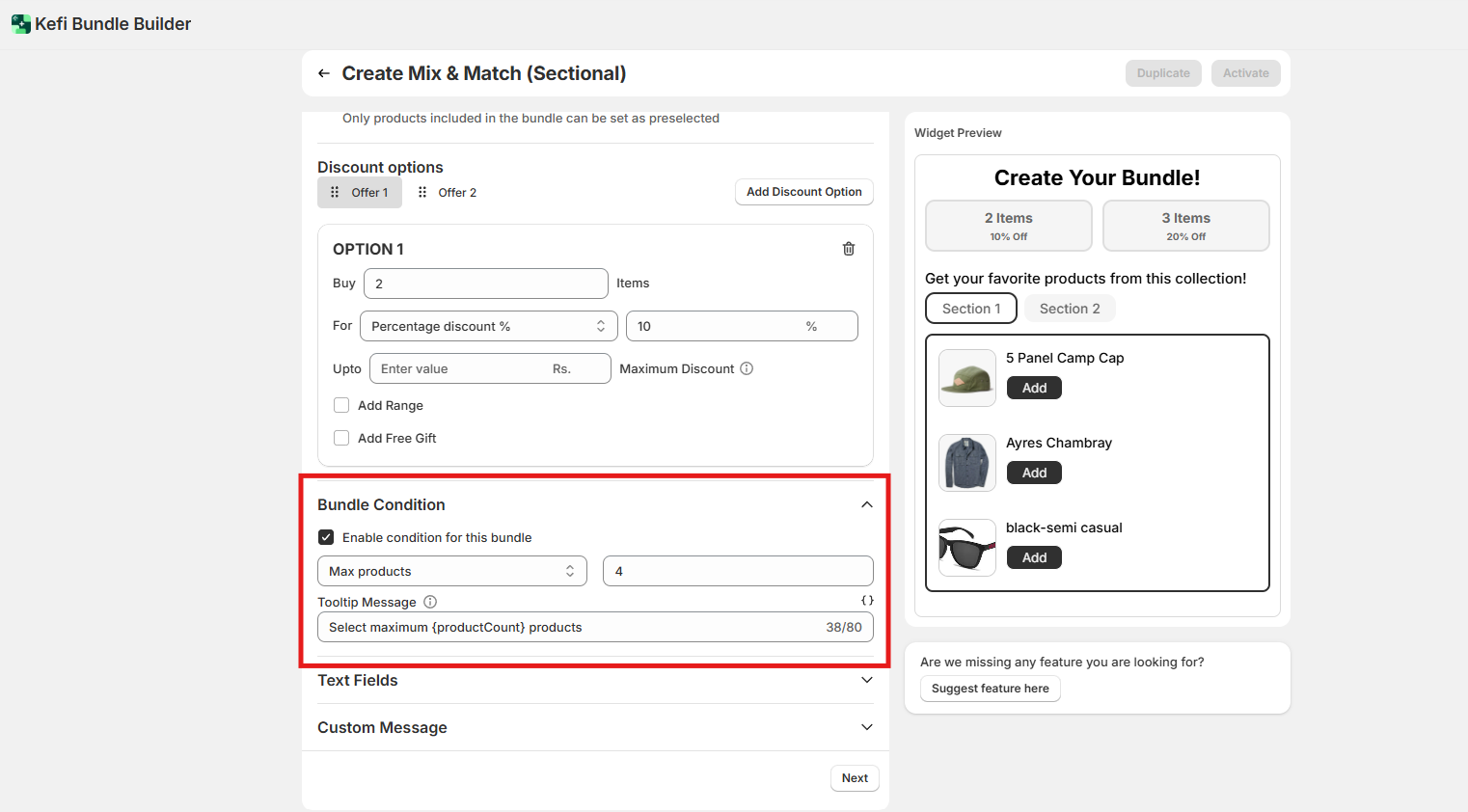
4. Bundle Condition
Enable this option to set specific conditions that must be met before the
bundle can be added to the cart.
Enable Condition for This Bundle – Turn on this feature to apply product selection
requirements.
Select the Max, Min, or Exact Number of Products – Define how many products a customer must
choose to meet the condition.
Tooltip Message – Add a message that will appear when users hover over the “Add
to Cart” button, provided the required conditions haven’t been met. This helps guide customers to complete the
necessary selections.
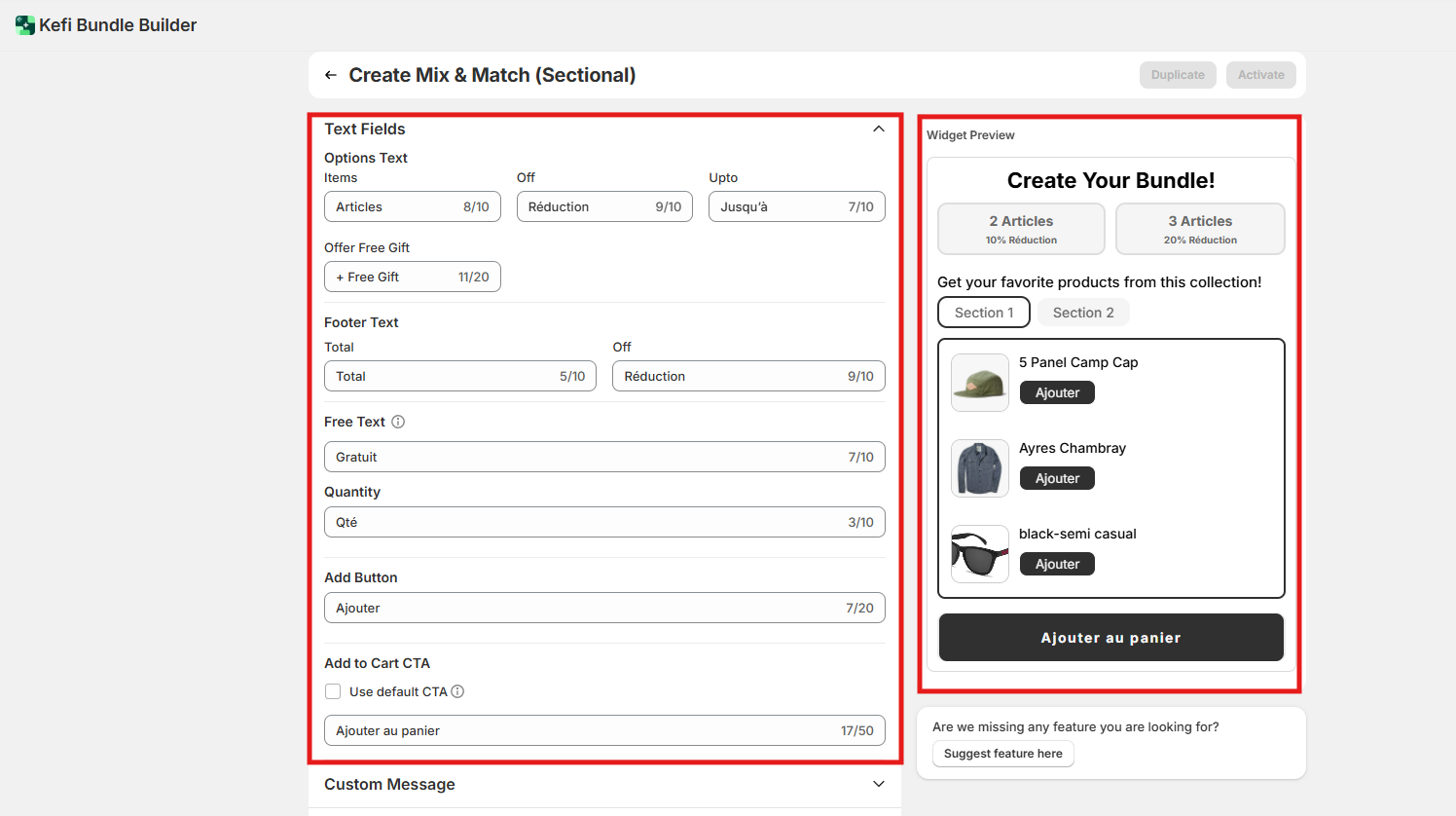
5. Text Fields
This section allows you to customize all the text shown on the Mix and Match
(Sectional) bundle widget. It’s perfect for aligning the language with your brand tone or translating content for
different markets.
You can easily update key elements such as:
Options Text – Label for product
choices
Footer Text – Summary or instructional message at the bottom
Free Text – Message for free gift offers
Quantity – Labels for item quantities
Add Button – Text for adding products to the bundle
Add to Cart CTA –
Main call-to-action button text
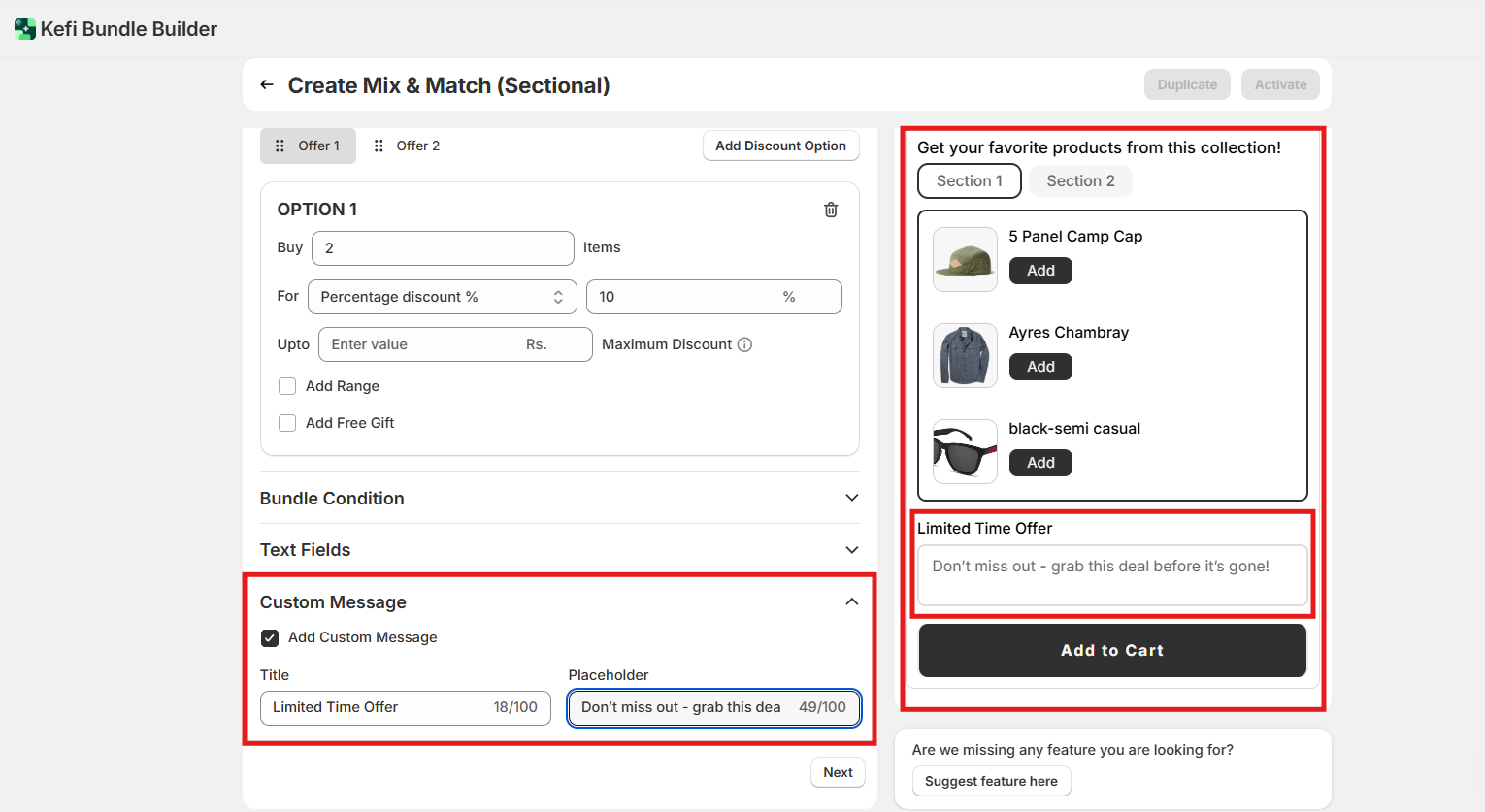
6. Custom Message
Add any additional note or promotional message (e.g., “Get a free pouch
with every 3-piece set!”). This appears within the bundle widget and can be a great call-to-action.
How to Add
a Custom Message:
Click on the “Add Custom Message”
button.
Enter a Title – This will appear as a heading inside the widget.
Add your Message in the
placeholder.
7. Widget Preview
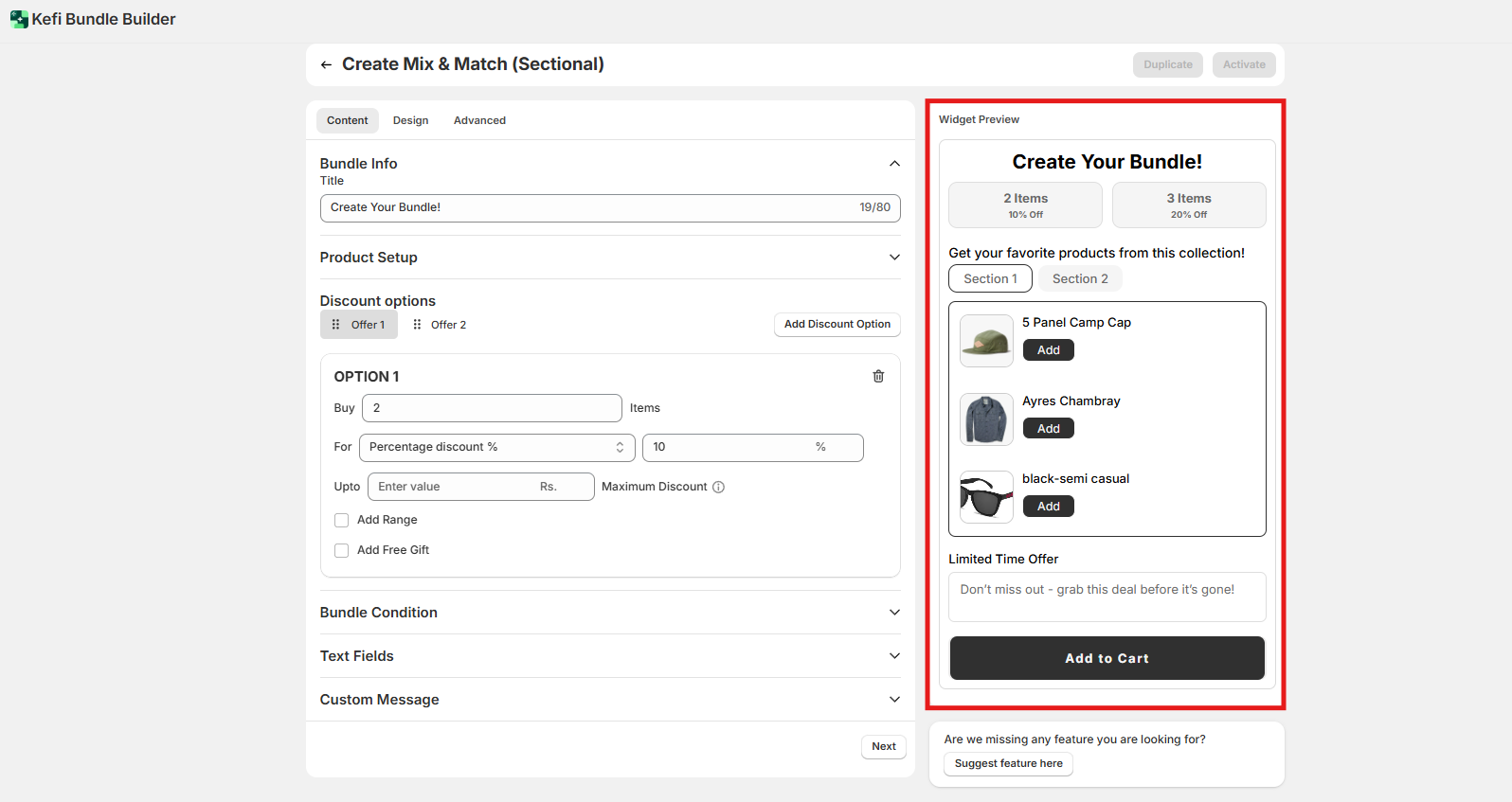
On the right-hand side, you’ll see a live preview of your bundle as you
build it. This helps you:
Visualize how your sections and products are displayed
Ensure your text and
layout look polished before publishing
Now , click on the “Next” button to proceed to the next section
.
After clicking the next you would be redirected to the next section that is Design
Step 3:
The Design section allows you to customize the appearance of your bundle widget, ensuring it aligns with
your store’s branding and layout. This section includes multiple styling options, grouped into categories for easier
navigation.
Let’s explore the first category: General.
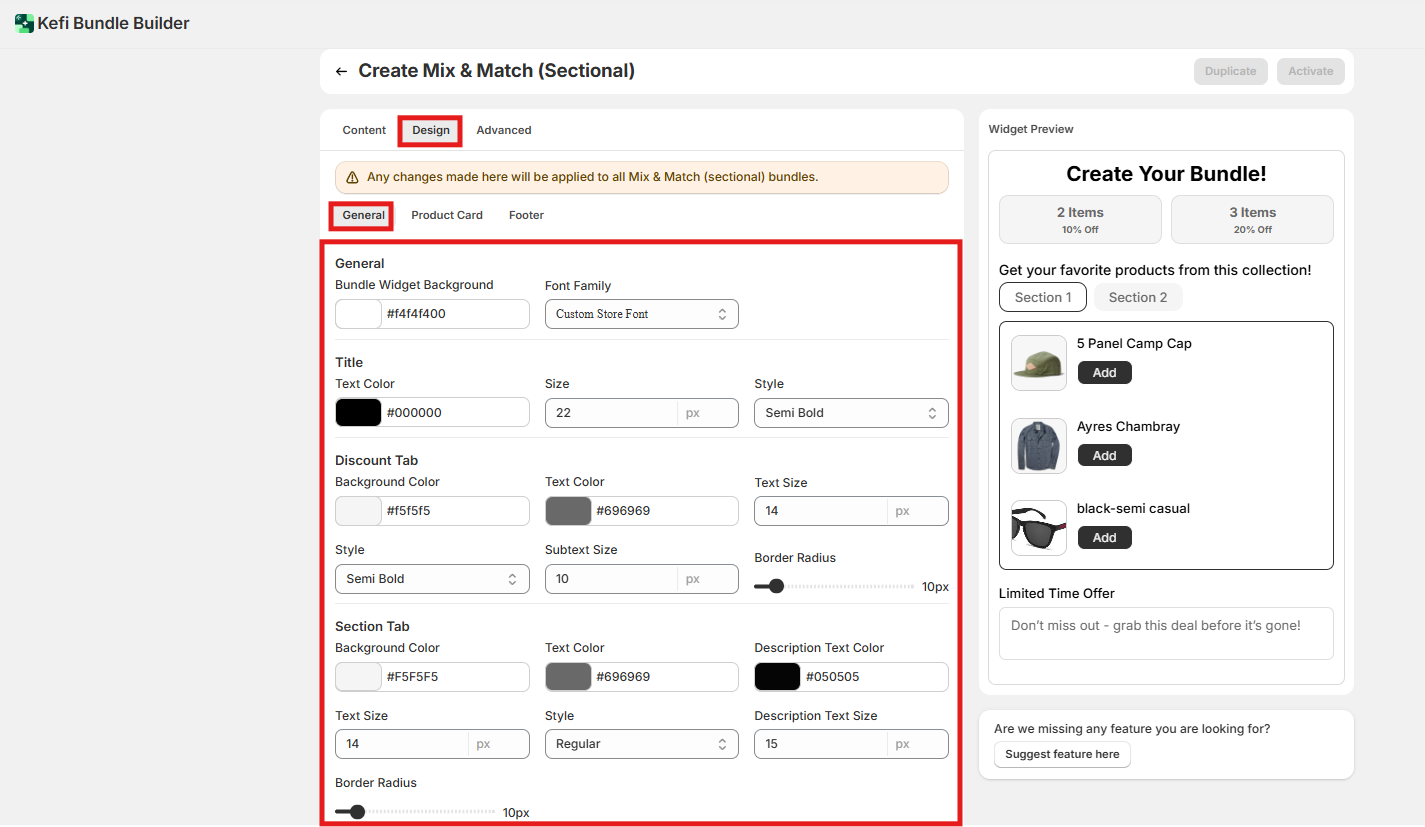
1. General
Use the General settings to define the overall look and feel of the bundle widget.
These settings affect the background, fonts, and styles for various sections.
Bundle Widget Background
Set the
background color for the entire bundle widget.
Font Family
Choose the font that best
matches your store's branding.
Title
Text Color – Customize the color of the title
text.
Size –
Adjust the font size of the
title.
Style – Choose font styles like bold, italic, or underline.
Discount
Tab
Customize how the discount information appears:
Background Color – Set the background color of
the discount tab.
Text Color – Choose the text color for the main discount message.
Text Size – Set the font
size of the discount text
Style – Apply text styling (bold, italic, etc.).
Subtext Size – Define the font size
for any subtext (e.g., conditions or notes).
Border Radius – Adjust the corner roundness of the tab for a softer or
sharper look.
Section Tab
Control the styling of each bundle section’s tab:
Background
Color – Set the background color of the section tabs.
Text Color – Customize the tab title text
color.
Description Text Color – Define the color for any descriptive text.
Text Size – Adjust the size of the
section tab title.
Style – Apply font styling (bold, italic, etc.).
Description Text Size – Set the font size
for descriptive text.
Border Radius – Modify the curvature of tab corners.
2. Product Card
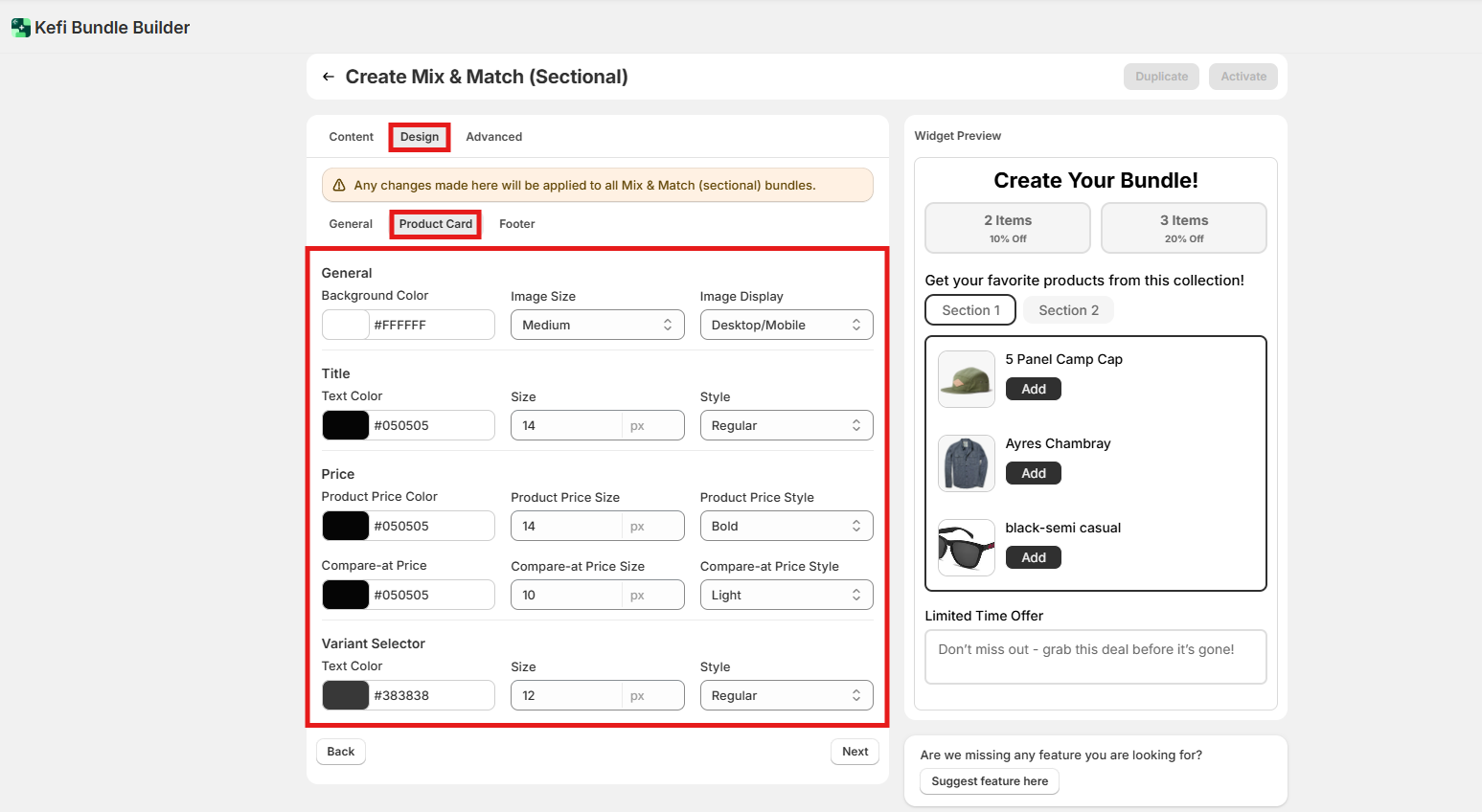
The Product Card settings allow you to customize how each individual product
within the bundle is displayed. This includes the product image, title, pricing details, and variant selection
options.
General
Customize the overall appearance of the product block:
Background Color –
Set the background color for each product card.
Image Size – Adjust the display size of the product image.
Image
Display – Choose how the image appears (e.g., fit, fill, or crop styles, depending on available
options).
Title
Control how the product name is styled:
Text Color – Set the color of
the product title text.
Size – Define the font size for the title.
Style – Apply text styles such as bold,
italic, or underline.
Price
Customize how the product pricing appears:
Product Price
Color – Choose the text color for the current product price.
Product Price Size – Set the font size for the
price.
Product Price Style – Apply text styling (e.g., bold, italic).
Compare-at Price – Useful for showing
original prices before a discount:
Compare-at Price Size – Adjust the font size of the strikethrough
price.
Compare-at Price Style – Style the original price (e.g., italic, strikethrough).
Variant
Selector
Style the dropdown or swatches used for variant selection:
Text Color – Set the color of the
variant selector text.
Size – Adjust the font size.
Style – Apply styling such as bold or italic to the variant
labels.
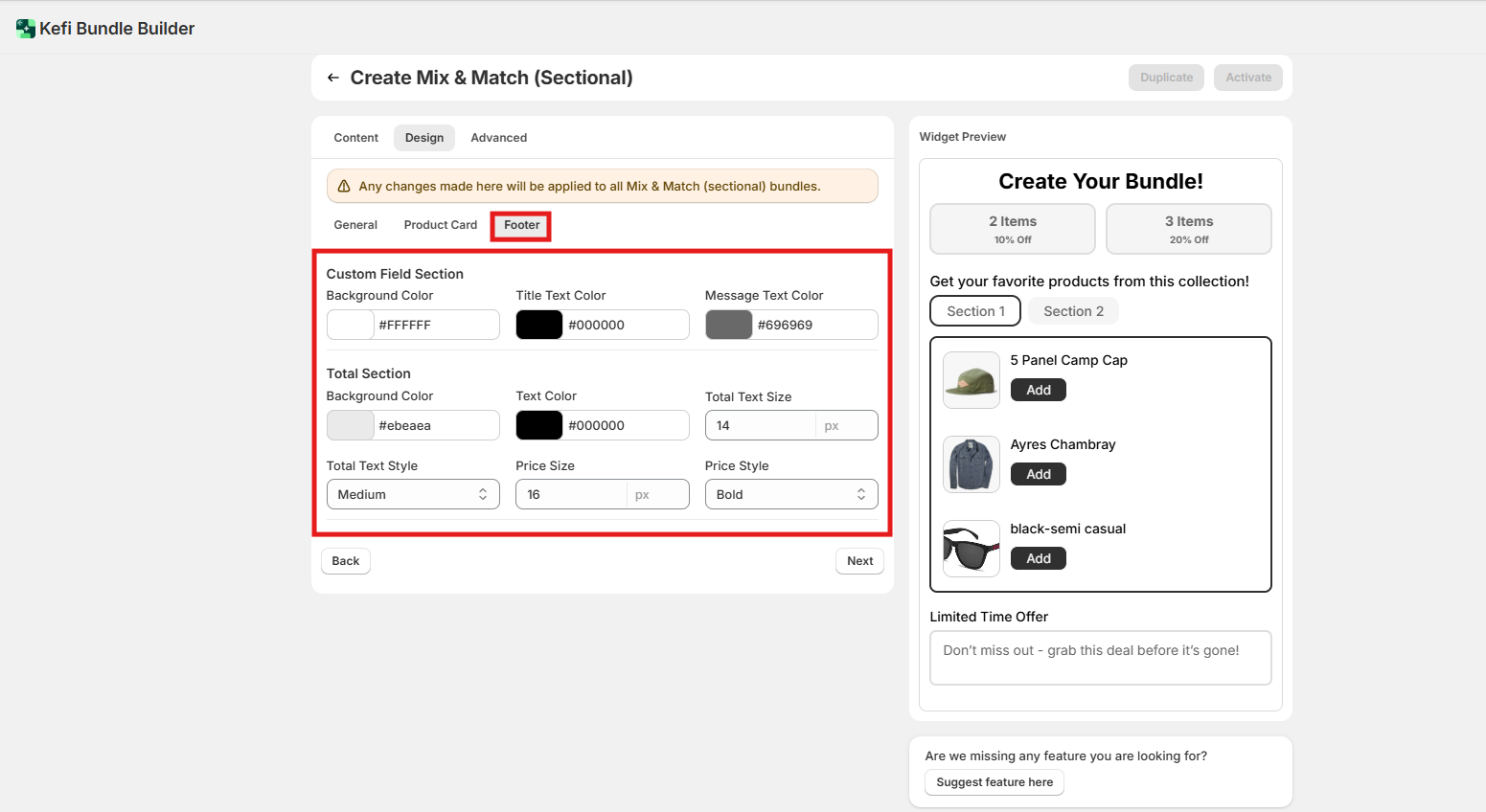
3. Footer
The Footer section lets you customize the final portion of your bundle widget—where
key information like custom messages and total pricing is displayed. This is an important area for reinforcing clarity
and encouraging conversions.
Custom Field Section
This area typically displays any custom messages or additional
fields you want to show at the bottom of the widget.
Background Color – Set the background color for this
section.
Title Text Color – Define the color of any titles or labels used.
Message Text Color – Customize the
text color for additional messaging or field content.
Total Section
This section
highlights the total price of the selected bundle. There appear to be two Total Section blocks, so I’ve listed both
for clarity. You may want to consolidate or rename if these refer to different elements.
Background Color – Set the
background color for the pricing block.
Text Color – Choose the color for the total price label.
Total Text Size
– Adjust the font size of the "Total" label.
Total Text Style – Apply styling (e.g., bold, italic) to the total
label.
Price Size – Set the size of the final bundle price text.
Price Style – Apply styling (e.g., bold,
italic) to the price value.
Now , click on the “Next” button to proceed to the next section
.
After clicking the next you would be redirected to the next section that is “Advance”
Step 4:
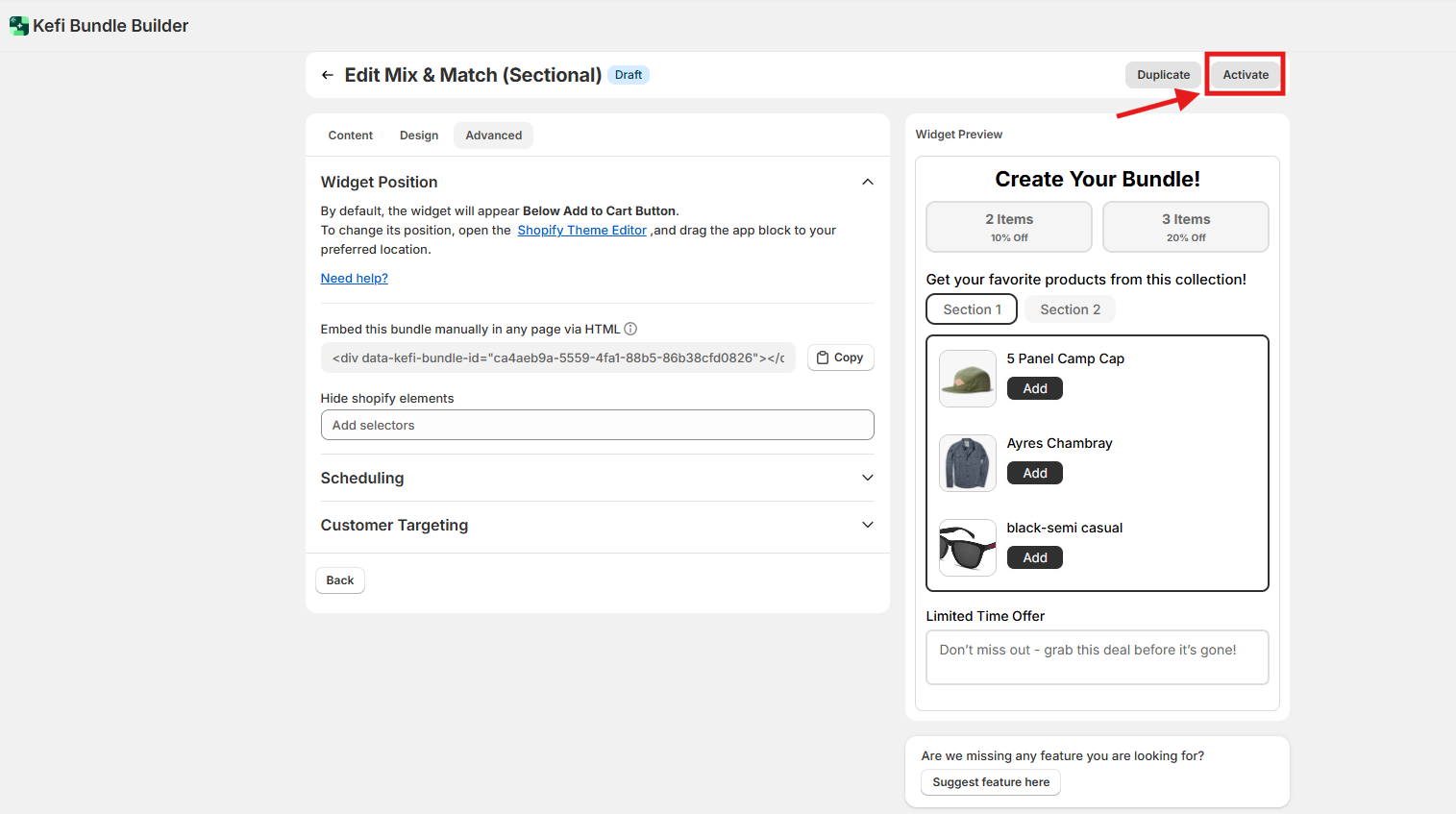
Advanced Settings - The Advanced section gives you greater control over when, where, and to whom the
bundle widget is shown. These settings are useful for precise targeting and scheduling. Let’s dive into each
option:
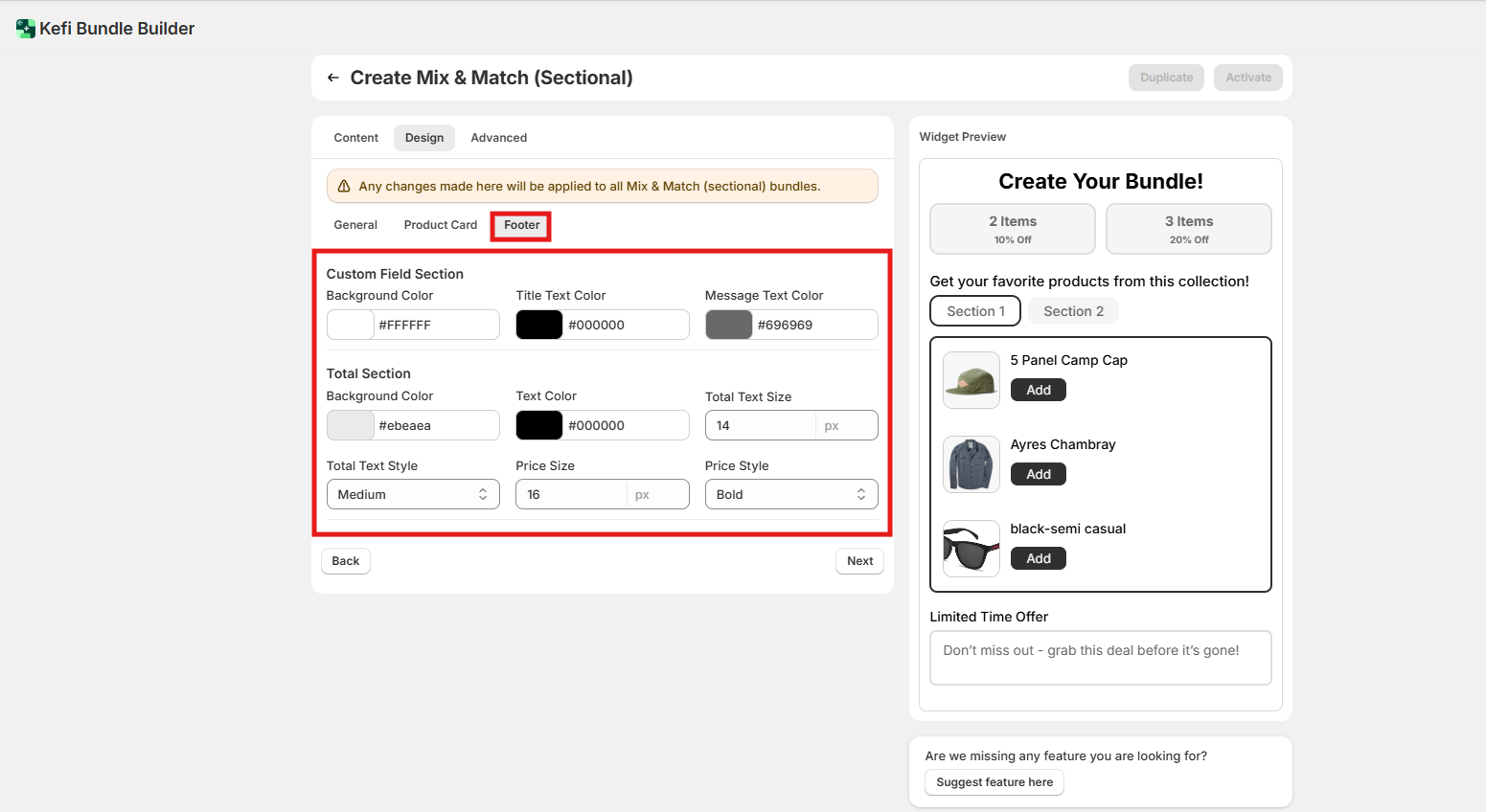
1. Widget Position
By default, the widget will appear below the Add to Cart
button.
To change its position, open the Shopify Theme Editor, and simply drag the app block to your preferred
location on the product page—no coding required.
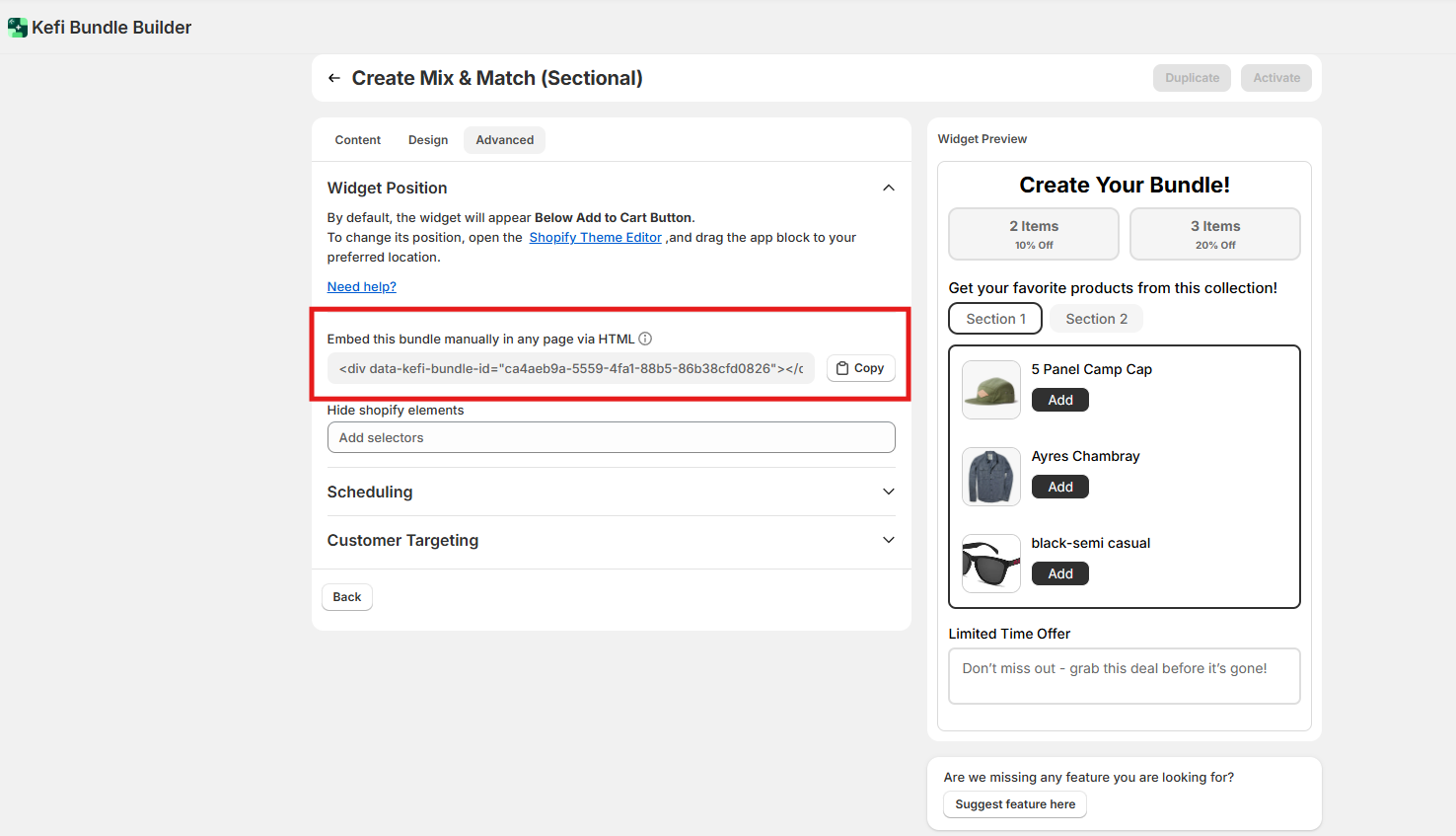
Embed Bundle via HTML
You can also embed this bundle manually on any page using
HTML.
Display the bundle wherever you like by placing the provided HTML tag directly into your theme file.
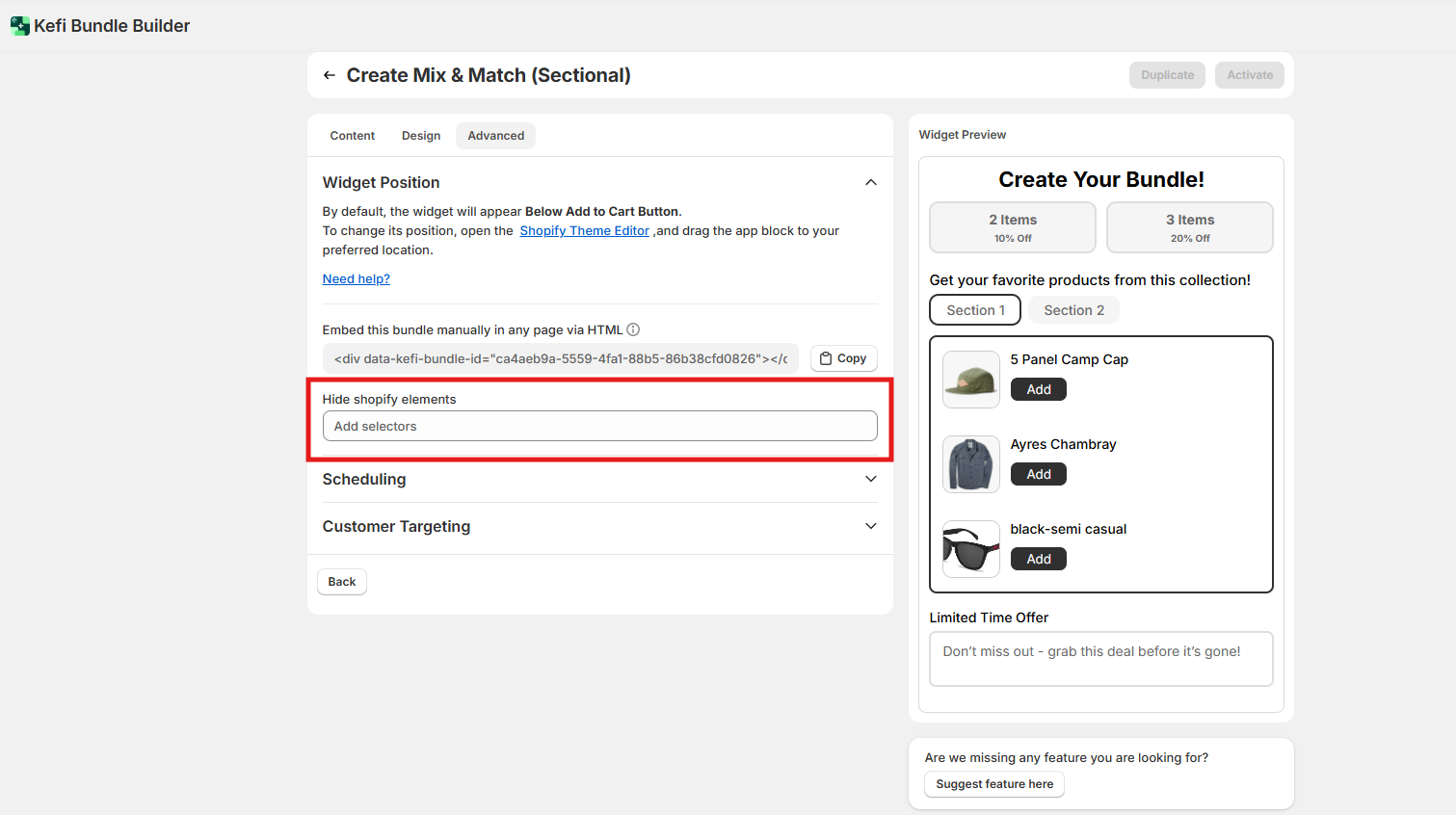
Hide Shopify Elements
You have the option to hide specific Shopify elements (like the
default Add to Cart button or product price) to reduce redundancy when showing bundles.
Simply enter the CSS
selectors of the elements you'd like to hide.
For
example:
.product__price
.product-form__buttons
This helps create a cleaner, more focused layout around
your bundle widget.
For a detailed step-by-step guide, refer to this help article:
How to Position Bundles on Your Product
Page
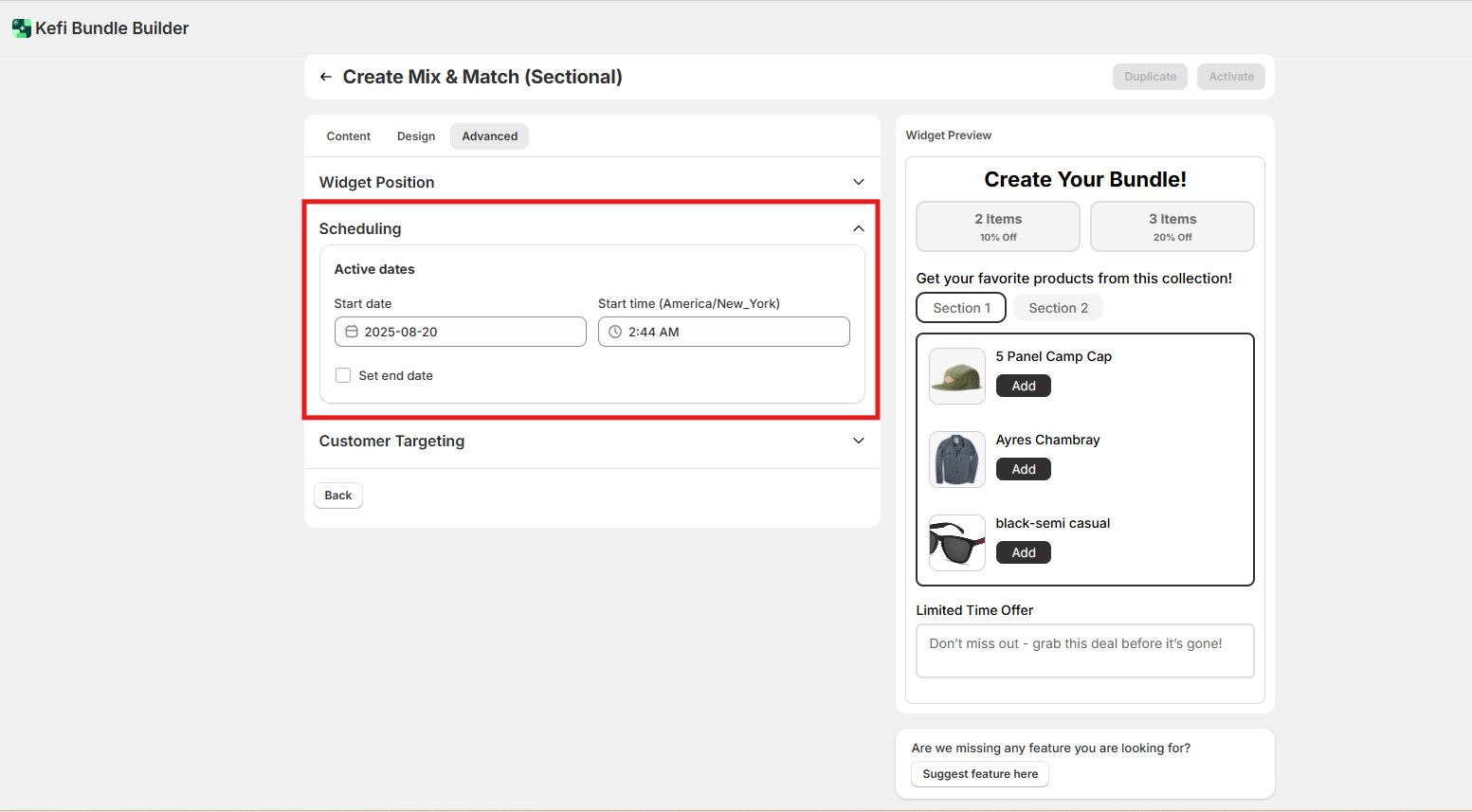
2. Scheduling
Set a start and end date for your bundle campaign. This is perfect for
time-sensitive promotions, seasonal offers, or flash sales. The widget will only display during the defined period.
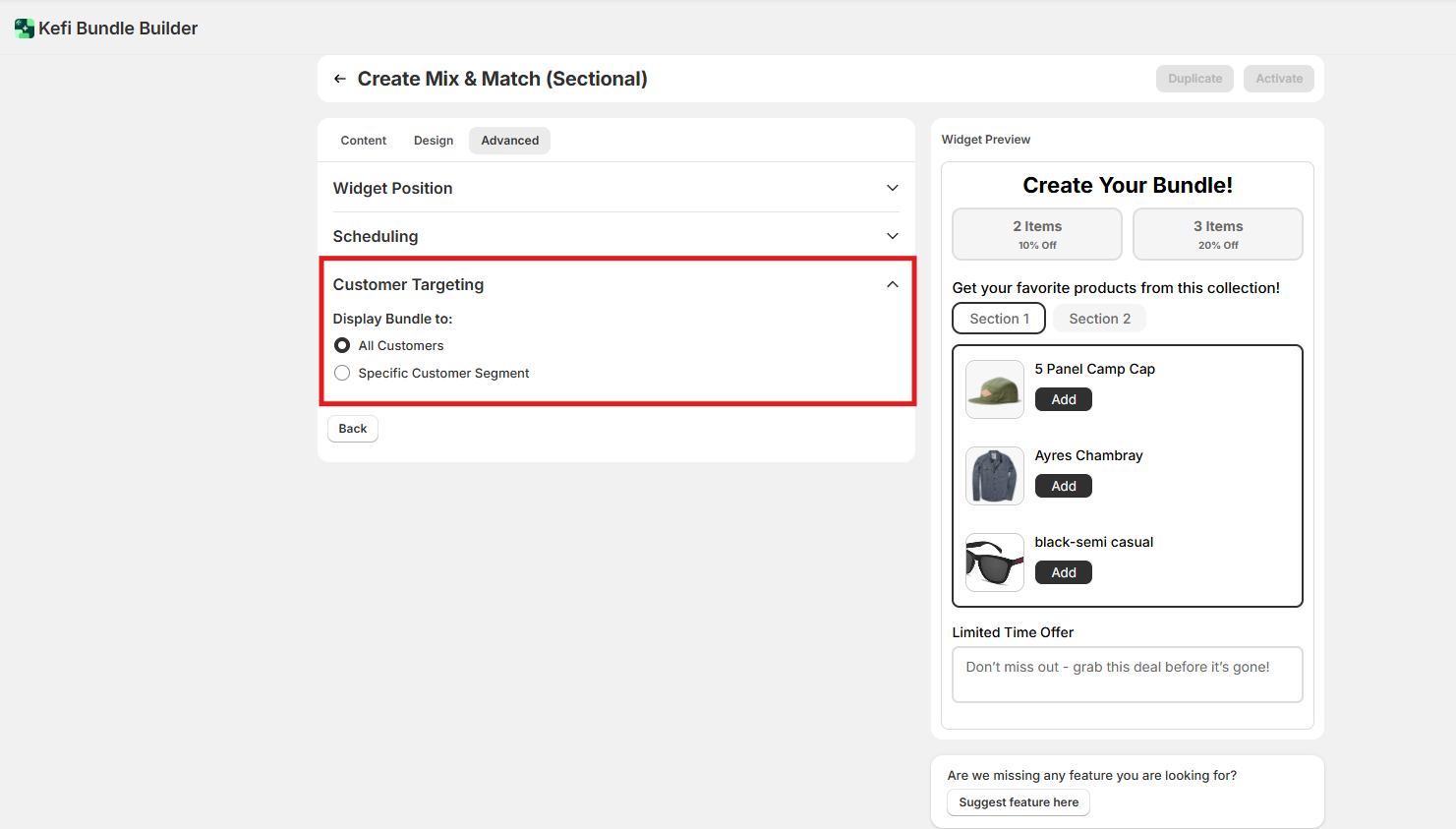
3. Customer Targeting
Control who sees the bundle by targeting:
All customers
Specific
customer segment
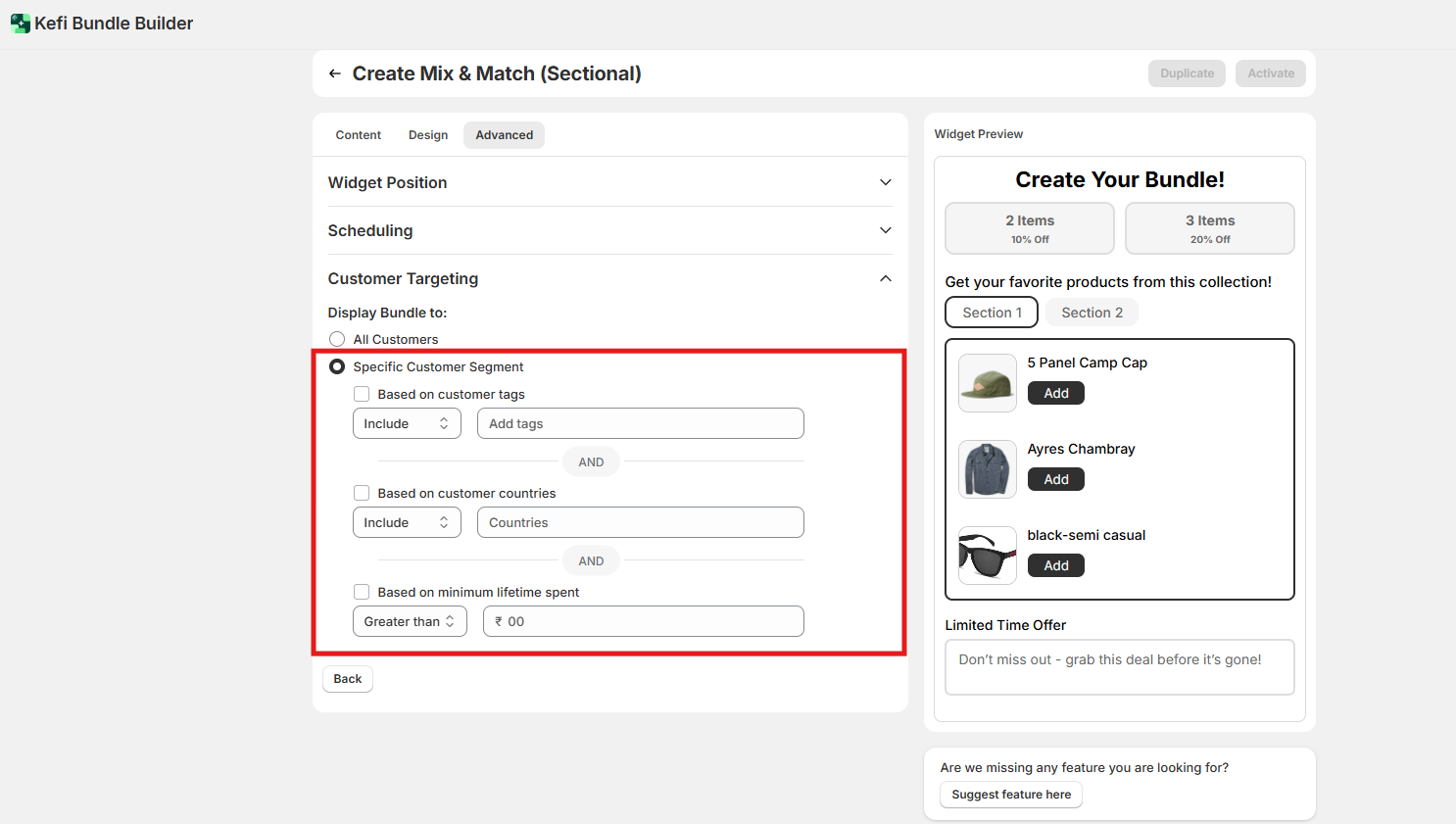
In case of Specific Customer Segment -
Customer Tags - Show bundles only to users with certain
Shopify tags (e.g., “VIP”, “Loyal”). You can include/exclude based on tags.
Customer Countries - Limit bundle
visibility by geographic region — useful for country-specific offers or regulations. You can include/exclude based on
countries.
Minimum Lifetime Spend - Display bundles only to customers who’ve spent above or less than a set
threshold.
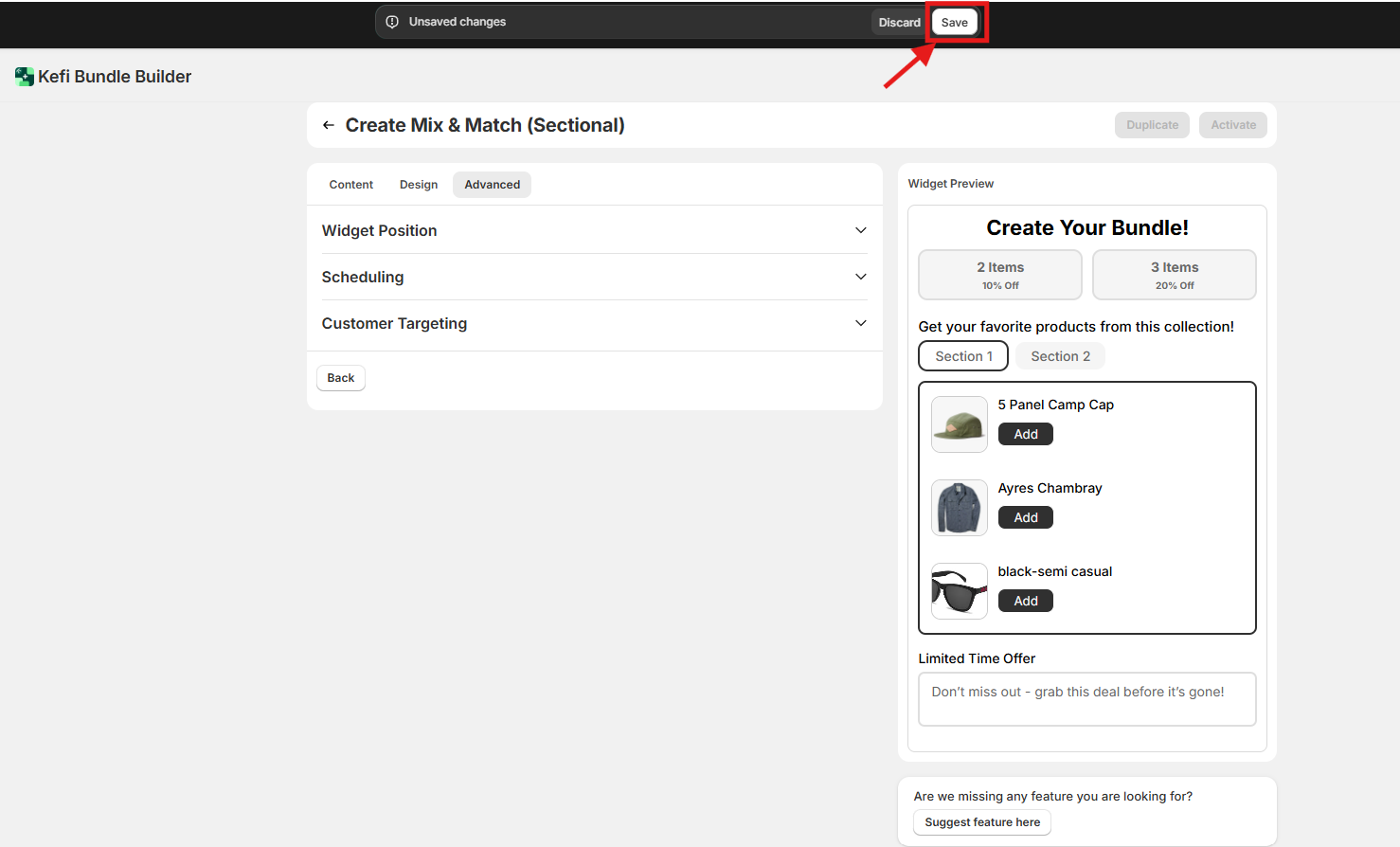
STEP 5
Click on “Save” button to save all the changes
STEP 6:
Click on “Activate” to activate the widget
on your shopify store(make sure you have enabled the core snippet button in order to see the
bundles on your store).
Your Mix and Match Bundle (Sectional) is Now Live Click the “Show on
Store” button to Preview the bundle as it appears to your
customers
Now, head over to your storefront to see the Mix and Match (sectional) Bundle live in
action.
Need Help?
If you have any questions or need assistance, feel free to contact
us:
Live Chat: Available via the Kefi Bundles app or website.
Email:
[email protected]